9
(3.2) Rear Panel
1
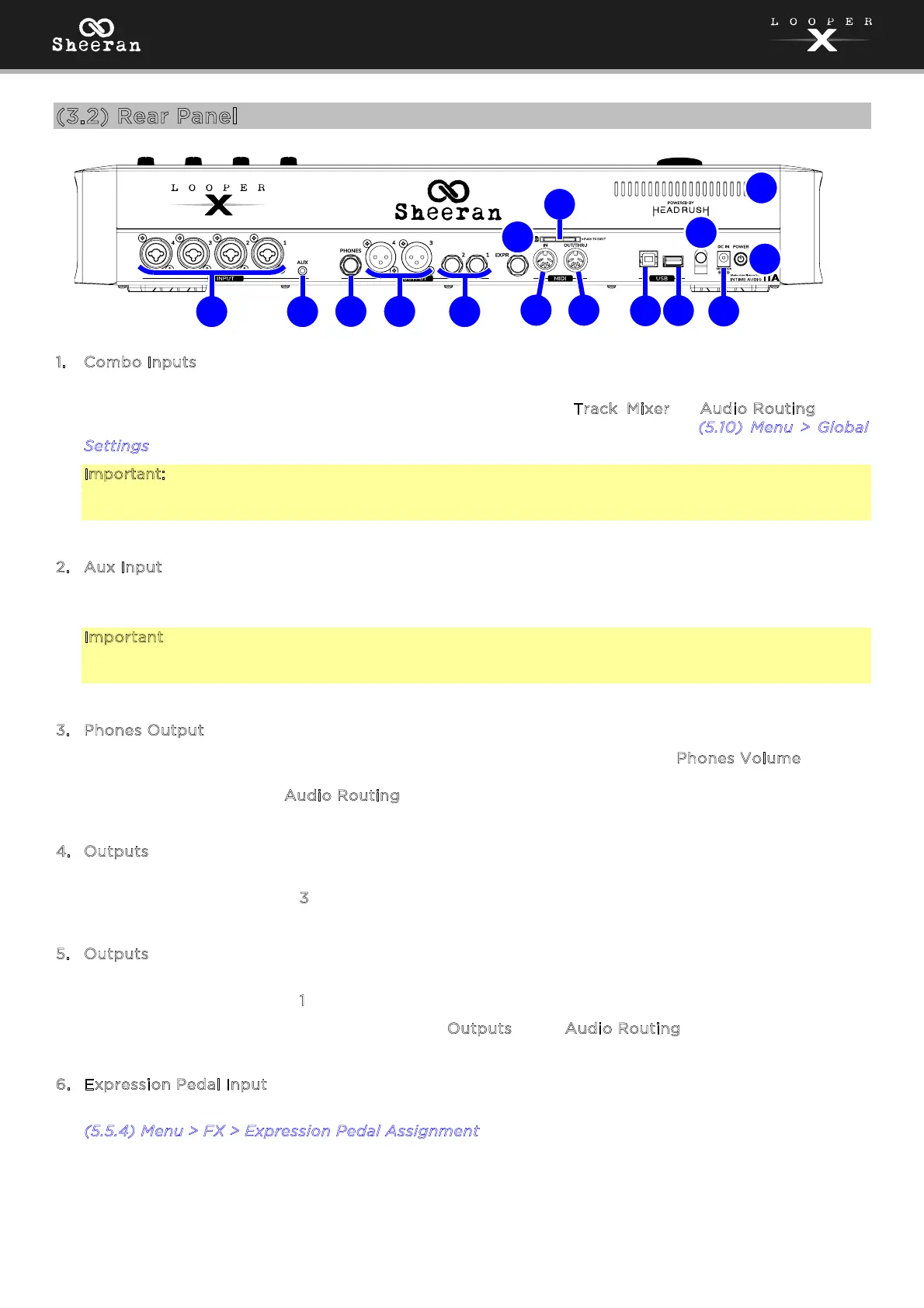
. Combo Inputs (XLR or 1/4” [6.35 mm] balanced)
Connect a microphone, guitar, or other sound source to these inputs using a standard XLR or 1/4”
(6.35 mm) cable. You can view the incoming signal level in the T
rack, Mixer, or Audio Routing views.
You can also enable or disable +48V phantom power for these inputs in the (
5.10) Menu > Global
S
ettings screen.
Important: Only enable phantom power if your microphone requires it. Most dynamic microphones and
ribbon microphones do not require phantom power, while most condenser microphones do. Consult your
microphone's documentation to find out whether it needs phantom power.
2
. Aux Input (1/8” [3.5 mm] TRS)
Connect an optional audio source (e.g., smartphone, tablet, etc.) to this input using an 1/8” (3.5 mm)
stereo cable.
Important: The audio signal from the aux input is routed directly to the outputs of Sheeran Looper X
without any modeling or eects applied and cannot be used by the looper. It is also unaected by the
main volume or phones volume knobs.
3
. Phones Output (1/4” [6.35 mm], TRS)
Connect standard 1/4” (6.35 mm) stereo headphones to this output. Use the P
hones Volume knob on
the top panel to control the volume level. You can view the outgoing headphone level and adjust
monitoring options in the A
udio Routing view.
4
. Outputs (XLR)
Connect these outputs to the inputs of your mixer, active loudspeaker, etc. If you only need to use one
output, use the one labeled 3
.
5
. Outputs (1/4” [6.35 mm], TRS)
Connect these outputs to the inputs of your amplifier, audio interface, etc. If you only need to use one
output, use the one labeled 1
.
You can view the outgoing signal level of both O
utputs in the Audio Routing view.
6
. Expression Pedal Input (1/4” [6.35 mm], TRS)
Connect an optional secondary expression pedal to this input using a standard instrument cable. See
(
5.5.4) Menu > FX > Expression Pedal Assignment for more information on how to set up expression
pedal parameters.
1
3
4
5
6
2
7
8
9
11
10
14
13
12
15


 To Next Page