11
(4.0) Operation
(4.1) Basic Looping
Sheeran Looper X lets you record audio onto four tracks and store each set of four tracks as a loop. Each
track can have up to 99 layers. Each track can be a minimum of 1 second long, with no maximum length
limit. You can record, play, and stop tracks independently of each other depending on the looper mode
and other settings.
Each track’s pedal LED, progress bar, meter, and/or waveform will use a color to indicate its current state:
• Red: recording
• Amber: overdubbing
• Green: playing
When a track is stopped, the progress bar and meter will turn off, and the waveform (in Wave view) will
be greyed out.
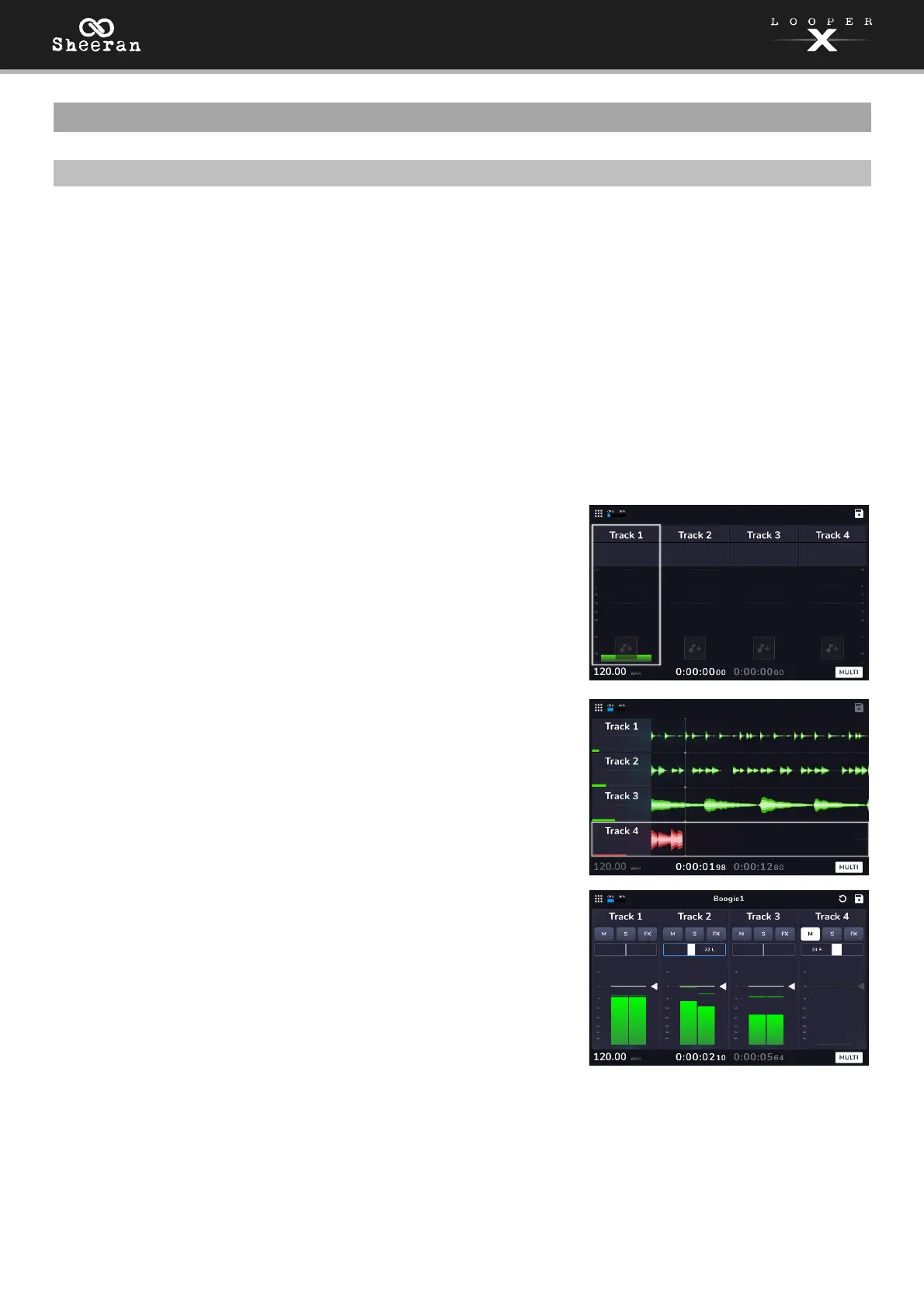
Use the (5.2) Menu > Track page to view the signal level of each
track’s audio.
To show the Track page, tap the Navigation Menu icon at the
top left of the touchscreen, then tap the Track icon.
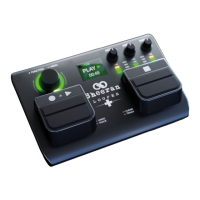
Use the (5.3) Menu > Wave page to view the waveforms of each
track’s recorded audio in your loop.
To show the Wave timeline page, tap the Navigation Menu
icon at the top left of the touchscreen, then tap the Wave icon.
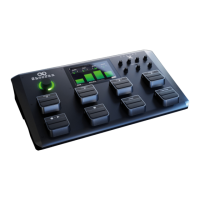
Use the (5.4) Menu > Mixer page to adjust the volume levels and
panning of each track.
To show the Mixer page, tap the Navigation Menu icon at the
top left of the touchscreen, then tap the Mixer icon.
To adjust the volume level of a track, tap and drag the white
line at the top of a meter. To return the level of the track to the
default 0 dB position, double-tap the fader.
To adjust the volume of the main outputs, turn the Main knob.
The left time counter in the bottom bar of the Track, Wave, and Mixer pages indicates the current playback
position of the loop. The right time counter in the bottom bar indicates the length of the longest track in
the loop. Both are displayed as hours:minutes:seconds.centiseconds.


 To Next Page