EasyManua.ls Logo

Siemens Simatic box pc 627b - User Manual

Siemens Simatic box pc 627b
200 pages
Print Icon
To Next Page IconTo Next Page
Loading...
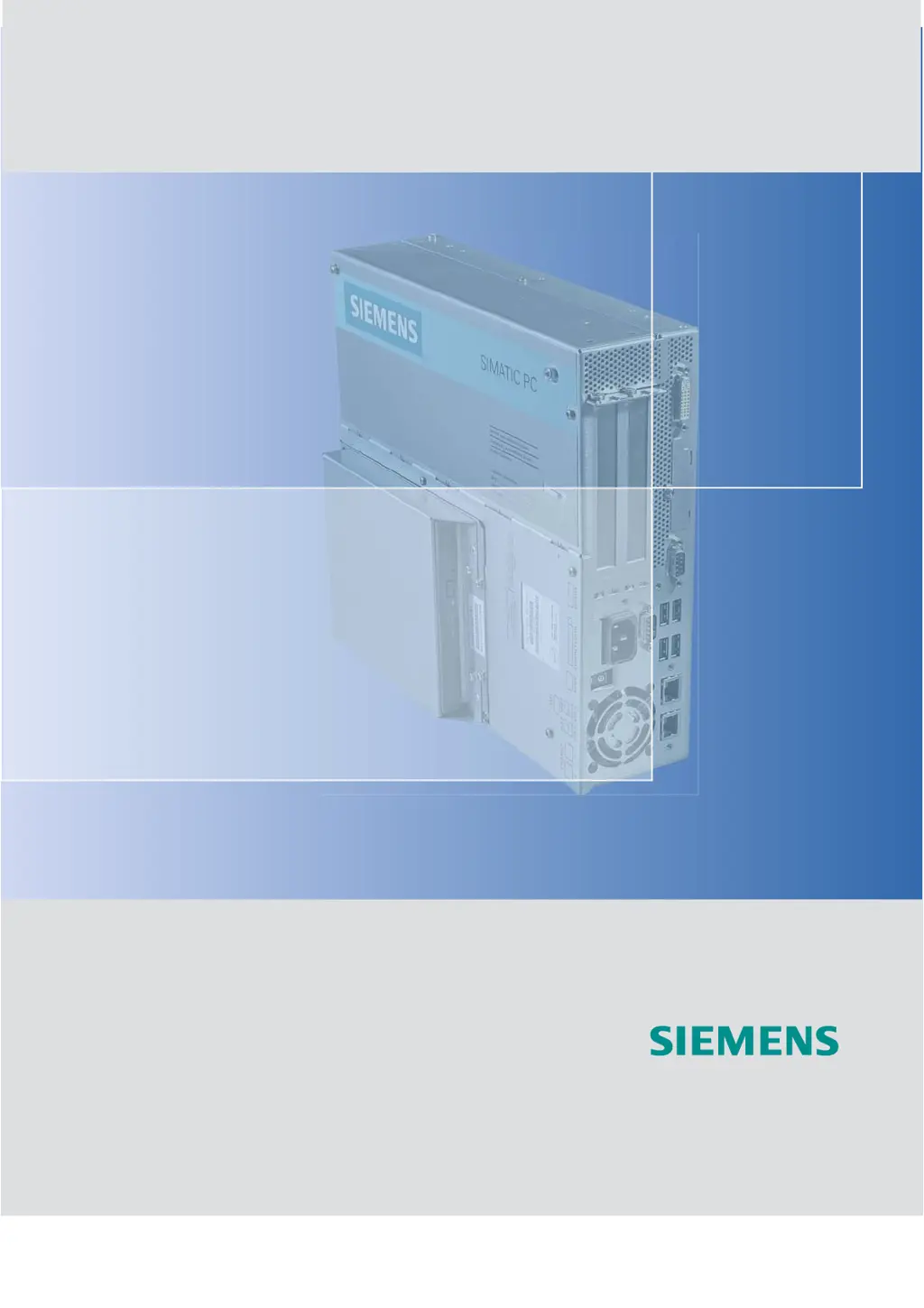
SIMATIC Industrial PC SIMATIC Box PC 627
DOCUMENTATION
DOCUMENTATION
Industrial PC
Box PC 627
Operating Instructions Edition 05/2006
simatic

Table of Contents

Questions and Answers

  • M
    Mark WagnerAug 1, 2025
    How to correct the wrong time and/or date on a Siemens Simatic box pc 627b?
    • M
      marymaloneAug 1, 2025
      To address the wrong time and/or date on your Siemens Industrial PC, press during the boot sequence to access the BIOS Setup. Then, set the correct time and date in the setup menu.
  • J
    jacksonjenniferAug 6, 2025
    How to troubleshoot a Siemens Simatic box pc 627b Industrial PC that is not operational?
    • C
      Cesar DavisAug 6, 2025
      If your Siemens Industrial PC is not operational, first ensure that the power supply, network cable, and power plug are correctly connected and functioning. Also, check that the On/Off switch is in the correct position. If the issue persists, verify that the device is operating within the specified ambient conditions. If the device was transported in cold weather, allow approximately 12 hours before switching it on.
  • K
    Kristen CurtisAug 11, 2025
    What to do if the external monitor remains dark on my Siemens Simatic box pc 627b Industrial PC?
    • M
      morganshieldsAug 11, 2025
      If the external monitor connected to your Siemens Industrial PC remains dark, start by ensuring the monitor is switched on and not in 'power save' mode (press any key to exit this mode). Then, check the screen brightness settings. Finally, verify that both the power cord and monitor cable are securely connected to both the monitor and the system unit or grounded outlet.
  • S
    Sharon AlvarezAug 16, 2025
    Why is my USB device not responding on my Siemens Simatic box pc 627b Industrial PC?
    • R
      Ricardo DavisAug 16, 2025
      If a USB device is not responding on your Siemens Industrial PC, try the following: * Use a different USB port. * Enable the USB port in the BIOS if it is disabled. * If using a USB 2.0 device, ensure USB 2.0 is enabled in the BIOS. * If the operating system doesn't support the USB port, enable USB Legacy Support for mouse and keyboard. For other devices, ensure you have the correct USB drivers for your operating system.
  • J
    Joshua WallAug 21, 2025
    What to do if the mouse pointer does not appear on the screen of my Siemens Simatic box pc 627b Industrial PC?
    • B
      Bruce JamesAug 21, 2025
      If the mouse pointer does not appear on the screen of your Siemens Industrial PC, first check that the mouse driver is properly installed and present when you start the application program. Also, verify that the mouse lead is securely connected to the system unit, and if you're using an adapter or extension, inspect the connectors.
  • S
    Stephen WongAug 26, 2025
    What to do if the DVD front loader does not open on my Siemens Simatic box pc 627b Industrial PC?
    • R
      Richard LuceroAug 27, 2025
      To perform an emergency removal of a data medium from the DVD drive of your Siemens Industrial PC when the front loader doesn't open: 1. Switch off the device. 2. Insert a pointed object (pin or opened paper clip) into the emergency extraction opening of the drive and apply slight pressure until the front loader opens. 3. Pull the loader further out to remove the data medium.

Summary

Introduction

Preface

Provides an overview of the operating instructions and their purpose for the SIMATIC Box PC 627.

Guideline to the operating instructions

Explains the structure and content of the operating instructions for easy navigation and understanding.

Safety Information

General safety instructions

Outlines essential safety precautions to prevent personal injury and property damage.

Battery

Details safety precautions and replacement guidelines for the device's Lithium battery.

ESD guidelines

Provides instructions for handling electrostatic sensitive devices to prevent damage.

Description

Overview

Introduces the SIMATIC Box PC 627, highlighting its suitability for industrial applications.

Features

Lists the key features of the SIMATIC Box PC 627, including hardware and software specifications.

Design

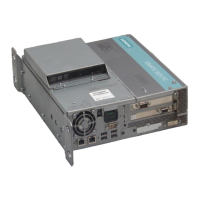
Details the external structure of the device, including front, rear, side, and bottom views.

Connection elements

Describes the various ports and connectors available on the front of the device.

Application Planning

Ambient and environmental conditions

Specifies the necessary allowances for climatic and mechanical environmental conditions.

Permitted mounting positions

Illustrates and describes the various approved mounting positions for the device.

Installation

Installation of the device with mounting brackets

Provides instructions for attaching mounting brackets to the device for installation.

Installation of the device with the vertical mounting kit

Details the procedure for using the optional vertical mounting kit for space-saving installation.

Connecting

Connecting peripherals

Explains how to connect peripheral devices to the SIMATIC Box PC 627.

Connecting the 120 V; 230 V Ac power supply

Provides instructions for connecting the device to AC power sources.

Connecting the (24 V) DC power supply

Details the procedure for connecting the device to a 24 V DC power supply.

Commissioning

Requirements for commissioning

Lists the necessary prerequisites before starting the commissioning process.

Basic commissioning - initial startup

Guides through the initial startup and setup procedure for the device's operating system.

Configuring a RAID1 system

Explains the steps required to configure a RAID1 system for data redundancy.

Integration

Ethernet

Describes the use of the integrated Ethernet port for system integration and communication.

PROFIBUS; MPI

Explains the integration of the optional PROFIBUS/MPI interface for system connectivity.

Functions

Temperature monitoring

Details the temperature monitoring capabilities using internal sensors and error reactions.

Watchdog (WD)

Explains the watchdog function for monitoring program execution and system stability.

Status display

Describes the device's status indicators, including LEDs and 7-segment displays.

Expansions and configuration

Memory expansion

Provides instructions for expanding the device's memory capacity with modules.

Installing PCI expansion cards

Guides on installing and removing PCI expansion modules into the device's slots.

Installing disk drives

Details the options and procedures for installing hard disk and optical drives.

Maintenance and service

Removing and installing hardware components

Covers procedures for removing and installing various hardware components.

Replacing the Backup Battery

Explains the process of replacing the device's backup battery for CMOS data.

Reinstalling the Operating System

Provides instructions for reinstalling the operating system from restore media.

Alarm, Error and System Messages

Boot error messages

Lists and explains common boot error messages encountered during system startup.

BIOS POST codes

Details the meaning and remedies for BIOS POST codes displayed during system initialization.

Troubleshooting

General problems

Offers tips and solutions for common problems encountered with the device.

Problems when Using Modules of Third-party Manufacturers

Addresses issues that may arise when using non-Siemens modules with the device.

Technical Data

General Specifications

Provides comprehensive technical specifications for the device.

Power requirements of the components

Details the power consumption of various internal components of the device.

Dimensional Drawings

Dimensional Drawing of the Device

Presents detailed drawings showing the device's dimensions for mounting purposes.

Dimensional drawings for the installation of expansion modules

Provides dimensions for expansion modules to ensure proper installation.

Detailed descriptions

Motherboard

Describes the structure, functions, and technical features of the device's motherboard.

External ports

Details the pin assignments and descriptions of the device's external ports.

BIOS Setup

Explains how to access and navigate the BIOS setup utility for system configuration.

Appendix

Guidelines and declarations

Contains information on CE labeling, EMC directives, and low-voltage directives.

Service and support

Provides details on obtaining additional support, training, and technical assistance.

ESD Guidelines

ESD Guidelines

Explains Electrostatic Discharge (ESD) and provides basic protective measures.

Abbreviations

Abbreviations

Provides a list of abbreviations used throughout the manual with their meanings.

Glossary

Siemens Simatic box pc 627b Specifications

General IconGeneral
Power Supply24 V DC
TypeIndustrial PC
Form FactorBox PC
Display OutputsVGA
Ethernet2x Gigabit Ethernet
Serial Ports2 x RS-232
Expansion SlotsPCI
Operating Temperature0°C to 50°C
ConnectivityEthernet
MountingWall
InterfacesEthernet

Related product manuals