89
Managing SimpleShare Disk Pool
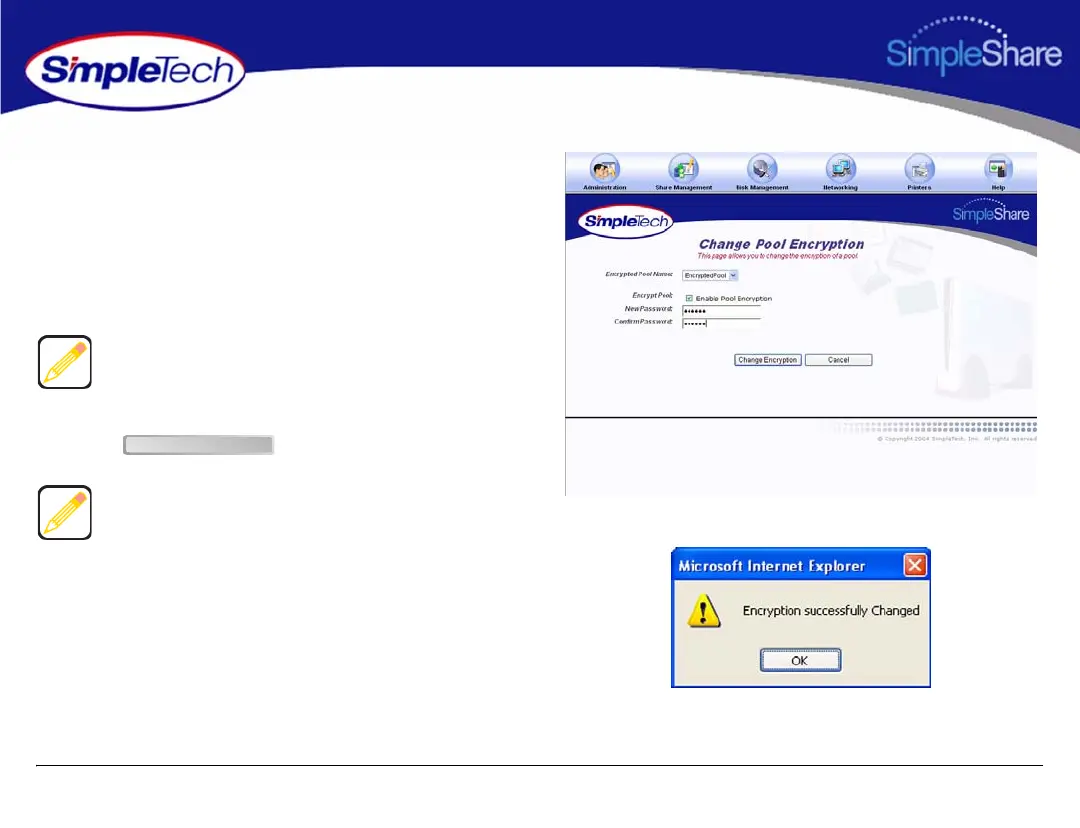
3 From the Encrypted Pool Name list, choose the pool
whose encryption password you want to change.
4 In Encrypt Pool, select Enable Pool Encryption.
5 In New Password, enter the new encryption password.
In Confirm Password, re-enter the password to verify it
was entered correctly.
6 Click .
Passwords should be at least eight characters long and may
contain any combination of alphanumeric characters (A-Z
and 1-9) and special characters such as &, $, and >. Spaces
are not allowed.
If you did not select the Enable Pool Encryption the status
for the pool, as reported in the Disk Management - Basic
page will become “Decrypting” until the data stored in the
pool has been converted into un-encrypted data fully. If you
left the Enable Pool Encryption checkbox selected and
changed the password the status for the pool, as reflect in
the Disk Management - Basic page will become
“Re-encrypting” until the data is completely re-encrypted
using the newly supplied encryption key.
Change Encryption


 To Next Page