27
Managing SimpleShare Administration
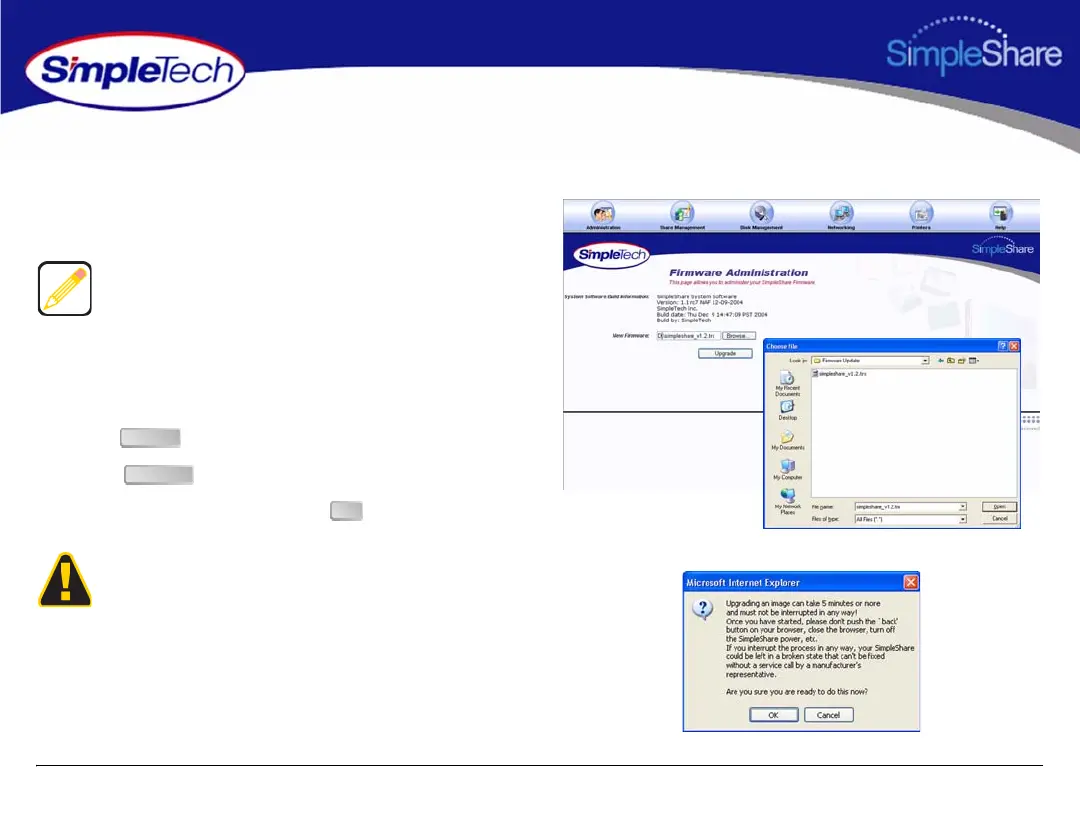
UPGRADING SIMPLESHARE FIRMWARE
1 Save the update file to a location accessible to your
computer.
2 In the Administration menu, click Firmware.
3 In New Firmware, enter the path to the update file or
click to locate the file.
4 Click .
5 In the confirmation dialog, click .
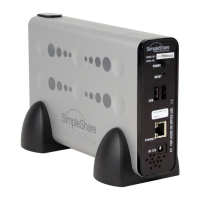
6 After the upgrade process completes, press and hold the
Reset button (located on the rear panel) for 5 seconds
to initialize SimpleShare with the new firmware.
Download the new firmware version from the SimpleShare
website at www.simpletech.com/support or contact
SimpleTech. For contact information, see “SimpleTech
Technical Support” on page 104.
The upgrade process take several minutes to complete. Do
not turn SimpleShare off while the upgrade is in progress.
Interrupting the upgrade process will corrupt the firmware
on the SimpleShare, and make it impossible to boot later.
Browse
Upgrade
OK


 To Next Page