15
Accessing Shares
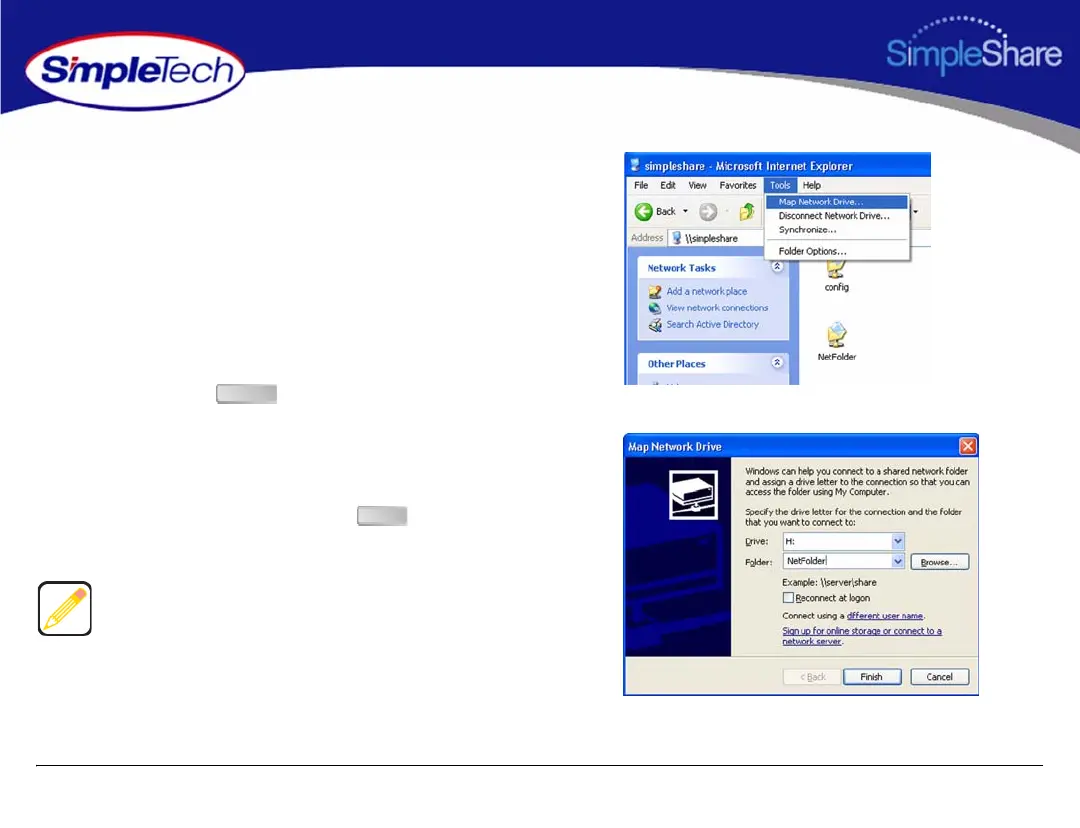
4 In the Tools menu, click Map Network Drive.
5 Open the Drive list and select a drive letter to assign to
the shared folder you want to map to your computer (or
accept the next available drive letter displayed in the
list).
6 In Folder, type
\\simpleshare_name\share_name
(where SimpleShare_name is the network name of your
SimpleShare server and share_name is the name of the
shared folder you want to map to your computer). You
can also use the button to find the share.
7 If you want your computer to reconnect to the shared
folder every time you log on, select Reconnect at
logon.
8 After making your selections, click to map the
share to the drive letter.
Mapped shares are available only when SimpleShare is
available. You can assign a share to a different drive letter by
disconnecting from the drive and then reassigning it to a
new drive letter.
Browse
Finish


 To Next Page