IDP-782 - Hardware Guide
offline case from the previous section, the LED control API allows a user service to flash the LED four
times; the service is responsible for setting a timer allowing it to restart this pattern every 30 seconds
[T202].
4.2.6 Activate the Terminal
To send or receive any message you must activate the terminal on the IsatData Pro network.
1. Log in to https://support.skywave.com, type your user name (registered email) and password, and
then click GO. Contact SkyWave Customer Support at support@skywave.com if you do not have
access to this website.
2. Click the Manage Mobiles icon. The Manage Terminals page appears.
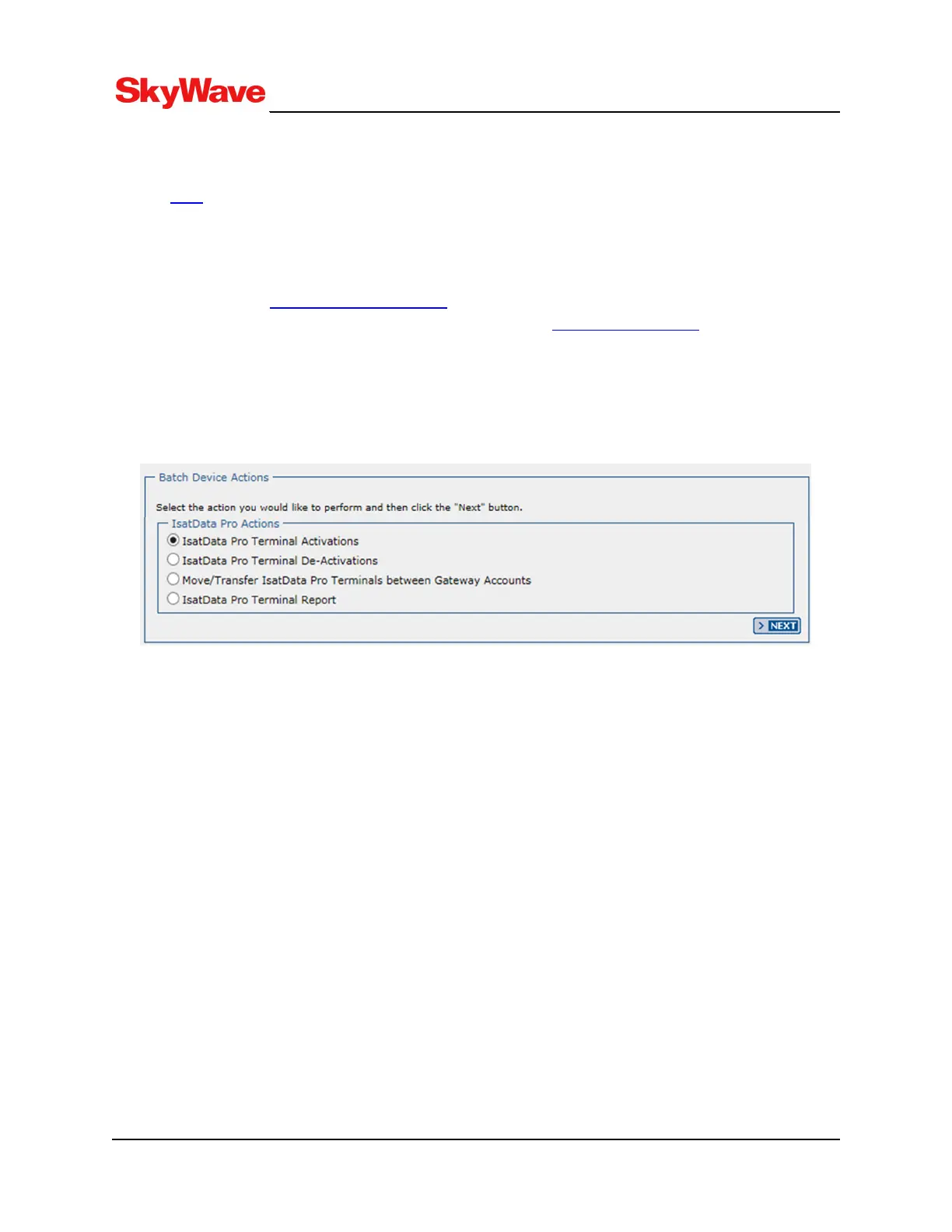
3. Click the button next to IsatData Pro Terminal Activations, and click NEXT.
Figure 27: Manage Terminals
4. Select your Gateway Account from the drop-down list.
5. Type the terminal's mobile ID in the appropriate field, and click ADD.
If you have multiple mobile IDs, you can use the UPLOAD FILE option.
6. Verify that at least one contact email address is shown in the Notification section on the data entry
page.
Keep a copy (APPENDIXB) of the terminal's mobile ID along with the server access ID and
password you receive in the activation report email (Figure 28) from SkyWave Customer Support.
You need these to communicate remotely with the terminal.
7. Click SUBMIT.
T213, Version 02
54
© SkyWave Proprietary


 To Next Page