28
D735 User Manual Getting to Know Your Phone
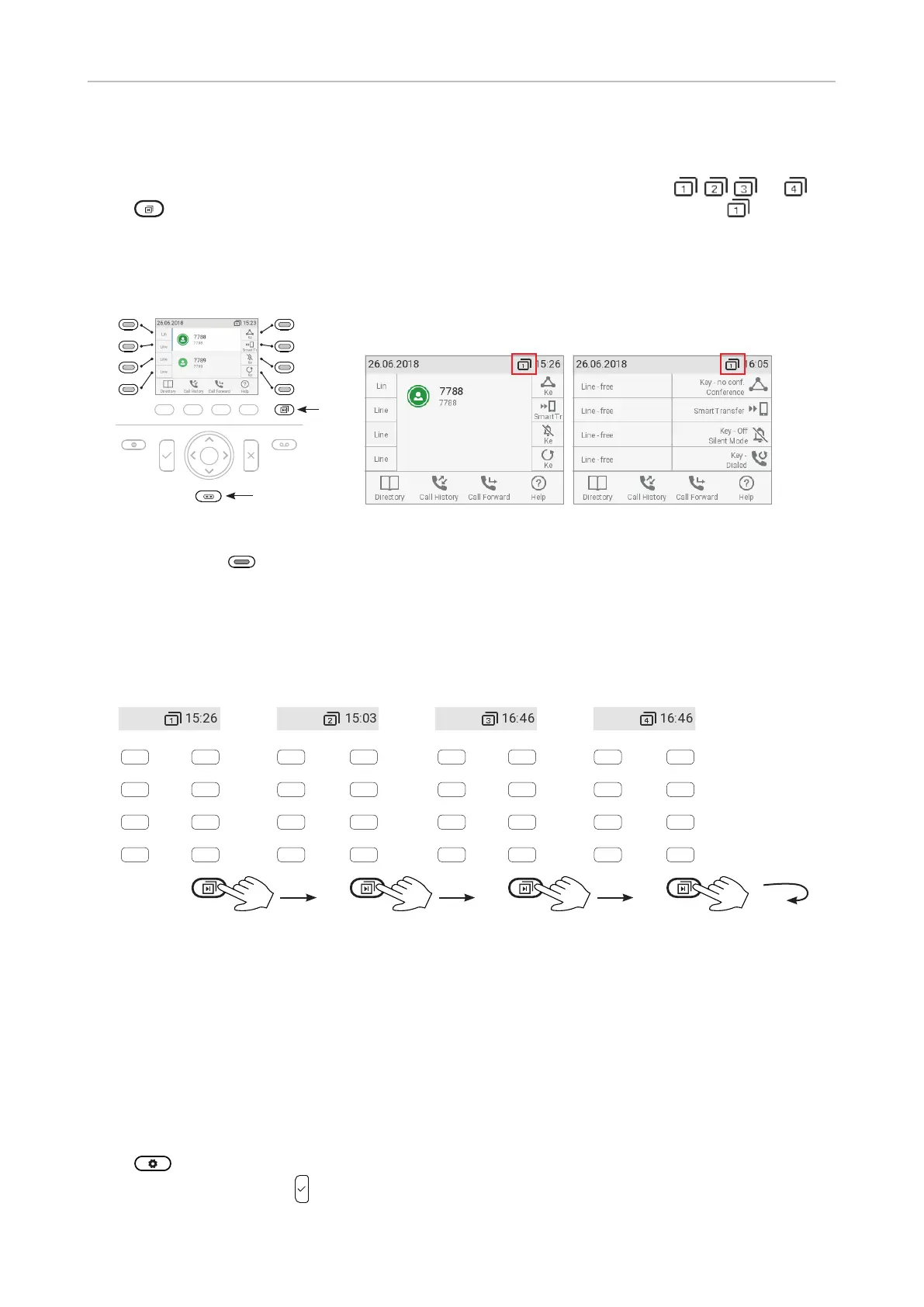
navigation key you can increase the size of the SmartLabels from the default "short" display mode
(Fig. 2) to "full" (Fig. 3); the display will revert to "short" display mode after three seconds.
The page number to the left of the time indicates which label page is on-screen,
, , , or .
Press
to change the page from 1 to 2, 3, and 4 and back to 1 (Fig. 4). The default is ; the
display will return to the default after 10 seconds.
The settings can be adjusted on the phone's web interface. See "Configuring the function keys" on
page 67 for more information.
Page
key
Fig. 1 Fig. 2 Fig. 3
The LED of the key associated with the label of the on-screen page will react in accordance with
the visible label's mapping; pressing the key may aect its visible setting.
The function keys can be mapped on the phone and, faster and more comfortably, on the phone's web
interface. For information on programming the function keys, see "Configuring the function keys" on
page 67.
Page 1
Page 1 Page 2 Page 3 Page 4
P1
P2
P3
P4
P5
P6
P7
P8
P9
P10
P11
P12
P13
P14
P15
P16
P17
P19
P19
P20
P21
P22
P23
P24
P25
P27
P27
P28
P29
P30
P31
P32
Fig. 4
Settings
A comparatively small number of settings can be adjusted on the phone; many more are available on
the phone's web interface.
Phone settings
Press to open the settings menu on the display. To open submenus and settings, scroll to the
submenu/setting and press
.



 To Next Page