73
D735 User Manual Configuring the Function Keys
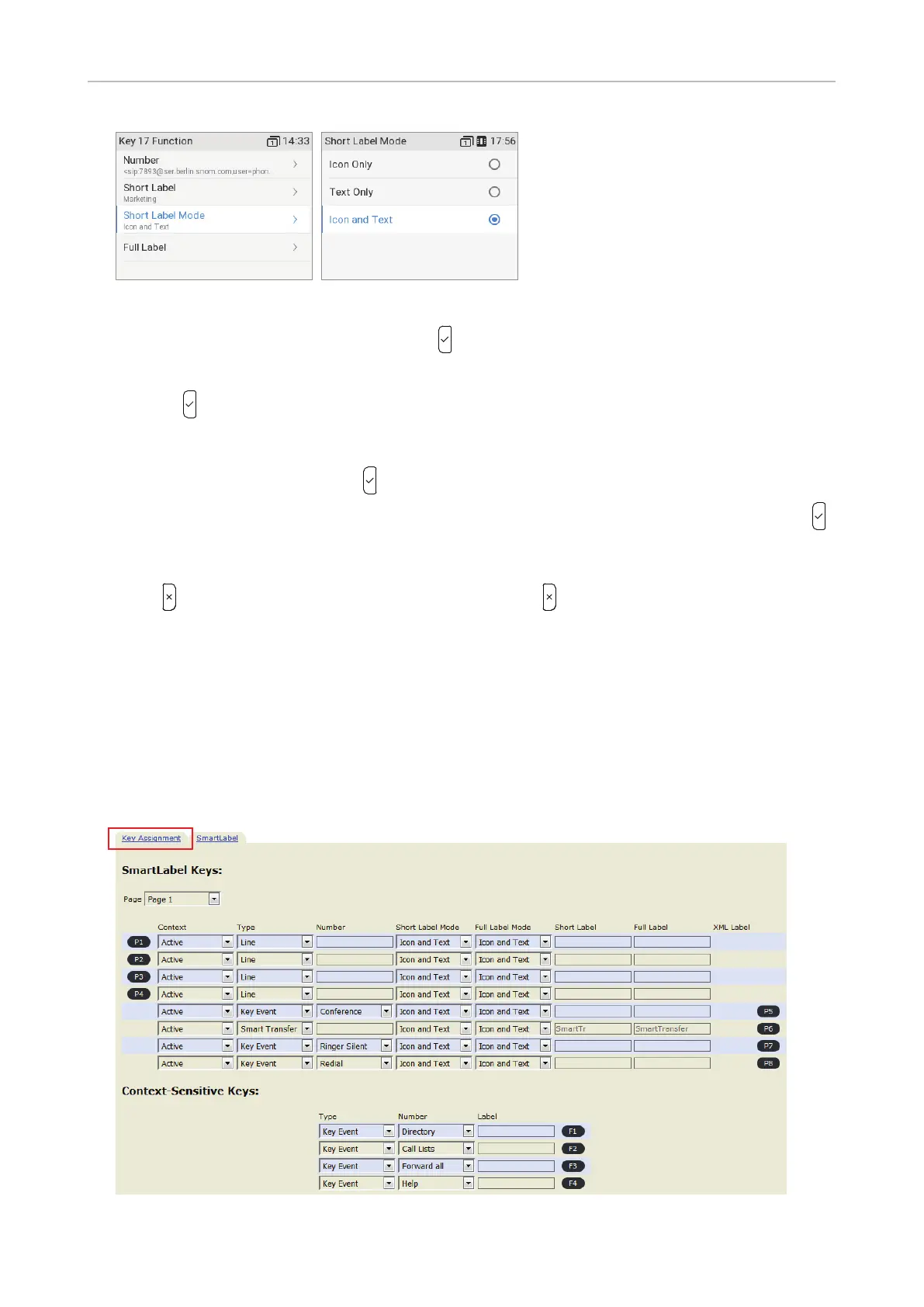
Fig. 15 Fig. 16
11. Select Short Label Mode (Fig. 15) and press .
12. Specify the content you want the label to display by scrolling to the respective line (Fig. 16) and
pressing
to save and return to the Key 17 Function menu (Fig. 15). The default is icon and text;
you can also select text or icon only — see "Short/Full Label Mode (phone)" on page 68 for more
information.
13. Select Full Label Mode and press
.
14. Specify the content you want the label to display by scrolling to the respective line and pressing
to save and return to the Key 17 Function menu. The default is icon and text; you can also select
text or icon only — see "Short/Full Label Mode (phone)" on page 68 for more information.
15. Press briefly to return to the Key Function menu; press for 3 seconds to return to the idle
screen. When page 3 is on-screen, the top left key can now be used to dial the extension by briefly
pressing the key and to pick up calls ringing on the extension; the LED will indicate the call status
of the extension, i.e., idle, ringing, and in call. See "Example 1, Extension monitoring and call pick-
up" on page 75 for more information on how to configure and use extension monitoring.
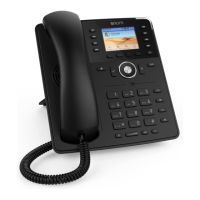
Function key settings on the web interface
See "Selected examples for function key programming", below, for the function key mapping and
"Display options for SmartLabel keys" on page 81 for the optical presentation on the display.
Fig. 1



 To Next Page