98
D735 User Manual Customizing the Phone Settings
Setting on the web interface
This setting requires administrator mode.
1. Open Advanced Settings page > Behavior tab > Phone Behavior section > Number Guessing.
2. Select the radio button on.
3. Type the minimum number of digits in the text field of Number Guessing Minimum Length.
4. Click on Apply and Save.
Speed dial
You can use the numbers 0 to 30 and the special characters # and * to speed dial frequently dialed
and/or long numbers without having to enter the complete phone number. The numbers must be set
on the phone or on the phone's web interface first.
Note: You can also map a phone number onto one of the SmartLabel keys P1–P32. See "Example
3, Speed dialing" on page 78 for the instructions.
Setting on the phone
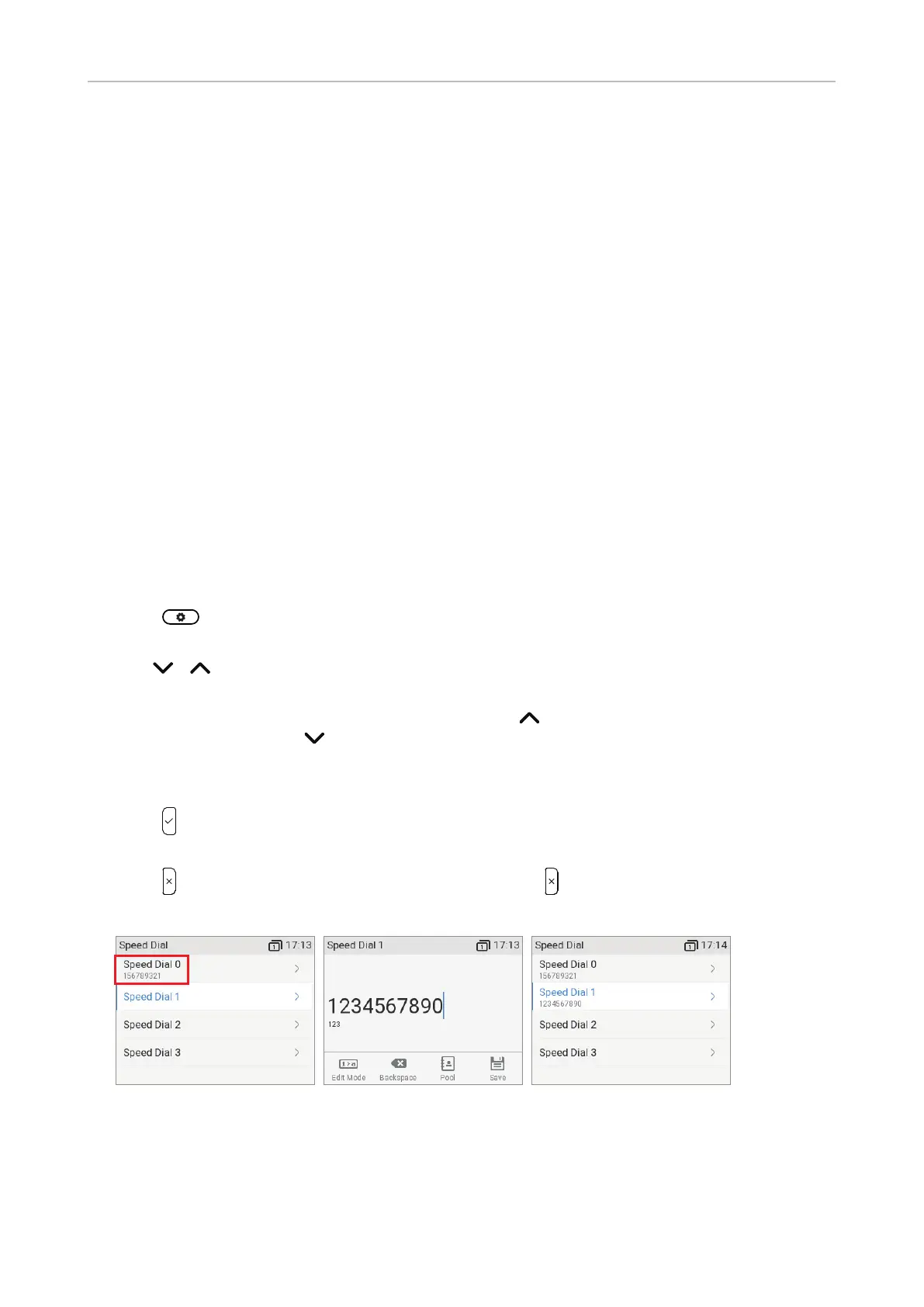
1. Press and select Call Features > Speed dial. Phone numbers currently assigned to any
speed dial numbers are indicated in the line underneath the respective speed dial number (Fig. 1).
2. Use
/ to scroll down or up one number at a time (Fig. 1). The speed dial keys # and * are
listed between speed dial keys 9 and 10.
Shortcuts: When the selected number is "0", press
to go to "30"; when the selected
number is "30", press to go to "0".
3. Type the phone number into the text field without spaces or punctuation between the digits
(Fig. 2).
4. Press
to save and to return to the Speed dial menu where the phone number has been added to
the speed dial number (Fig. 3) .
5. Press
briefly to return to the Call Features menu, press for two seconds to return to the idle
screen.
Fig. 1 Fig. 2 Fig. 3
Setting on the web interface
1. In the menu on the left side of the phone's web interface, click on Speed Dial.



 To Next Page