Chapter 4 - Display and control in stand-alone mode
Copyright 2016 Softing Industrial Automation GmbH
29
4
Display and control in stand-alone mode
The BC-700-PB always starts in stand-alone mode unless it is USB connected to a PC or notebook. The
readings are shown on the graphical display. You can control the tool with the four softkeys, the scroll
wheel and the push button in center of the scroll wheel (see Connectors and controls ).
When you establish a USB connection during stand-alone mode while a test is running, the test will be
aborted and the tool will be reset (restart). The display briefly shows: "Switching to PC mode".
4.1 Start display
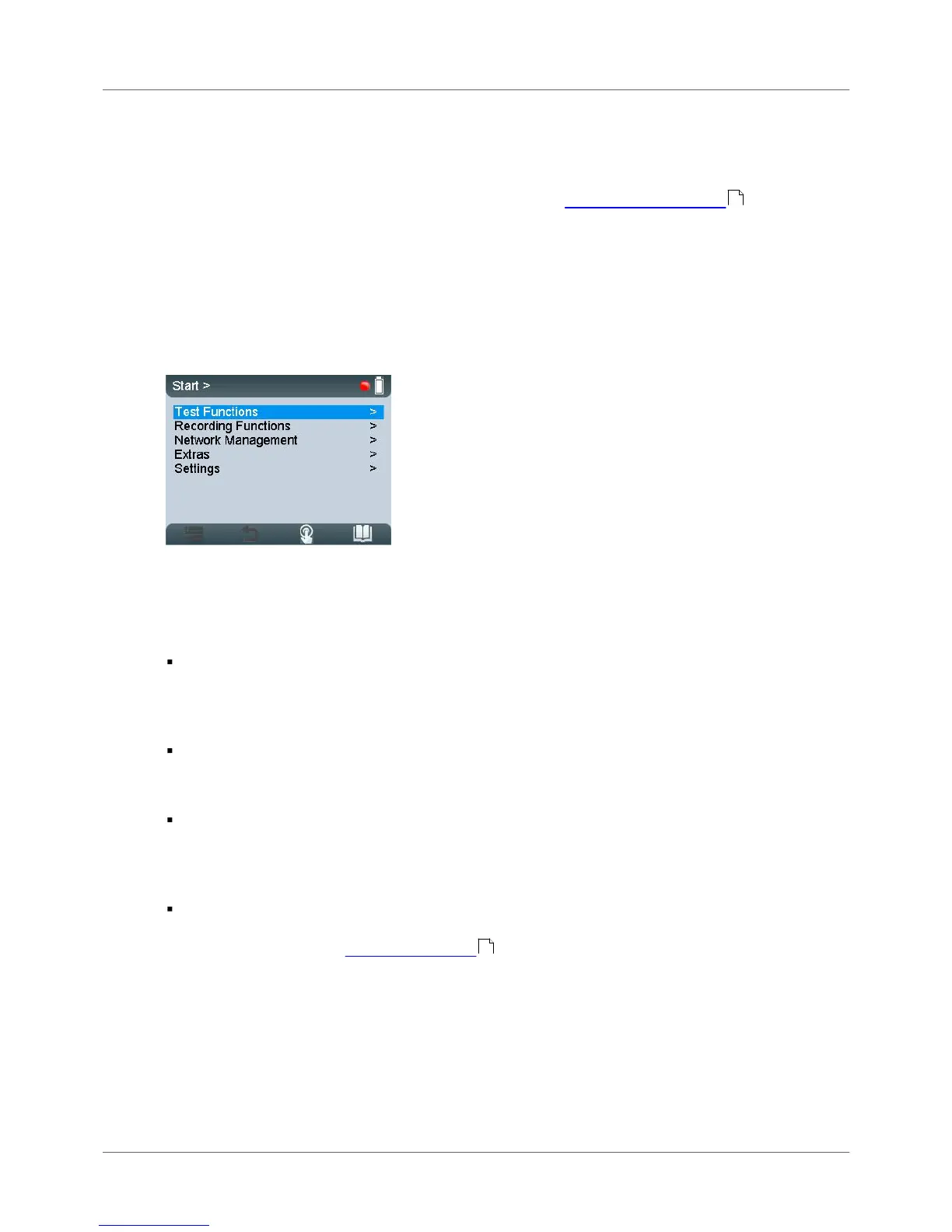
The start display appears after start-up in stand-alone mode (or when all dialogs or functions have been
stopped and you have been returned to the main menu). The start display (with main menu) is your
starting point where you can open any of the test functions or additional administrative functions.
Figure 25: Start display
4.2 User interface
The user interface of BC-700-PB comprises four parts:
Device Status
The device status in the upper right corner provides information such as the battery charge level
indicator, system load status, memory information, state of master simulator, connected interfaces
and adapters,…
Application status
The application status at the upper edge on the left displays which function or sub-function is
currently selected.
Workspace
The Workspace in the center of the graphical user interface contains the start page, detail views for
the bus analyzes and views for administrative purposes. At a glance the user views the most
important information with respect to the selected test function.
Control information
Control information is shown at the lower edge of the user interface. The meaning of the four
softkeys is explained in Operating functions .
14
30


 To Next Page