PROFIBUS Tester 5 (BC-700-PB) - User Manual
30
Copyright 2016 Softing Industrial Automation GmbH
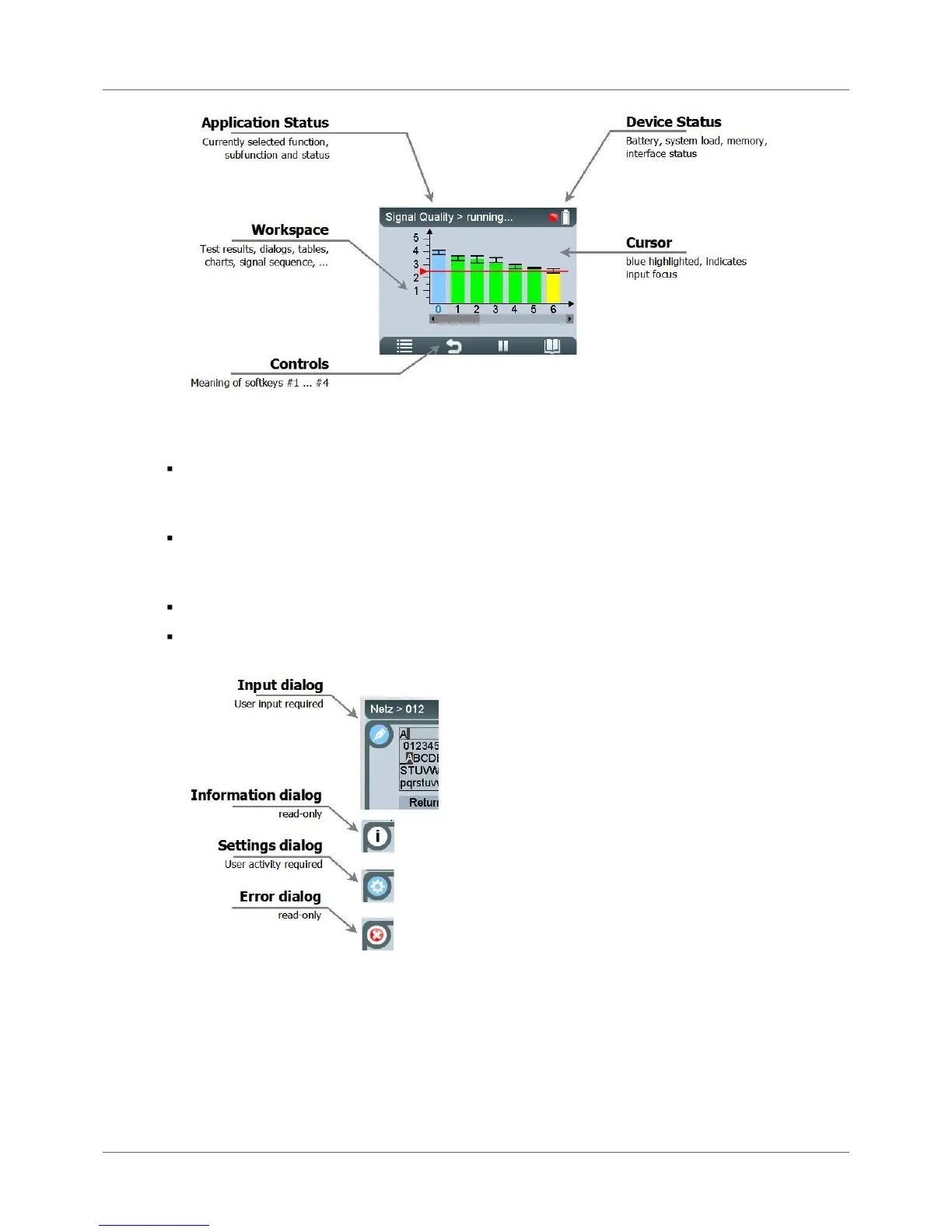
Figure 26: Division of screen areas
The presentation of dialog information uses four layouts:
Additional information which is typically less important is shown on user request in Info-dialogs.
Access to this read-only function or information is subjected to a sub-menu function or to the
[Info]-softkey.
Other functions may require appropriate user input by means of input dialogs. The colors light blue
and blue indicate, which elements are selectable or changeable by means of the input focus
(cursor).
Error messages are displayed in error dialogs.
The BC-700-PB provides a context-sensitive online help. Their content is shown in quick reference
dialogs using a smaller font size.
Figure 27: User interface dialogs
4.3 Operating functions and softkeys
Use the scroll wheel, in order to move the cursor within lists, tables, dialogs and alphabetic strings.
Selected elements are highlighted in blue. Press the central button of the scroll wheel or press the
Selection- or [Info]-softkey in order to call functions or to request additional information. The
appearance of controls will change in a context-sensitive manner. If a softkey is grayed out, the
corresponding operating function is disabled.


 To Next Page