Chapter 6 - Device management
Copyright 2016 Softing Industrial Automation GmbH
39
6
Device management
6.1 Licenses
Some test functions of the BC-700-PB require activating a license.
Licenses are related to the serial number of your device and can only be used together with
this device. Please include the serial number of your device when ordering a license.
If you already have licensed an option and you want to purchase an additional license
please send your license key to Softing. This key contains both, the serial number and the
license(s) already bought.
You can read the license key that is currently being used by the device from the License
Manager (see How to activate a license ). To do so select Softing Interface, the select tab
Interface Licenses. The connected device together with its serial number and its license key
is displayed. Copy the license key with a right mouse click and then insert it into a
document.
6.1.1 Which license is activated?
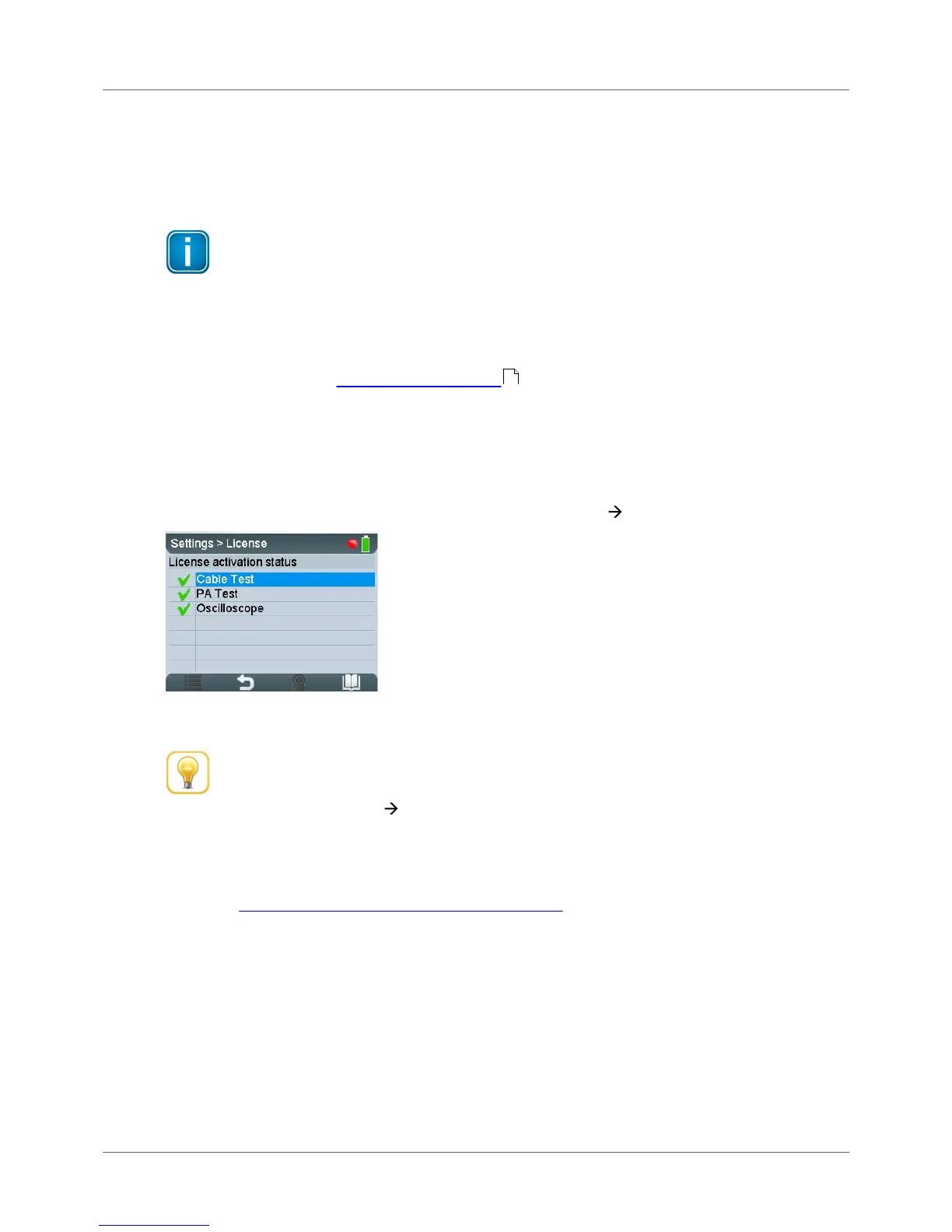
Activated licenses are displayed in the BC-700-PB in menu Settings License.
Disabled functions or functions without a license will be grayed out or are not visible in the main menu
in stand-alone mode.
Hint
When USB is connected you can view the license activation status in PC-software PROFIBUS
Diagnose Suite (Help Hardware Info).
6.1.2 How to activate a license
I. Install the PROFIBUS Diagnostics Suite (from your delivery CD-ROM or from the Softing download
area in http://industrial.softing.com/en/downloads.html).
II. Perform a firmware update:
1. Connect the BC-700-PB with the USB cable to the PC and power on the test tool.
2. Start the PROFIBUS Diagnostics Suite. The software verifies whether the firmware needs to be
updated. If your firmware needs to be updated, a firmware update window appears. Click
[Automatic Update], to update the firmware.
3. Close the PROFIBUS Diagnostics Suite after a successful firmware update.
III. Activate your license in BC-700-PB:
39


 To Next Page