1-4
Getting started
15
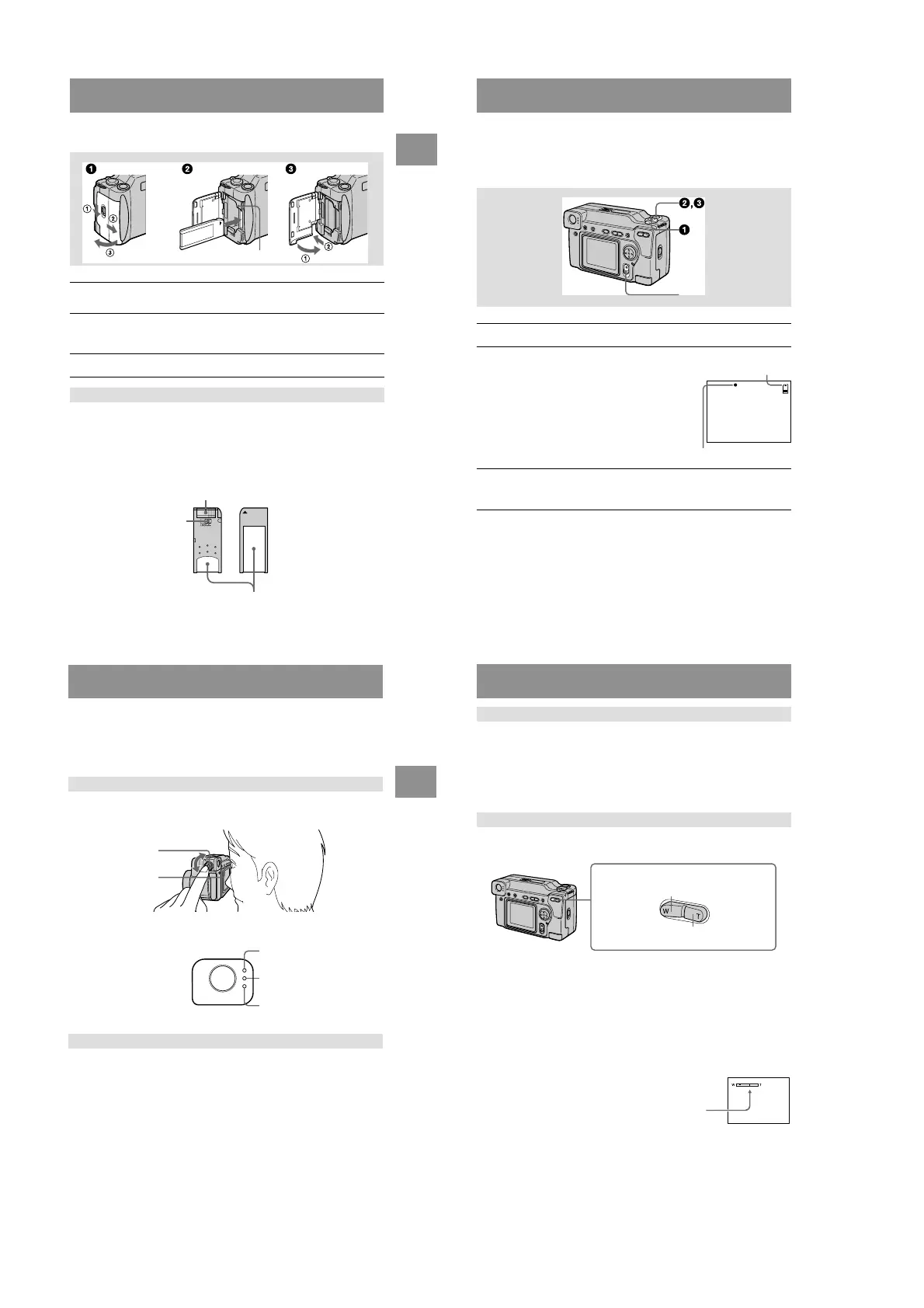
Inserting the “Memory Stick”
Open the battery/“Memory Stick” cover, then press the “Memory Stick” once lightly.
Notes
• Insert the “Memory Stick” firmly until it clicks, otherwise a message such as “MEMORY
STICK ERROR” will be displayed.
• Never remove the “Memory Stick” or turn off the power while the access lamp is lit up.
• You cannot record or edit images on a “Memory Stick” if the erasure prevention switch is set to
ention switch is set to
the LOCK position.
1
Open the battery/“Memory Stick” cover.
Open the cover while sliding the OPEN switch in the direction of the arrow.
2
Insert the “Memory Stick.”
Insert the “Memory Stick” with the B mark facing toward the battery
compartment as illustrated until it clicks.
3
Close the battery/“Memory Stick” cover.
Removing the “Memory Stick”
Access lamp
Erasure prevention switch
Connector
Label space
16
Basic operations
B Recording
Recording still images
Still images are recorded in JPEG format.
To record still images, slide the POWER switch down to turn on the power and insert
a “Memory Stick.”
∗ Exposure and focus are automatically adjusted.
The number of images you can record on a “Memory Stick”
See pages 38 to 40.
1
Set the MODE selector to STILL.
2
Press and hold the shutter button halfway
down and check the image.
While the AE lock indicatorz (green) is flashing,
the image freezes momentarily, but is not yet
recorded. When the camera finishes the automatic
adjustments*, the AE lock indicator z lights up
and the camera is ready for recording.
To cancel the recording, release the shutter button.
3
Press the shutter button fully down.
The shutter sounds and the image is recorded on the “Memory Stick.”
When “REC” disappears, you can record the next image.
POWER switch
AE lock indicator
Remaining memory
capacity indicator
18
You can check the last recorded image by clearing the menu bar from the screen
(page 32) and pressing b on the control button. To return to the normal recording
mode, press lightly on the shutter button or select [RETURN] with b/B on the
control button and then press the center z. You can also delete the image first by
selecting [DELETE] on the Quick Review screen with b/B on the control button and
pressing the center z, and then selecting [OK] with v/V on the control button and
pressing the center z.
The lens portion moves during zoom operation. Be careful not to touch the lens
portion while it is operating.
Minimum focal distance to the subject
W side: About 9 7/8 inches (25 cm) or more
T side: About 9 7/8 inches (25 cm) or more
To record even closer subjects, see page 41.
Digital zoom function
This camera has a digital zoom function.
Digital zoom enlarges the image by digital processing and it starts to function when
zoom exceeds 3×.
Using digital zoom
• The maximum zoom magnification is 6×.
• Digital zooming deteriorates the picture quality. When digital zoom is not
necessary, set [DIGITAL ZOOM] to [OFF] in the menu settings (page 35).
Checking the last recorded image (Quick Review)
Using the zoom feature
T side: for telephoto (subject appears
closer)
Zoom button
W side: for wide-angle (subject appears
farther away)
The T side of the bar shows the
digital zooming zone.
< Recording
17
Notes
• Do not touch the lens portion while it is operating.
• While the image is being recorded on the “Memory Stick,” do not shake or strike the camera.
Also, do not turn the power off, or remove the battery pack or “Memory Stick.”
• When recording a bright subject, the LCD screen color may change after AE lock, but this does
not affect the recorded image.
Turn the finder adjustment dial until the image appears clearly within the finder, then
record the image.
Indicators in the finder
Press LCD ON/OFF.
Notes
• When you record a subject closer than 3 1/4 feet (1 m), the positions of the finder and the lens
differ, so record using the LCD screen.
• You cannot view digitally zoomed images with the finder. Check these images using the LCD
screen.
• You cannot turn off the LCD screen when [DEMO] or [CONVERSION] are set to [ON] in the
menu settings.
Recording images with the finder
To turn off the LCD screen
Finder adjustment
dial
LCD ON/OFF
Recording lamp
AE lock lamp
Strobe charge lamp






 To Next Page