5-19
8. Auto White Balance Standard Data Input
Adjust the white balance standard data at 3200K.
Mode STILL
Subject Clear chart
(Color reproduction adjustment frame)
Adjustment Page F
Adjustment Address 3A to 3D, 59
Note 1: Perform “Light Level Adjustment” and “Mixed Color
Cancel Adjustment” before this adjustment.
Note 2: Check that the data of page: 6, address: 02 is “00”.
If not, turn the power of unit OFF/ON.
Adjusting method:
1) Select page: 0, address: 01, and set data: 01.
2) Select page: 5, address: F1, and set data: FF.
3) Select page: D, address: 63, set data: 40, and press the PAUSE
button of the adjusting remote commander.
4) Perform “ Data setting during camera system adjustment”.
(Refer to page 5-13)
5) Select page: 6, address: 01, set data: 11, and press the PAUSE
button.
6) Select page: 6, address: 01, set data: 0B, and press the PAUSE
button. (The auto white balance standard data input is per-
formed and the standard data is stored in page: F, address:
3A to 3D, 59)
7) Select page: 6, address: 02, and check that the data is “01”.
Processing after Completing Adjustments:
1) Select page: 6, address: 01, set data: 00, and press the PAUSE
button of the adjusting remote commander.
2) Select page: 5, address: F1, and set data: 00.
3) Select page: D, address: 63, set data: 00, and press the PAUSE
button.
4) Release the data setting performed at step 4).
(Refer to page 5-13)
5) Select page: 0, address: 01, and set data: 00.
6) Perform “Auto White Balance Adjustment”.
9. Auto White Balance Adjustment
Adjust to the proper auto white balance output data.
If it is not correct, auto white balance and color reproducibility
will be poor.
Mode STILL
Subject Clear chart
(Color reproduction adjustment frame)
Filter Filter C14 for color temperature
correction
Measurement Point Displayed data of page: 1 (Note 3)
Measuring Instrument Adjusting remote commander
Adjustment Page F
Adjustment Address 3F, 40, 80
Specified Value R ratio: 28E0 to 2A20
B ratio: 5D60 to 5EA0
Note 1: Perform “Auto White Balance Standard Data Input”
before this adjustment.
Note 2: Check that the data of page: 6, address: 02 is “00”.
If not, turn the power of unit OFF/ON.
Note 3: The right four digits of the page: 1 displayed data of the
adjusting remote commander.
1:XX:XX
Displayed data
Adjusting method:
1) Place the C14 filter for color temperature correction on the
lens.
2) Select page: 0, address: 01, and set data: 01.
3) Select page: 5, address: F1, and set data: FF.
4) Select page: D, address: 63, set data: 40, and press the PAUSE
button of the adjusting remote commander.
5) Perform “ Data setting during camera system adjustment”.
(Refer to page 5-13)
6) Select page: 6, address: 01, set data: A7, and press the PAUSE
button.
7) Select page: F, address: 49 to 4C, and noting down the data
of each address.
8) Write data in page: F, address: 49 to 4C as shown in the fol-
lowing table.
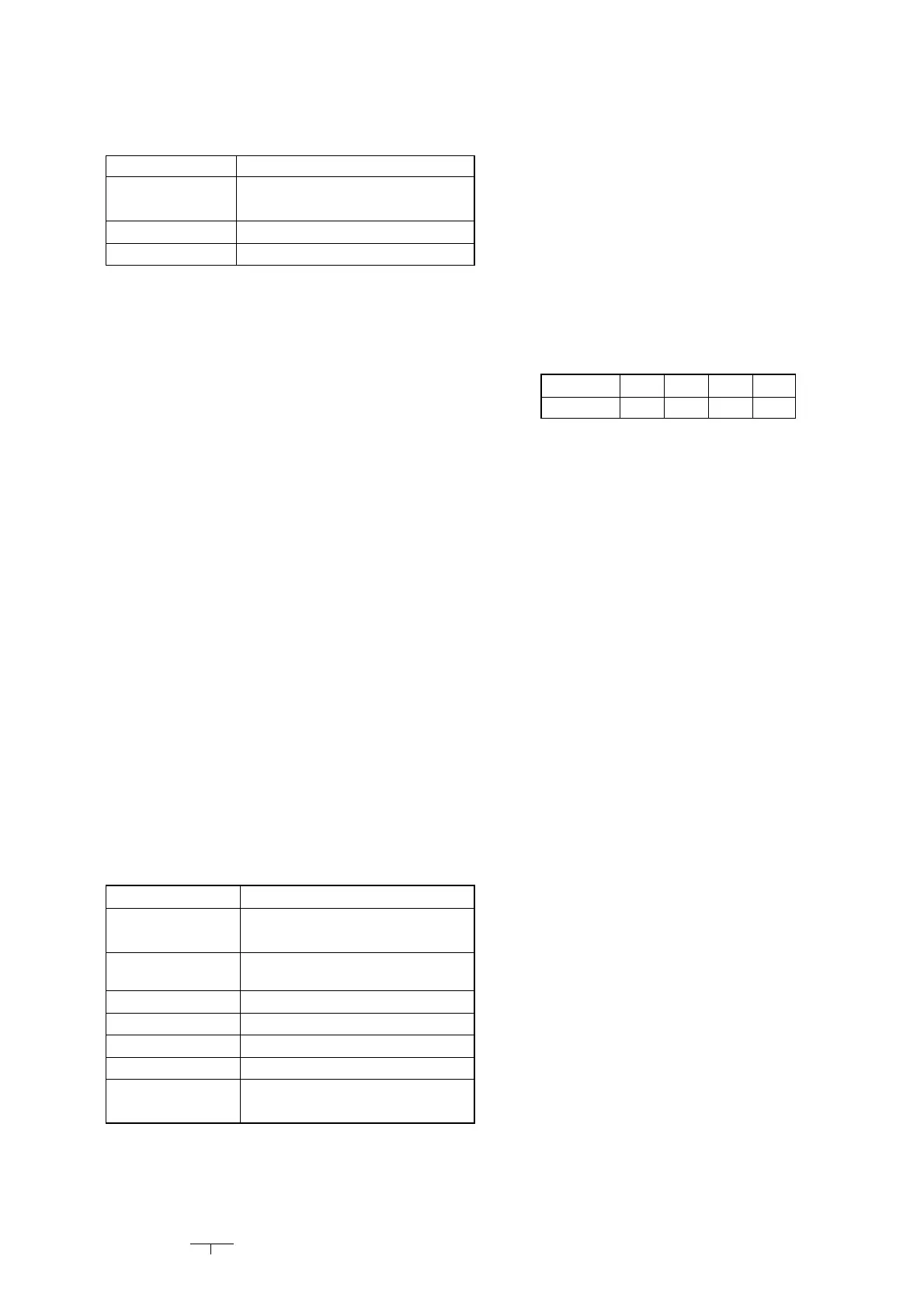
Adderss 49 4A 4B 4C
Data 29 80 5E 00
Note: After setting each data, be sure to press the PAUSE button
of the adjusting remote commander.
9) Select page: 6, address: 01, set data: A5, and press the PAUSE
button. (The auto white balance adjustment is performed and
the adjustment data is stored in page: F, address: 3F, 40 and
80)
10) Select page: 6, address: 02, and check that the data is “01”.
11) Select page: 6, address: 01, set data: 3F, and press the PAUSE
button.
12) Select page: 0, address: 03, and set data: 04.
13) Select page: 1, and check that the displayed data (Note 3)
satisfies the R ratio specified value.
14) Select page: 0, address: 03, and set data: 05.
15) Select page: 1, and check that the displayed data (Note 3)
satisfies the B ratio specified value.
16) Select page: F, address: 49 to 4C, and input the data noted
down at step 9).
Note: After setting each data, be sure to press the PAUSE button
of the adjusting remote commander.
Processing after Completing Adjustments:
1) Select page: 0, address: 03, and set data: 00.
2) Select page: 6, address: 01, set data: 00, and press the PAUSE
button of the adjusting remote commander.
3) Select page: 5, address: F1, and set data: 00.
4) Select page: D, address: 63, set data: 00, and press the PAUSE
button.
5) Release the data setting performed at step 5).
(Refer to page 5-13)
6) Select page: 0, address: 01, and set data: 00.






 To Next Page