1-7
< Playback
27
For Windows 98 users
3
Double-click the CD-ROM drive icon to open the window.
4
Double-click the icon of the hard disk containing the OS to open
the window.
5
Move the following two driver files from the window opened in step
3 to the “System Folder” icon in the window opened in step 4
(drag and drop).
• Sony USB Driver
• Sony USB Shim
6
When “Put these items into the Extensions folder?” appears, click
“OK.”
7
Restart your personal computer.
Viewing images
1
Turn on the power of your personal computer and allow
Windows 98 to load.
2
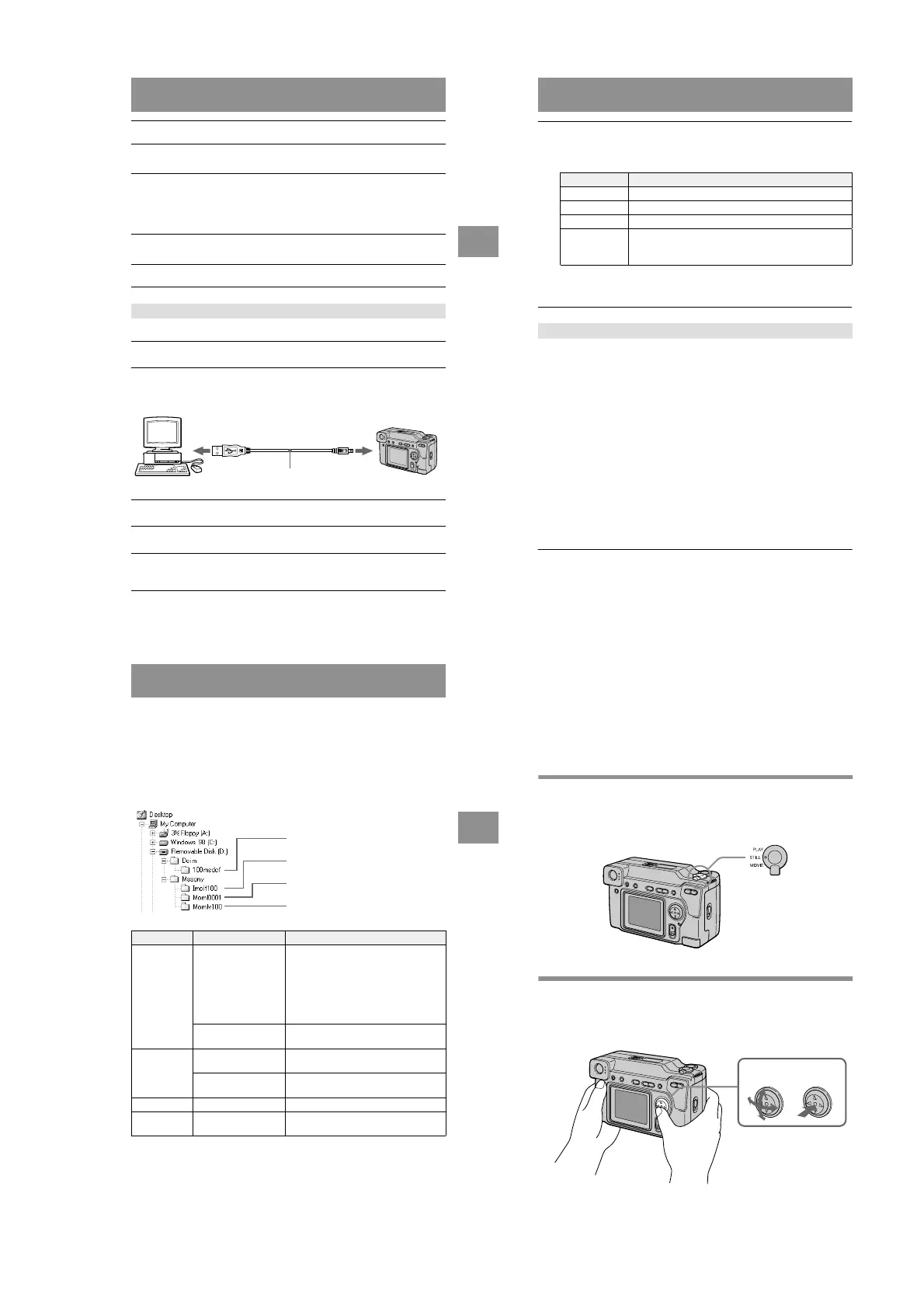
Connect one end of the USB cable to the USB jack on the camera
and the other end to the USB connector on your personal
computer.
3
Insert a “Memory Stick” into your camera, and connect the AC
power adaptor to your camera and then to a wall outlet (mains).
4
Turn on the power of your camera.
“PC MODE” appears on the LCD screen of the camera.
5
Open “My Computer” on Windows 98 and double click the newly
recognized drive. (Example: “Removable Disk (D:)”)
The folders inside the “Memory Stick” are displayed.
to the USB connector
Personal computer
USB cable
Push in until the
connector clicks
into place
to the USB jack
28
“Memory Stick”
• “Memory Stick” operations on your camera cannot be assured if the “Memory Stick” has been
formatted on your personal computer.
• Do not optimize the “Memory Stick” on a Windows machine. This will shorten the “Memory
Stick” life.
• Do not compress the data on the “Memory Stick.” Compressed files cannot be played back on
your camera.
Software
• Depending on your application software, the file size may increase when you open a still image
file.
• When you load an image modified using the supplied retouch software from your personal
computer to the camera or when you directly modify the image on the camera, the image
format will differ so the “FILE ERROR” message may appear and you may be unable to open
the file.
Communications with your personal computer
Communications between your camera and your personal computer may not recover after
recovering from Suspend, Resume, or Sleep.
• Windows and ActiveMovie, DirectShow are either registered trademarks or trademarks of
Microsoft Corporation in the United States and/or other countries.
• Macintosh and Mac OS, QuickTime are trademarks of Apple Computer, Inc.
• All other product names mentioned herein may be the trademarks or registered trademarks of
their respective companies. Furthermore, “™” and “®” are not mentioned in each case in this
manual.
6
Select and double-click the desired image/sound file from the
folder.
For the detailed folder and file name, see “Image file storage destinations and
image files” (page 29).
∗ Copying a file to the hard disk of your personal computer before viewing it is
recommended. If you play back the file directly from the “Memory Stick”, the image
and sound may break off.
Notes on using your personal computer
Desired file type Double-click in this order
Still image “Dcim” folder t “100msdcf” folder t Image file
Moving image* “Mssony” folder t “Moml0001” folder t Image file*
Audio* “Mssony” folder t “Momlv100” folder t Audio file*
E-mail image
TIFF image
(uncompressed)
“Mssony” folder t “Imcif100” folder t Image file
29
Image file storage destinations and image
files
Image files recorded with your camera are grouped in folders by recording mode.
The meanings of the file names are as follows. ssss stands for any number
within the range from 0001 to 9999.
For Windows 98 users (The drive recognizing the camera is “D.”)
The numerical portions of the following files are the same.
— A small-size image file recorded in E-MAIL mode and its corresponding image file
— An uncompressed image file recorded in TIFF mode and its corresponding image file
— An audio file recorded in VOICE mode and its corresponding image file
Folder File Meaning
100msdcf DSC0ssss.JPG • Still image file recorded normally
• Still image file recorded in E-MAIL
mode (page 39)
• Still image file recorded in TIFF mode
(page 40)
• Still image file recorded in VOICE
mode (page 39)
TXT0ssss.GIF • Still image file recorded in TEXT mode
(page 40)
Imcif100 DSC0ssss.JPG • Small-size image file recorded in E-
MAIL mode (page 39)
DSC0ssss.TIF • Uncompressed image file recorded in
TIFF mode (page 40)
Moml0001 MOV0ssss.MPG • Moving image file recorded normally
Momlv100 DSC0ssss.MPG • Audio file recorded in VOICE mode
(page 39)
Folder containing still image data
Folder containing E-MAIL mode and TIFF
mode image data
Folder containing moving image data
Folder containing VOICE mode audio data
< Playback
30
Advanced operations
Before performing advanced operations
This section describes the basic control methods that are frequently used for
“Advanced operations”.
How to use the MODE selector
The MODE selector selects whether you can use your camera to record or to play
back and edit images. Set the selector as follows before starting to operate your
camera.
How to use the control button
The control button is used to select the indicators, images and menus appearing on
the LCD screen of your camera. The operation methods that are frequently used for
“Advanced operations” are described below.
PLAY: To play back or edit
images
STILL: To record still images
and voice memos
MOVIE: To record moving
images
Select Enter (OK)






 To Next Page