102
3 Display the camera image on the screen.
Notes
• If the color bar signal is displayed on the screen, press
the BARS button to make it disappear.
• If the menu is displayed on the screen, press the
MENU button to make it disappear.
4 Set the lens iris control as follows:
• Set to auto-iris control when using a lens with auto-
iris capability.
• Set to an appropriate iris opening value when using a
manual-iris lens.
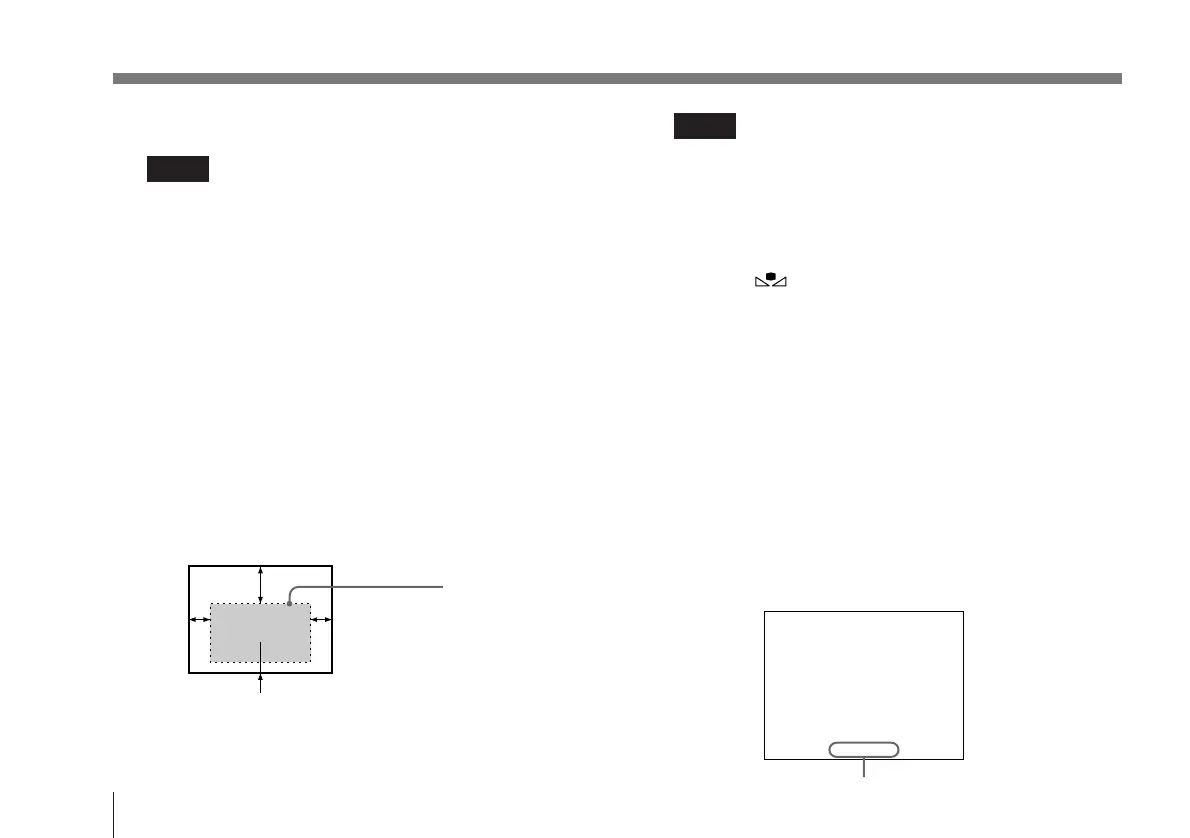
5 Place a white object in the same light as that falling on
the subject to be shot, then zoom in on the object to fill
the screen as follows:
The white object can be a piece of white paper or cloth,
a white wall, or the like.
Notes
• Be careful not to include highly reflective items in the
picture.
• Always shoot the image under suitable lighting
conditions.
6 Press the WHITE button for one second.
The message “AWB” appears on the screen while the
white level is being adjusted. When the adjustment is
done, the message “AWB OK” flashes on the screen.
The adjusted white level is automatically stored in
memory where it remains for at least 10 years, even if
the camera’s power is turned off.
White balance adjustment errors
If the white balance adjustment is not successful, an error
message appears on the screen for about one second. If this
happens, take the necessary measures and conduct steps 1
through 6 again.
For more details, see “Error messages” on page 103.
Shooting
10% of screen height
The white object
must fill a rectangle
of this size. (Avoid
very bright highlights
within the rectangle.)
15% of
screen
width
15% of
screen
width
35% of screen height
AWB NG
Error message


 To Next Page