4 Setup
PUK code
The PUK (Personal Unlock Key) code is factory set on each instrument and cannot be changed by the
user.
If the PUK code has been lost, contact your authorized Spectra Geospatial distributor to retrieve it.
If an incorrect PIN code is entered more than ten times, the Error menu appears on the Face 2 display
with the error message Invalid PIN and Instrument Locked and shows the softkeys PIN and PUK.
Press PUK. The Enter PUK menu appears on the F2 display and shows PUK: 000000000000.
Press N or O to enter the PUK code digit by digit—press P to accept each digit.
Once all valid digits have been entered, press P. The FOCUS 35 instrument is unlocked, the PIN code is
reset to 0000 and the security PIN code is deactivated.
If an incorrect PUK code is entered (any number of times), Error menu appears on the Face 2 display with
the softkeys Cancel and Retry. Select Retry to enter the PUK code again or select Cancel to abort the
procedure.
Face2 Display while using the Survey Pro Software in
different Instrument Versions
StepDrive and LockNGo versions
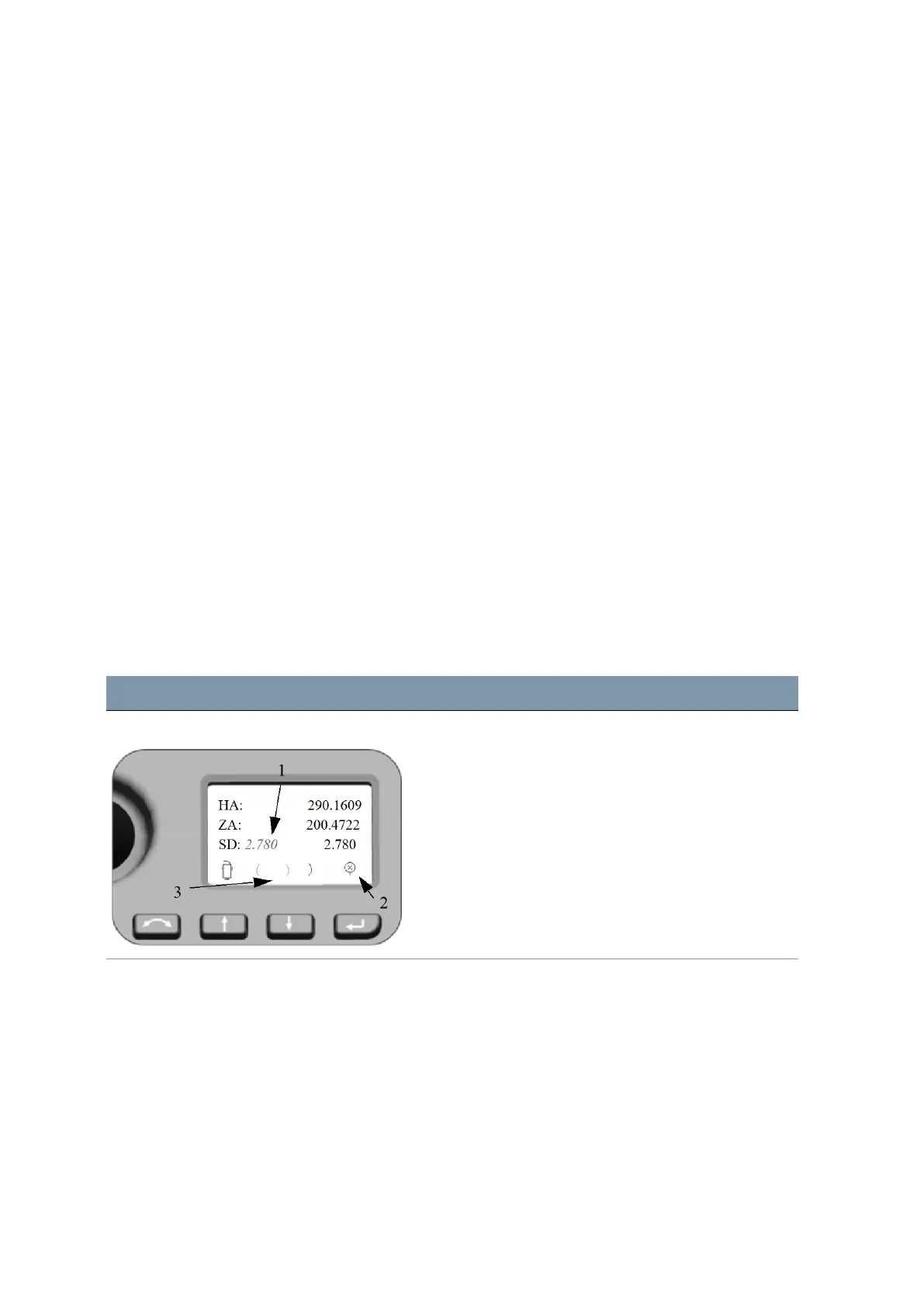
If the field software at Control Unit Face1 is started, the field software controls the Face2 display.
Screen Actions and Comments
F2 Display while program Survey Pro The Face2 display always shows measurement results
parallel to the Face1 Control Unit.
1. SD value from the last measurement jumps to left.
2. Symbol Prism or Reflectorless target
3. Symbol moves and shows the measurement
progress. Different symbols for status LockNGo.
NOTE – While using the field software in every menu the
Main Menu from the Face2 display can be opened with a
long P key press!
FOCUS 35 Total Station User Guide | 58


 To Next Page