4 Setup
Starting and Settings via Face2 Control Unit
Start Screen
Before following any of the instructions below, put the instrument in the Face2 position. Start the
instrument by pressing the trigger key for one single beep.
Screen Actions and Comments
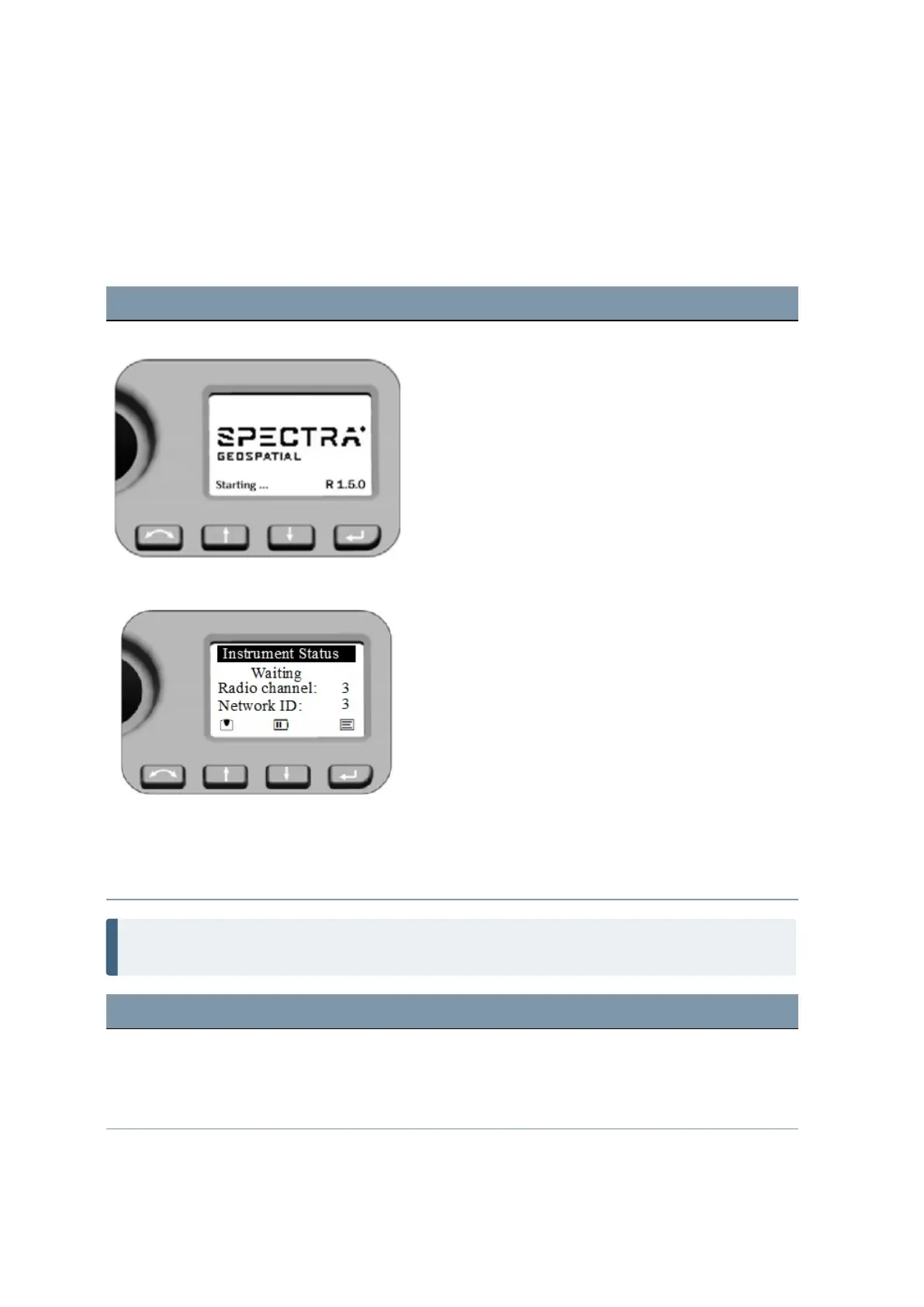
Start screen Face2 Control Unit After starting the screen will display the Spectra
Geospatial logo and the firmware version. The
instrument checks for an available connection on the set
Radio Channel and Network ID for several seconds and
then goes to Waiting state.
Instrument Status Menu - Waiting First function - Key description
U - Change Face
N - Scroll up
O - Scroll down
P - Enter
Second function - on screen symbols - short key press,
e.g.
N - Leveling menu
O - Status for battery and external power supply status
P - Instrument Settings
NOTE – StepDrive motor system and FOCUS System are usable while the Instrument Status menu
shows Waiting.
Screen Actions and Comments
Instrument Status Menu - Suspend After Starting: If the instrument is inactive for longer
than 5 minutes it will go into Suspend Mode, see also
Suspend Mode and Power Management. The display will
show Waiting (suspend).
FOCUS 35 Total Station User Guide | 54


 To Next Page