Chapter 3: Multiple Users Accessing a Chassis
How Does the Multi-User Feature Work?
36 SmartBits System Reference
In SmartCableModem Test
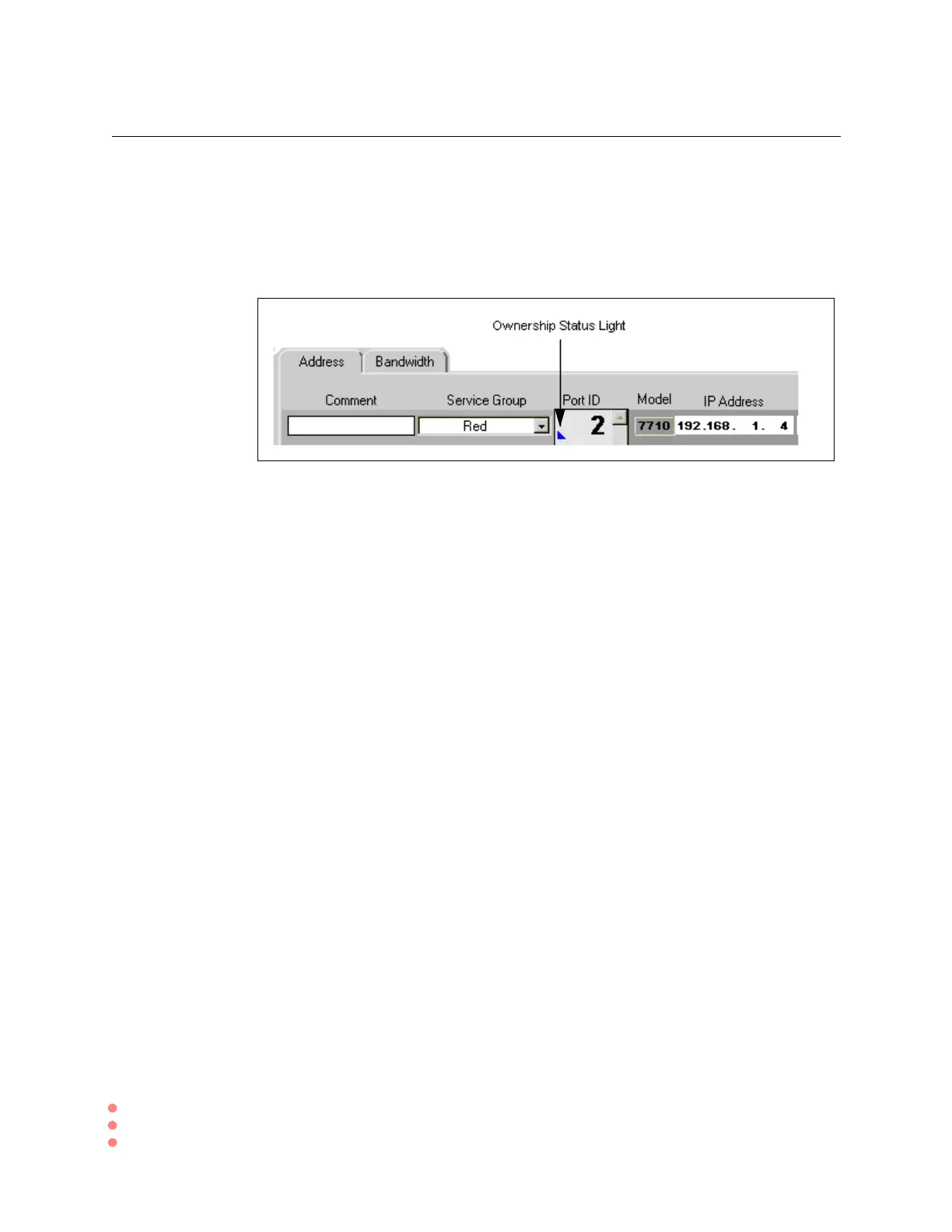
Once connected to a SmartBits chassis, the SmartCard ports that are appropriate to SCMT
testing display their Port ID, Model number, and the multi-user ownership status of each
port. If you are the first user to access the SmartBits, all ports (blue status light) are
automatically reserved by you.
In the above SmartCableModem Test example, the ownership status light indicates the
multi-user status of each port:
• Blue – the port is reserved to you.
• Green – the port is available to other users (has been released by you). With a single-
user chassis, the port is a member of the Released Service Group, and acts like any
other group.
• Red – the port is reserved by another user. This color does not appear automatically; it
appears when you try to use the port or when you apply the Actions > Refresh button.
Ownership Status of All Ports
The ownership status light only reflects the status of the SmartCards since the initial
connection to SmartBits or since the last Refresh. It is possible for a port to be reserved by
another user in the time between the last refresh and your attempt to configure or use the
port.
To see the latest, most current ownership status of all ports, select the Actions > Refresh
command.


 To Next Page