Chapter 4: Maintenance and Upgrade Procedures
Downloading New Firmware
SmartBits System Reference 40
Downloading New Firmware
You can download firmware for chassis and for individual cards from our website at
http://www.netcomsystems.com/support/softwareupdates.asp
or from a Spirent
Communications CD.
If you download from the website, be sure to obtain a password from Spirent
Communications Technical Support to open the files.
There are two firmware download programs available for SmartBits chassis:
• newfirm.exe for SmartBits 200 and SmartBits 2000.
• fdlmgr.exe for SmartBits 600 and SmartBits 6000B.
For details on using each program, please refer to the appropriate SmartBits Installation
manual.
Adding Cards to a SmartBits Chassis
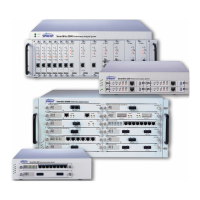
Each SMB-2000 can accommodate up to 20 SmartCards; each SMB-200 can hold up to
four SmartCards. Each SMB-6000B can hold up to 12 modules; each SMB-600 can hold
up to two modules.
Thumb screws allow for easy insertion and removal of SmartCards/modules from a
SmartBits chassis.
The connector and interface for each card slot is configured identically, thus any
SmartCard/module may be installed into any equivalent slot. If less than the maximum
SmartCards/modules are installed, optional blank panels can fill the empty slots.
Important: To maximize airflow inside the SmartBits Chassis, all unused slots must be
covered with the provided blank face-plates.
Always turn the power off to the SmartBits Chassis before inserting or removing Smart-
Cards/modules.
Converting the SmartBits Chassis
You can modify your SMB-6000 chassis to use SMB-600/6000B modules and you can
modify your SMB-600/6000B chassis to use SMB-6000 SmartModules. Refer to the
following instructions sheets for these instructions located at
http://www.netcomsystems.com/support/documentation.asp
:
• How to Use Accessory Kits: Adding a MiniModule into a SmartModule Tray (part
number 340-1036-001, Rev. A)
• How to Use Accessory Kits: Convert a SmartModule into Two MiniModules (part
number 340-1089-001, Rev. B)


 To Next Page