Chapter 4: Maintenance and Upgrade Procedures
Changing Chassis Timeout
41 SmartBits System Reference
Changing Chassis Timeout
By default, all SmartBits chassis disconnect from SmartBits applications after 30 minutes
of inactivity (chassis timeout of 1800 seconds).
ß To change the number of minutes assigned to chassis timeout for a specific chassis,
access the Hyperterminal program as follows:
1 Connect your PC to the SmartBits chassis with the serial connection (described in
your SmartBits Installation Manual).
2 Start HyperTerminal from the Windows 98 Start button by selecting
Programs> Accessories> Communications> HyperTerminal and then
Hypertrm.exe.
3 Access the icon for access to the specific SmartBits chassis.
4 To view the current default value in the HyperTerminal window, enter: idlemax
and press Return.
5 To edit the chassis timeout value in seconds, enter: idlemax xxxxx,wherexxxxx
indicates the number of seconds. Then press Return.
This edited timeout value will remain with the SmartBits chassis for all applications
until another user changes it.
Changing Chassis Fuses
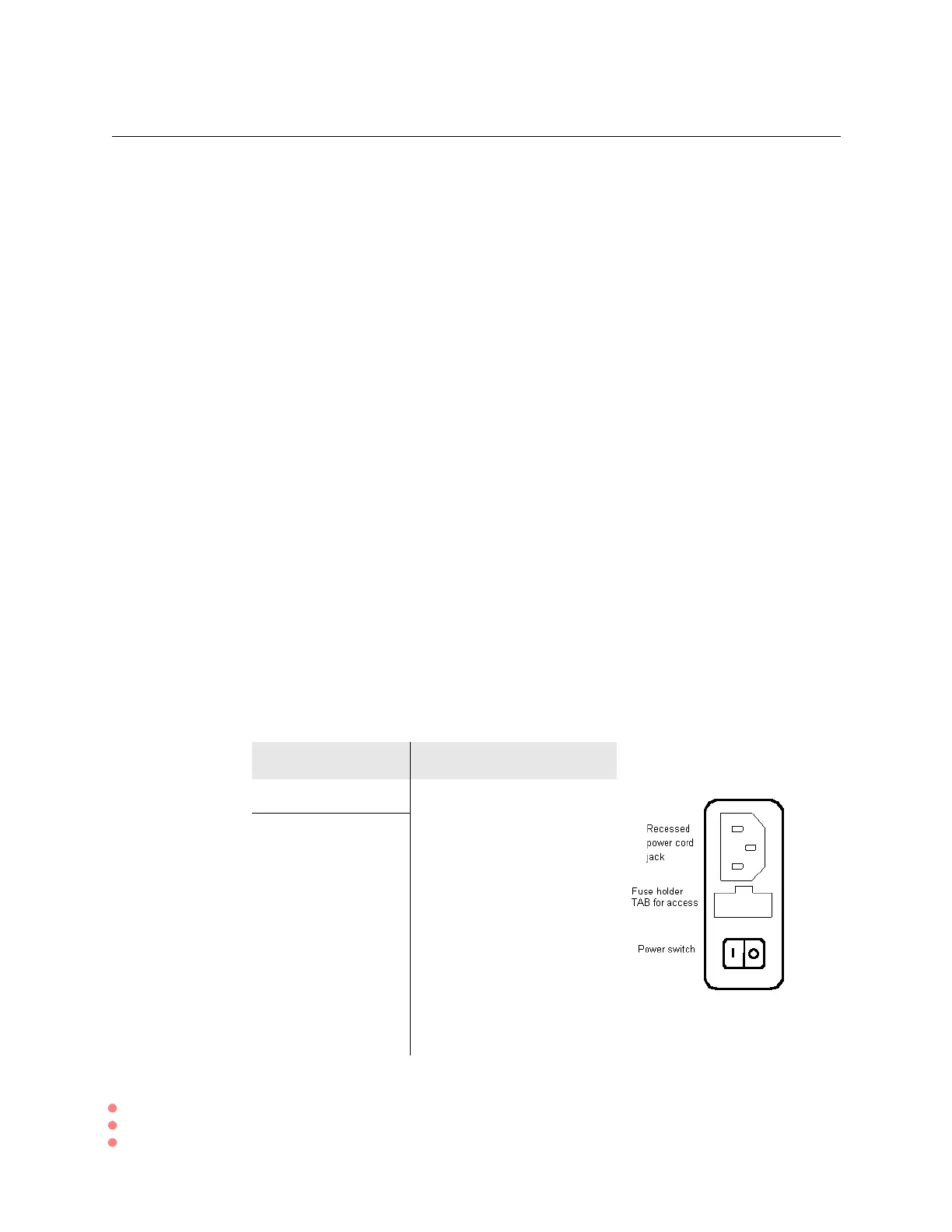
The power supply in each SmartBits chassis has a universal input that accepts 120/240
VAC requiring no selection or adjustment. The Power Supply Inlet is the main disconnect
device and is located on the rear of the chassis. It houses the power switch, fuse holder
and a universal 3-wire instrument power cord jack. Replacement fuses are metric.
Chassis Fuse Amperage
SmartBits 200 F2.0 Amp, 250V, fast action
SmartBits 20003.15 3.15 Amp, 250V, fast action


 To Next Page