Chapter 3: Multiple Users Accessing a Chassis
How Does the Multi-User Feature Work?
38 SmartBits System Reference
To keep maximum resources available for testing, the SmartBits chassis does not update
SmartxDSL on the port status unless you click the Refresh button.
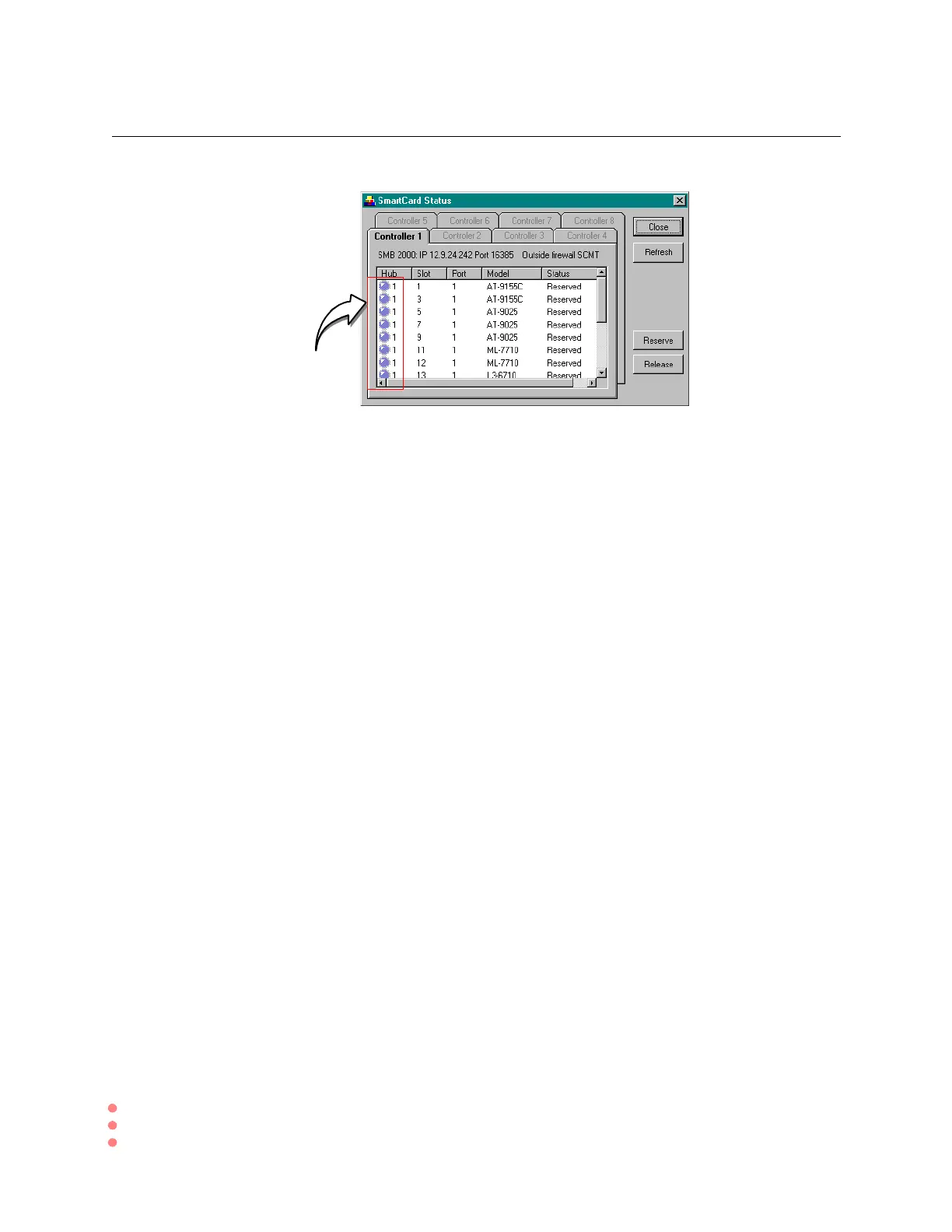
Changing Multi-user Status
Basic operations in viewing and changing user status include the following steps:
• To check the latest status of all ports, click the Refresh button.
• To release cards and make them available to other users, highlight the port row, and
click the Release button.
You must click the Release button to make ports available to other users. The second
user automaticallly accesses and reserves all available port numbers (now blue status
for the second user) and have been released by the first user. Therefore, the second
user must click on ports with a Release button to make those ports available to the
third user.
• To reserve cards released by another user or by yourself, highlight the port row, and
click the Reserve button.
To ensure that the port you have selected does not get reserved by another user prior to
running your test, reserve the port by highlighting the port and clicking the Reserve
button. While it is reserved, it is not available to anyone else either using another copy of
SmartxDSL or any other Spirent Communications application.
If any user fails to release ports presented to him, any subsequent users will access the
SmartBits chassis and see no ports as available.
Multi-User
Status LEDs


 To Next Page