Introduction
PCS 542 User Manual Version 3.3/0714/1
!6
!
Control Buttons (Continued)
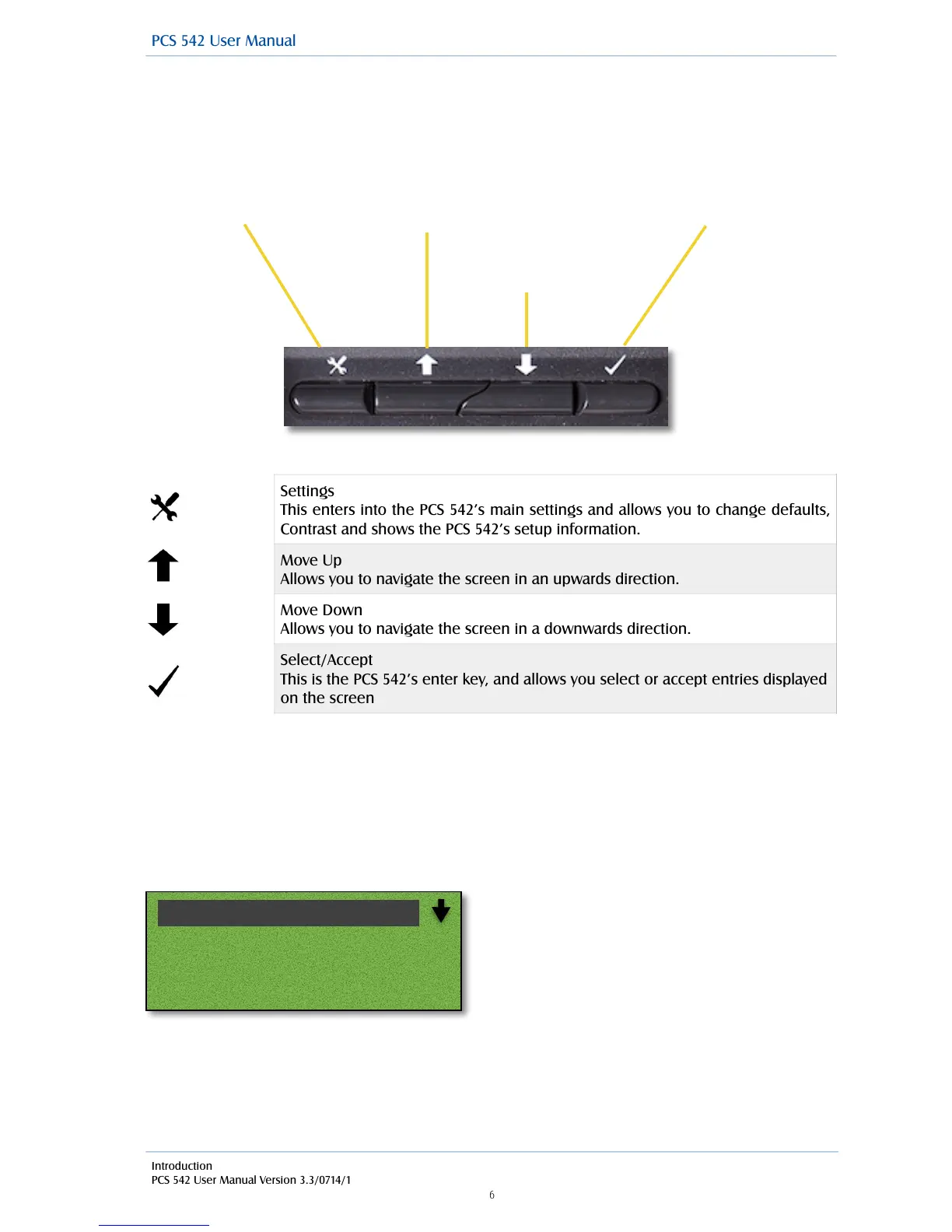
Under your PCS 542’s screen there are 4 buttons, these are used to navigate, select and change your
phones settings.
!
!
!
!
!
!
!
!
!
!
!
!
!
!
!
!
!
!
!
!
!
Navigating the PC542 Menus
Using the Navigation keys to move around the menus to make changes to the phones settings or to
make selections whilst making or receiving call there could be times where more than one option is
available. To show this down arrow at the end of a highlighted line is displayed to inform you that
there are more options available to choose from.!
Settings
This enters into the PCS 542’s main settings and allows you to change defaults,
Contrast and shows the PCS 542’s setup information.
Move Up
Allows you to navigate the screen in an upwards direction.
Move Down
Allows you to navigate the screen in a downwards direction.
Select/Accept
This is the PCS 542’s enter key, and allows you select or accept entries displayed
on the screen
If you see an arrow at the end of a line this
means that extra options are available, use the
navigate keys to see the extra options
Available.
Dial!
17:59 16/3/2014 Extn10134!
Watford!
01923287719



 To Next Page