User Settings
PCS 542 User Manual Version 3.3/0714/1
!40
Make a call to a colleague with an Out of Office message
When a call is made to a colleague who has an Out of Office message set this information will
appear within the dial screen when using the Dial Ahead feature and while the call is ringing. This
feature will not change the manner in which your call is handled.
!
!
!
!
!
Turn off the Out of Office message
Extension Anywhere
Extension Anywhere is a facility of the telephone system which enables you to receive and make
calls from your home or mobile telephone, for example, as though you were in the office. This
means that your callers or recipients of your calls will be unaware that you are working at home, for
example. You will not incur call charges and you will be able to handle calls as if you were in the
office, eg transfer calls. If you are interested in using this facility please refer to your System
Administration for further details.
!
!
!
!
!
This facility can also be configured to allow you to turn this facility on/off when required and to set
the Remote PSTN number you wish to use. Please refer to your system administrator for further
details. Once this has been set up you can perform the following:
Enable Remote PSTN
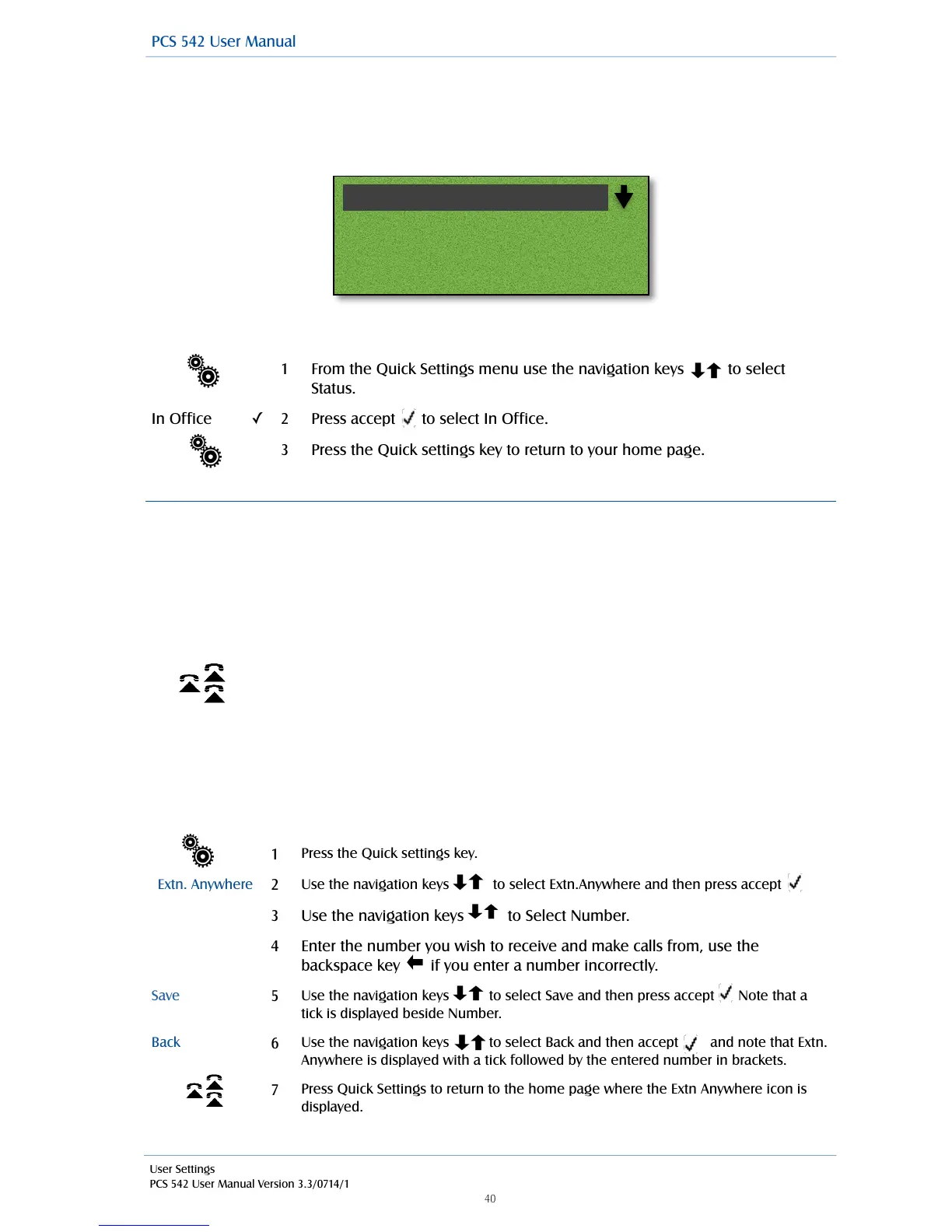
From the Quick Settings menu use the navigation keys to select
Status.
Press accept to select In Office.
Press the Quick settings key to return to your home page.
Press the Quick settings key.
Use the navigation keys to select Extn.Anywhere and then press accept
Use the navigation keys to Select Number.
Enter the number you wish to receive and make calls from, use the
backspace key if you enter a number incorrectly.
Use the navigation keys to select Save and then press accept Note that a
tick is displayed beside Number.
Use the navigation keys to select Back and then accept and note that Extn.
Anywhere is displayed with a tick followed by the entered number in brackets.
Press Quick Settings to return to the home page where the Extn Anywhere icon is
displayed.
Dial!
10109!
Danny!
In Meeting
If the Remote PSTN Mode symbol is displayed on your phone this facility has
already been configured for you and has been enabled. Your calls will be
received on the Remote PSTN number configured, e.g. your mobile. Please
refer to your System Administrator for further details.



 To Next Page