User Settings
PCS 542 User Manual Version 3.3/0714/1
!37
Quick Settings
Quick settings allows you to quickly select and change some of the more common user features
supported.
!
!
!
!
!
!
!
!
Call Divert/Follow Me
The Follow Me facility allows you to configure your extension so that your calls follow you to an
internal extension or to an external number so that when you are, for example, working at another
desk, working at home, or using your mobile etc, your calls will still reach you. You could also use
this feature when you are, for example, on holiday and wish all your calls to be diverted to your
assistant or another colleague.
!
Turn on Follow Me
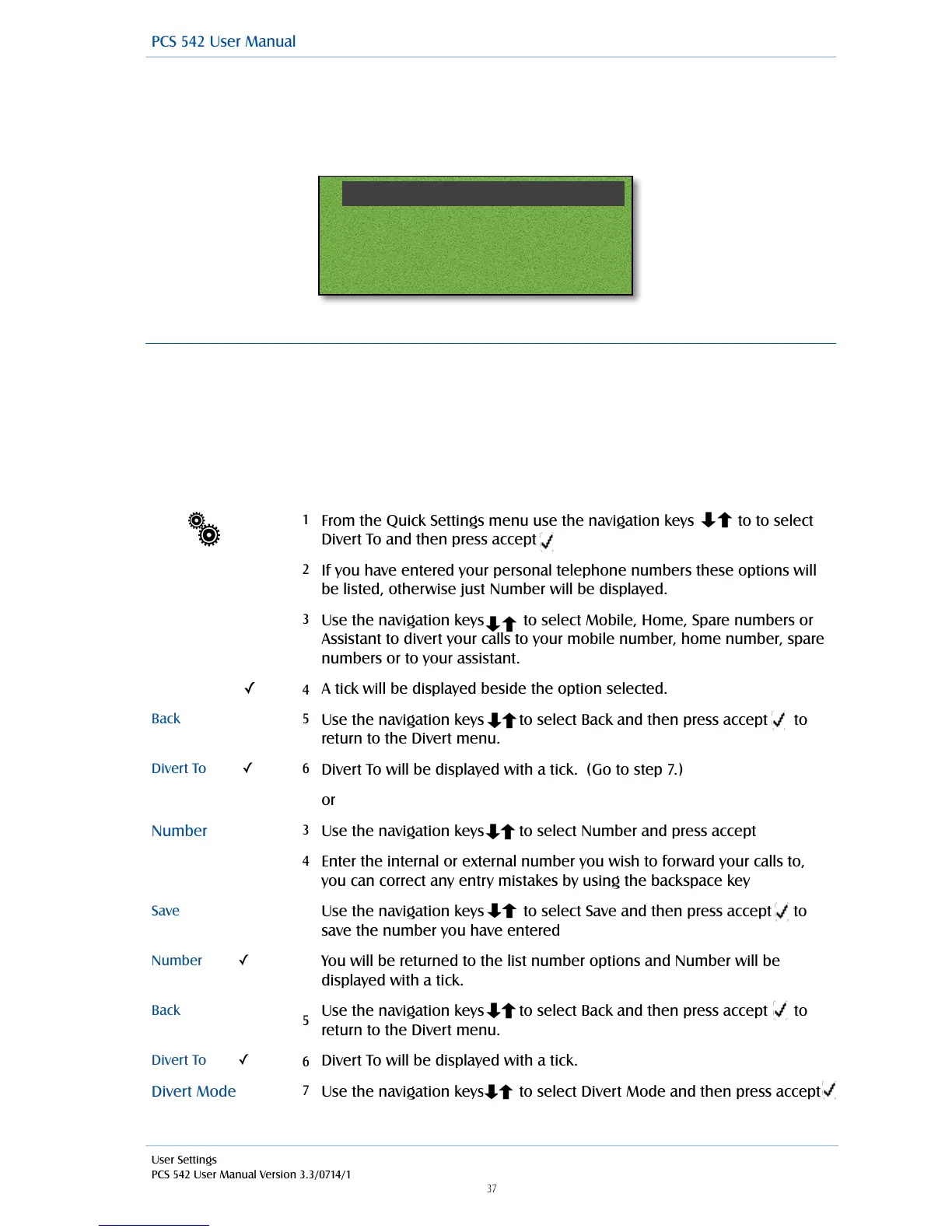
From the Quick Settings menu use the navigation keys to to select
Divert To and then press accept
If you have entered your personal telephone numbers these options will
be listed, otherwise just Number will be displayed.
Use the navigation keys to select Mobile, Home, Spare numbers or
Assistant to divert your calls to your mobile number, home number, spare
numbers or to your assistant.
A tick will be displayed beside the option selected.
Use the navigation keys to select Back and then press accept to
return to the Divert menu.
Divert To will be displayed with a tick. (Go to step 7.)
Use the navigation keys to select Number and press accept
Enter the internal or external number you wish to forward your calls to,
you can correct any entry mistakes by using the backspace key
Use the navigation keys to select Save and then press accept to
save the number you have entered
You will be returned to the list number options and Number will be
displayed with a tick.
Use the navigation keys to select Back and then press accept to
return to the Divert menu.
Divert To will be displayed with a tick.
Use the navigation keys to select Divert Mode and then press accept
Divert Mode (None)!
Divert To (None)!
Extn Anywhere (None)!
Status (In Office)



 To Next Page