!
Using SSL on your PCS542
Secure Socket Layer (SSL) Support allows PCS IP Phones deployed in remote office or home working
environments where an on site call sever does not exist to create a secure SSL link back to the host
PBX through the internet.
!
The PCS 542 gives you the option to use SSL, However this must have previously been setup by your
System Administrator.
!
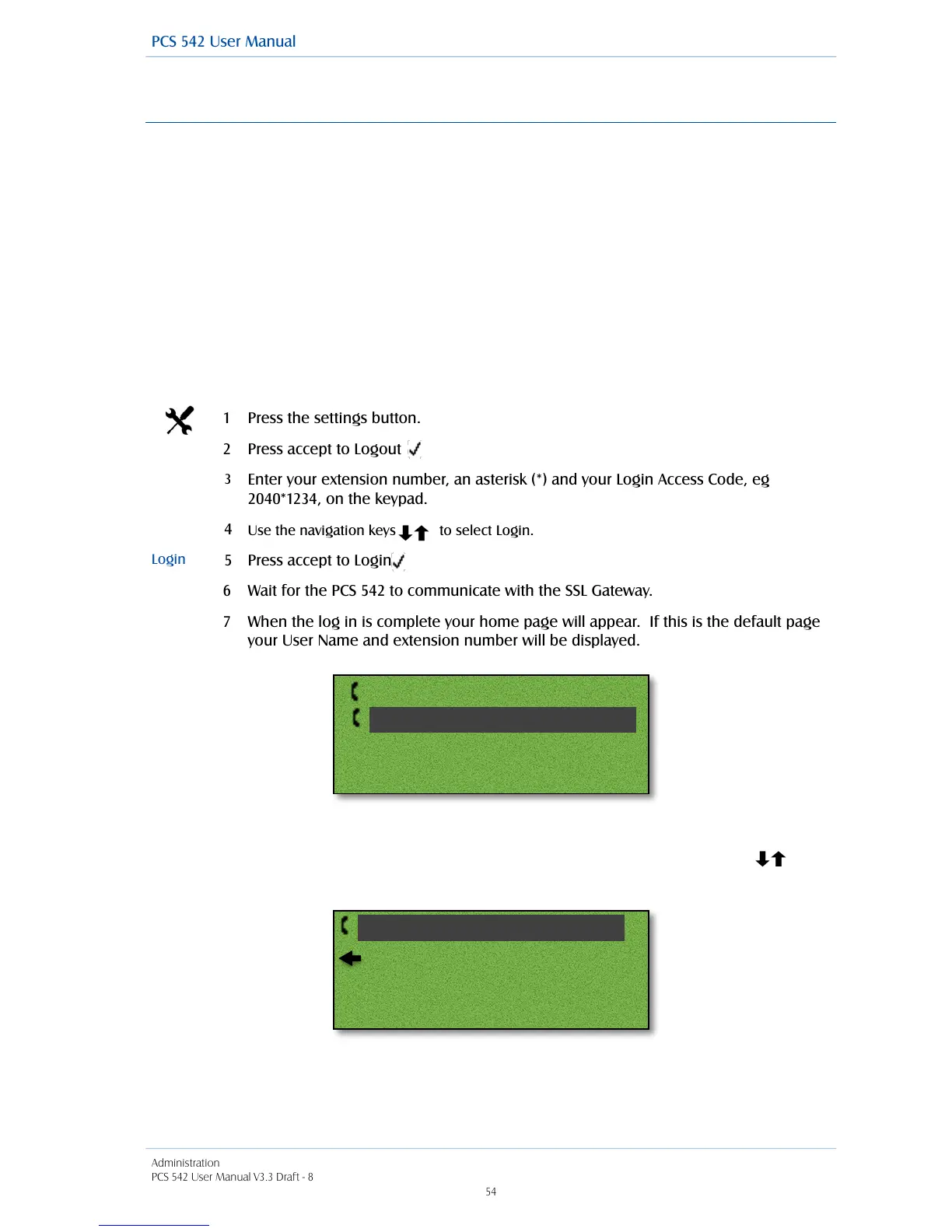
Logging on to an SSL enabled phone is similar to Hotdesk logon (See page 52), Enter your extension
number, an asterisk (*) and your Login Access Code, eg 2040*1234, on the keypad
!
Log On
If a User is already logged on to the handset you wish to use, perform the following steps:
!
!
!
!
!
!
!
!
If select Settings you will get the following screen, SSL settings are protected against change and
only your System Administrator is allowed to make any changes. Use the navigation keys to
select cancel to exit out of this screen.
!
!
!
!
!
Enter your extension number, an asterisk (*) and your Login Access Code, eg
2040*1234, on the keypad.
When the log in is complete your home page will appear. If this is the default page
your User Name and extension number will be displayed.



 To Next Page