!
!
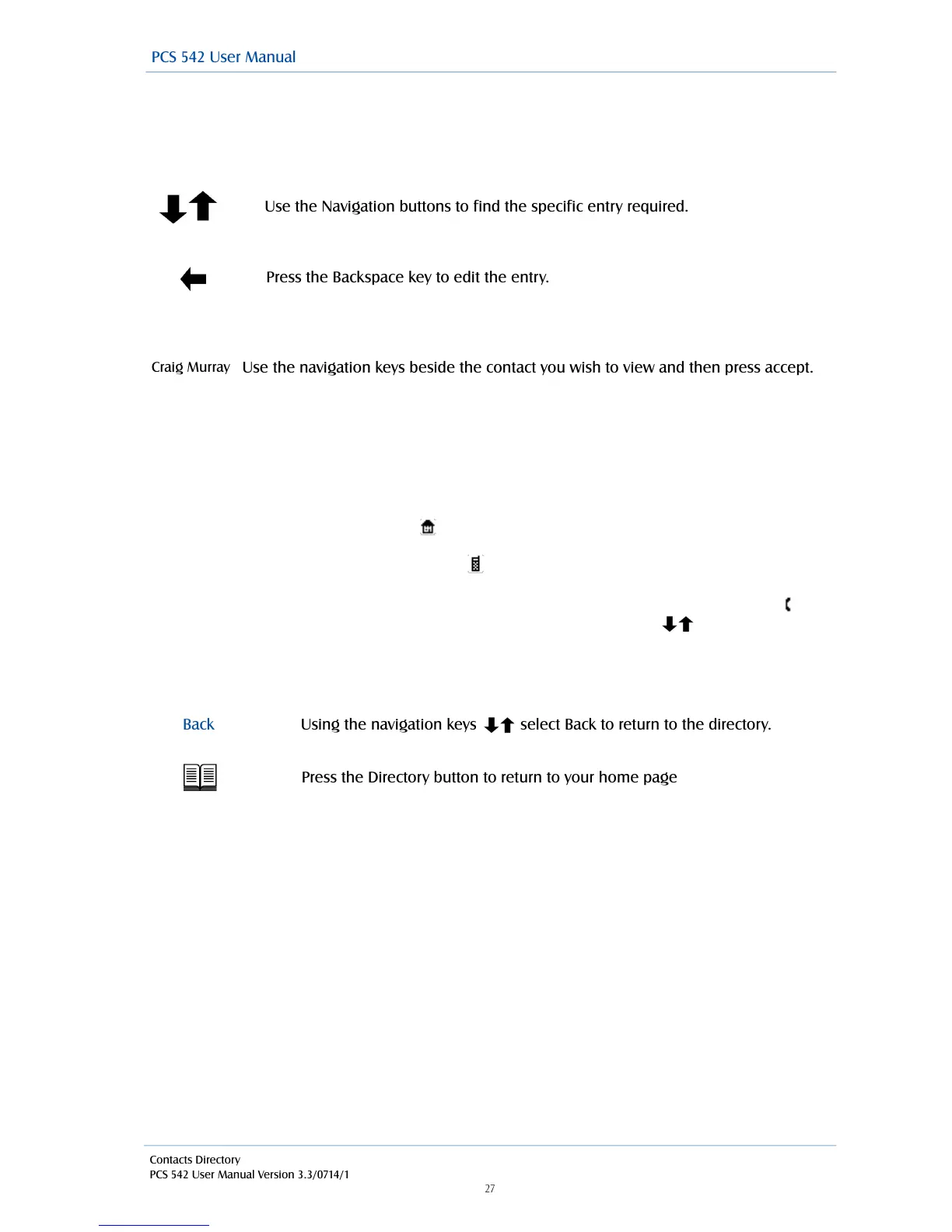
Further keys can be pressed to reduce the search. For example, if you were searching for eg Craig
you could press 27244
or
or
!
Once you have found the entry you require:
!
!
The list of numbers stored for this contact will be displayed. Up to 5 numbers per contact can be
stored on the database.
!
1) The extension number of the relevant User or the number stored in the Contact’s Telephone
Number field is displayed in the top line.
2) If there is a number stored in the User’s or Contact’s Home Telephone Number field this will be
displayed against the house symbol .
3) If there is a number stored in the User’s or Contact Mobile Telephone Number field this will be
displayed against the mobile phone symbol .
4) If there are numbers stored in the User’s or Contact’s Spare 1 or Spare 2 Telephone Number
fields these will be displayed in the next two lines against the telephone handset symbol
5) If you wish to leave your colleague a message use the navigation keys to select voicemail
. This option will only be available if voicemail has been enabled for this user. Please refer to the
Voicemail section from page 42 for further details.
!
!
!
!
Please note that you can view a directory entry while on a call if, for example, you wish to look up a
contact’s phone number.



 To Next Page