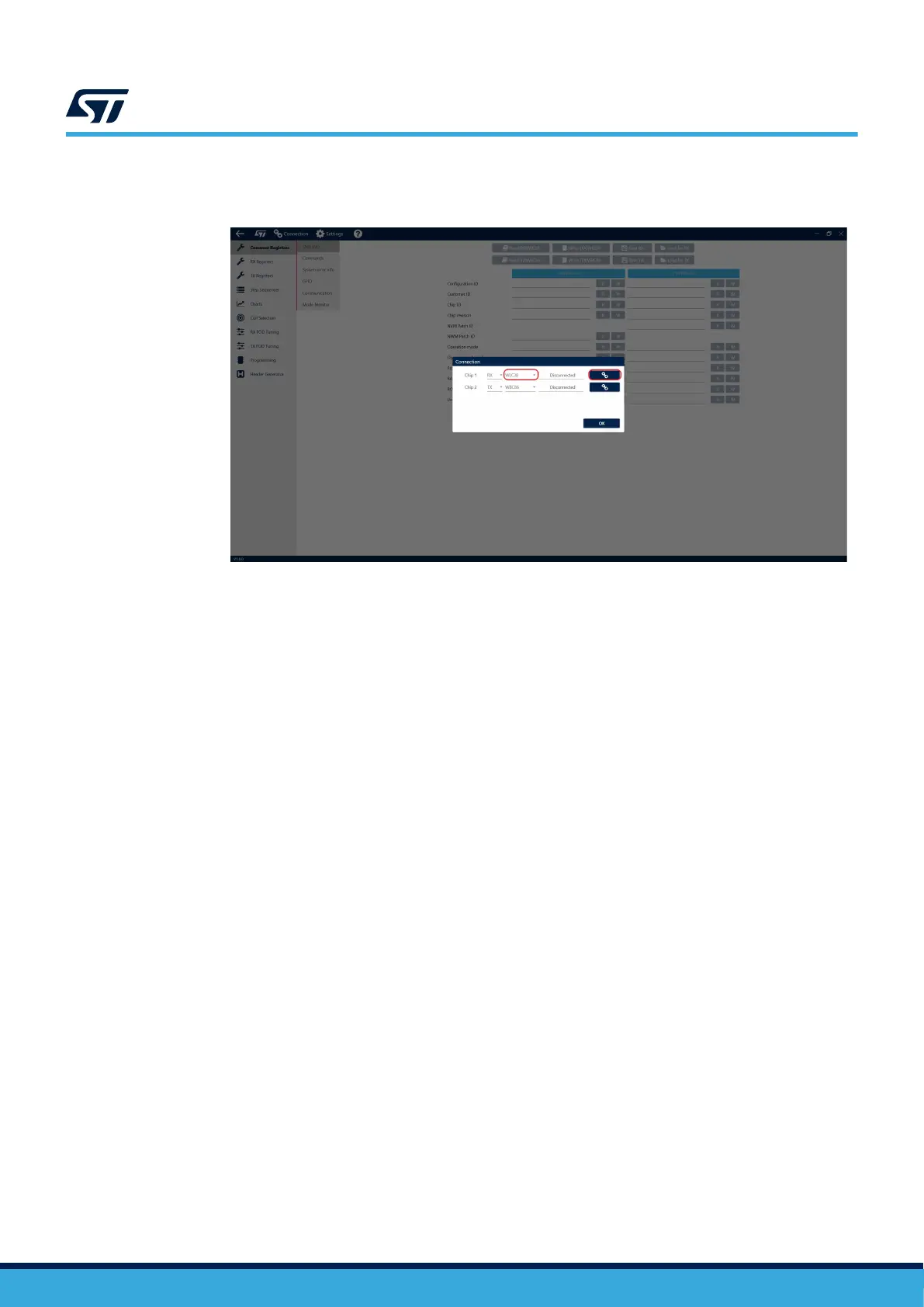
Step 4. Select [WLC38] as the Rx and click the [Connect] button on the right side of the window.
Figure 6. Device selection and connection
4.2 Patch and configuration files
Firmware of the device can be updated using a Patch file (a binary file in .memh format). The latest version of the
Patch can be found at
STWLC38. Updating the firmware is not required but may improve the performance of the
board.
The device can be configured using a Configuration file, a binary file containing settings of all registers which can
be found in the GUI. The GUI can also be used to generate a custom Configuration file, making it easier to quickly
change configuration of the board and/or transfer the configuration to another board.
In GUI, registers are divided into two groups. The value changes of registers colored in RED will take effect only if
a configuration file is generated and written to the device. Changes of registers colored in BLACK will take effect
immediately and can be saved to the configuration file. During power-up, the values of those registers are set to
the values defined in the configuration file written on the device. Registers that cannot be saved to the
configuration file and whose value is lost upon reboot have this fact noted in the description.
4.3
Configuration file generation
Using the STSW-WPSTUDIO makes generating the Configuration file quite simple.
Step 1. To make sure that the latest values are shown in the GUI, it is recommended to use the [Read
[Rx]WLC38] button to dump values from the device to the GUI. Then, the required changes of the
register may be made. This should be done, especially when going from DC mode to Rx mode.
Step 2. Click the [Write [RX]WLC38] button to save current configuration to temp memory.
UM3154
Patch and configuration files
UM3154 - Rev 2
page 8/81


 To Next Page