23
1.5.3 Finger and PIN
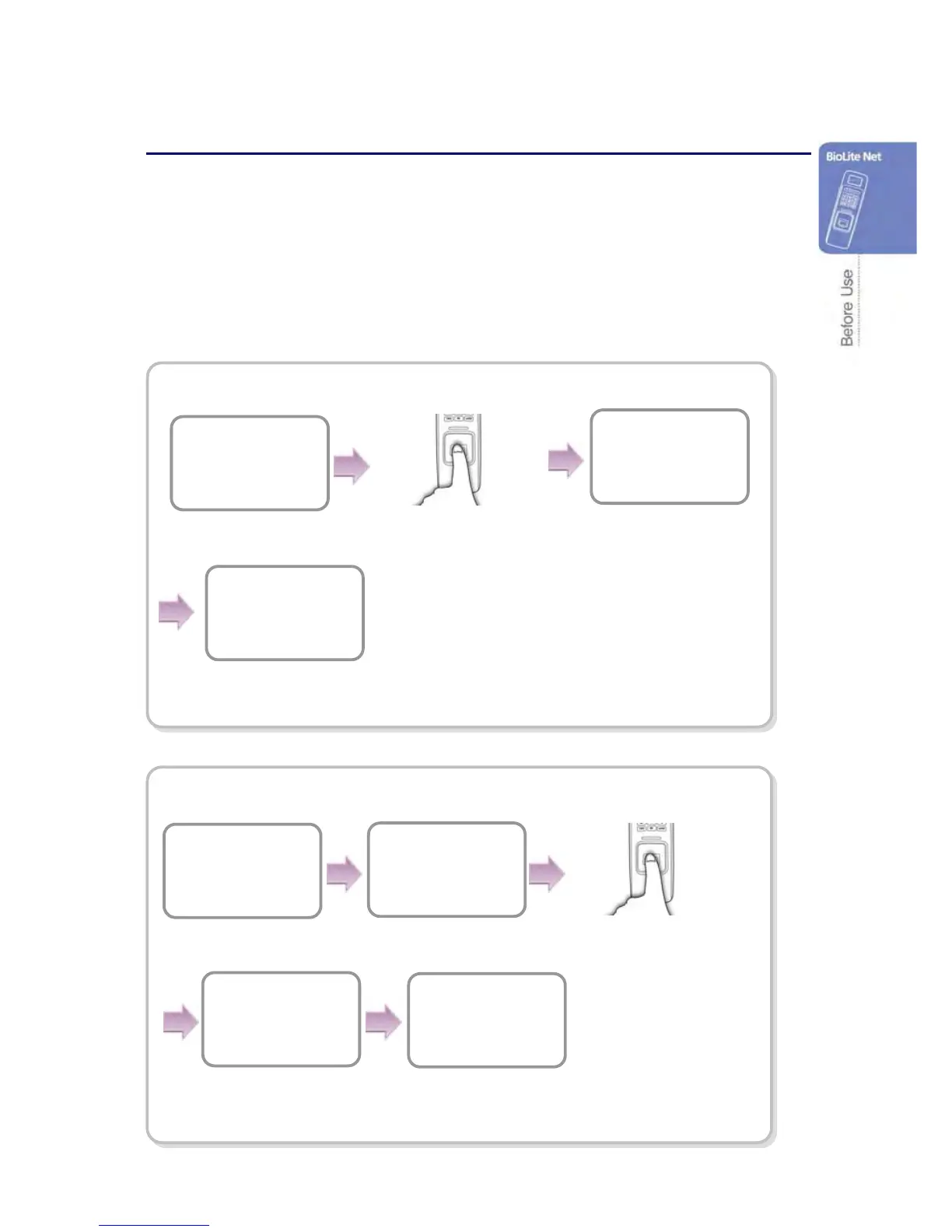
When the user authorization method is set to “Finger and PIN,” you can open the door
by using the three different methods:
1. PIN entry after identifying fingerprint
2. PIN entry after entering ID and fingerprint
3. PIN entry after entering user card and fingerprint
PIN entry after identifying fingerprint
PIN entry after entering ID and fingerprint
The door is open with the
authentication success
message.
Access Granted
ID : 2
Enter PIN
****
BioLite Net
10:33:02
Input the fingerprint
of the user.
BioLite Net
10:33:02
Enter ID
2
The door is open with
the authentication
success message.


 To Next Page