32
Changing the authorization method
Autho※ rization methods: *Finger Only/PIN Only/Finger or PIN
/ Finger and PIN/Card Only/Per Device
- Finger Only: Only fingerprint is used.
- PIN Only: Only PIN is used.
- Finger or PIN: Fingerprint or PIN is used.
- Finger and PIN: Both fingerprint and PIN are used.
- Card Only: Only user card is used.
- Per Device: The mode set in “Device > Authorization > Operation Mode >
Auth Mode” is used.
Changing the security level of the user
※Security Level: *Per Device/Lower/Low/
Normal
/High/Higher
- Per Device: The security level in “Device>Authorization>Fingerprint>”
on page 39 is applied.
- The higher the security level, the more sensitive the fingerprint recognition.
But the authorization failure rate can increase.
This authorization method setting for each user has higher priority than
the terminal setting that has been defined in Device > Authorization
> Operation Mode > Auth Mode. Note that this function is applied to
the case when the user enters ID or card and when Use is set in
Device > Authorization > Operation Mode > Private Auth
Item
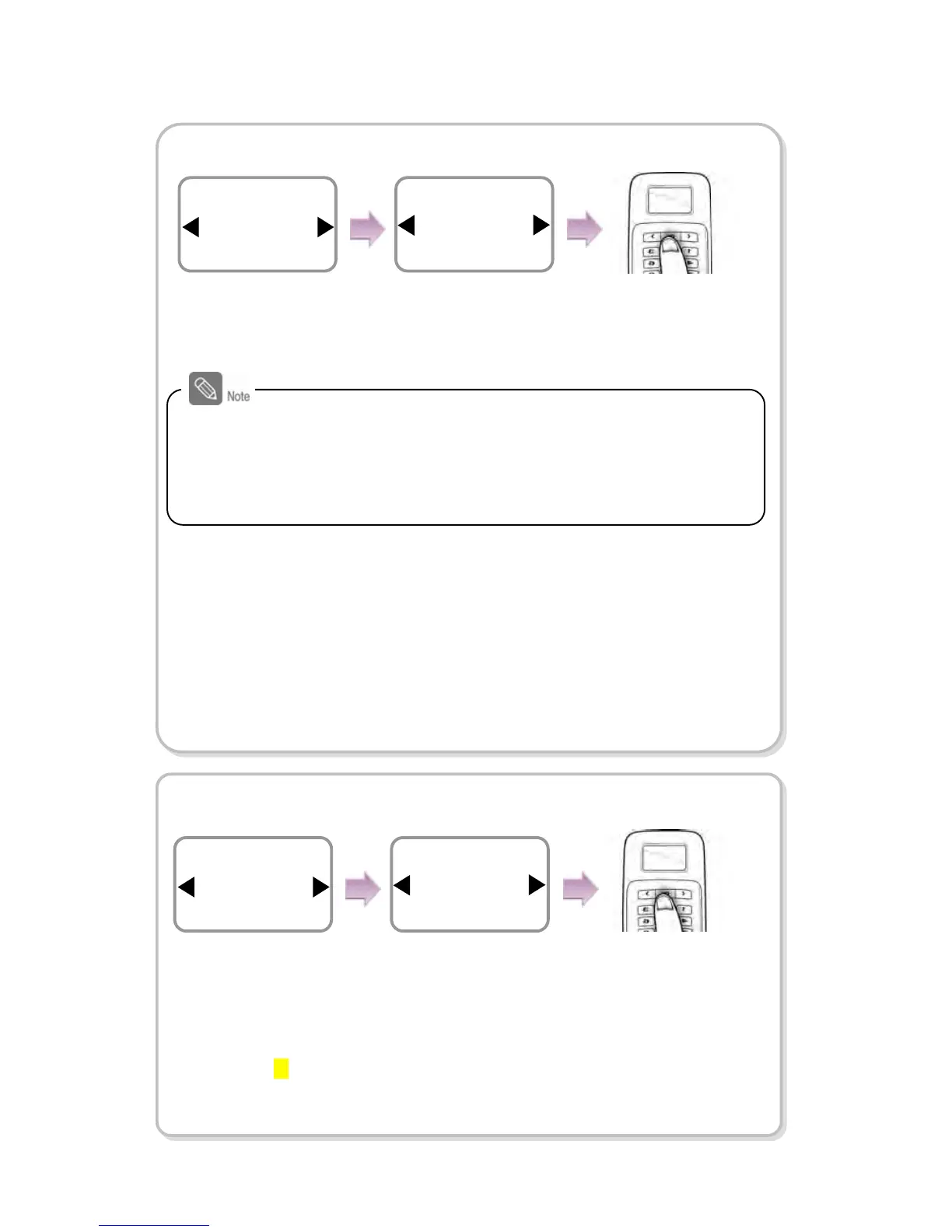
Operation Mode
Edit
Use ◀/▶ buttons to
select Operation Mode
and press OK.
Use ◀/▶ buttons
to select an desired
operation mode and
press OK.
Press OK.
Operation Mode
Finger Only
Edit
Use ◀/▶ buttons to
select Security Level and
press OK.
Use ◀/▶ buttons
to select a security
level.
Item
Security Level
Edit
Security Level
Normal
Edit
Press OK.


 To Next Page