Swegon reserves the right to alter specications. 20220323
56
WISE User Manual
Day schedule
Day schedule allows the user to set events that are to apply at
specic times. An event is a start and end time where a specic
function is performed by the schedule. The base settings apply
at times where there is no event. All events continue for all
weeks that the schedule is enabled.
Available functions, so-called day settings, that can be sched-
uled are: Disabled (Base settings), Holiday, Occupancy,
Unoccupancy, Morning heating, Summer night cooling and
Checked in.
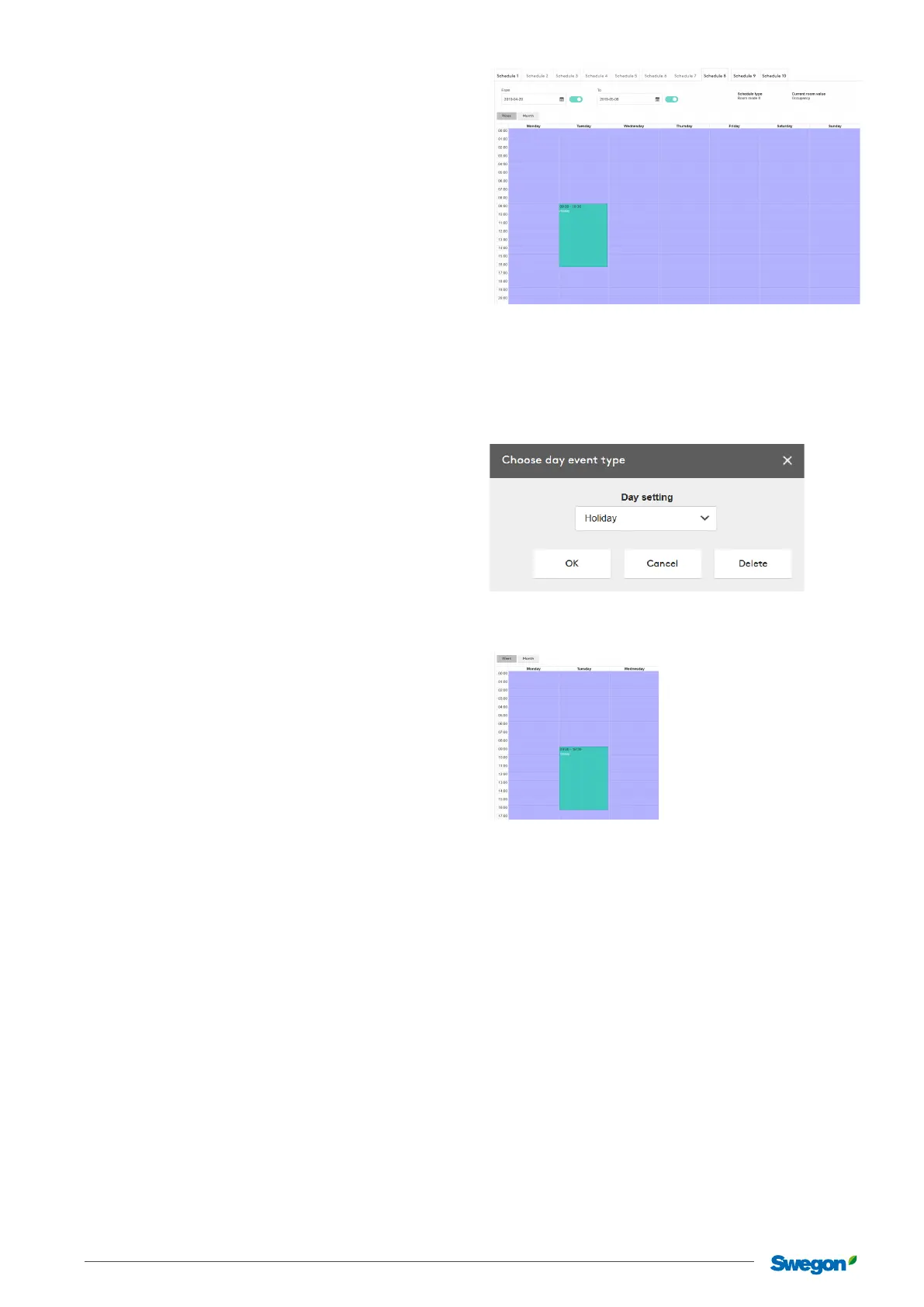
In order to create an event, the user highlights the time on the
day you wish to have an event.
Aer highlighting the time, an empty event is created for this
time.
Events can be moved around in week-view by clicking and drag-
ging them to dierent days and times in the view.
If you wish to extend an event, you can extend the event by
clicking and dragging the lower edge of an event. Each day in
week view can have 5 events at most.
Clicking once on the event in the schedule brings up a dialogue
box for this particular event
Here the user can set a Day setting. This setting is specic to the
schedule type.
The dialogue box has three buttons.
OK – Sets the function that the day setting is set to as the
selected event.
The event now has the function “Holiday” and is coloured based
on the order in the scroll list. The room mode “Holiday” will now
apply for this room type on all Tuesdays between 09:00 – 11:00
for those rooms that are linked to this schedule.
Cancel – Cancels and closes the dialogue box.
Delete – Removes the event you click on.
In order to change a function for an event, you can, in the same
way as rst time, click on the event and change the function
type.



 To Next Page