20220323 Swegon reserves the right to alter specications.
57
WISE User Manual
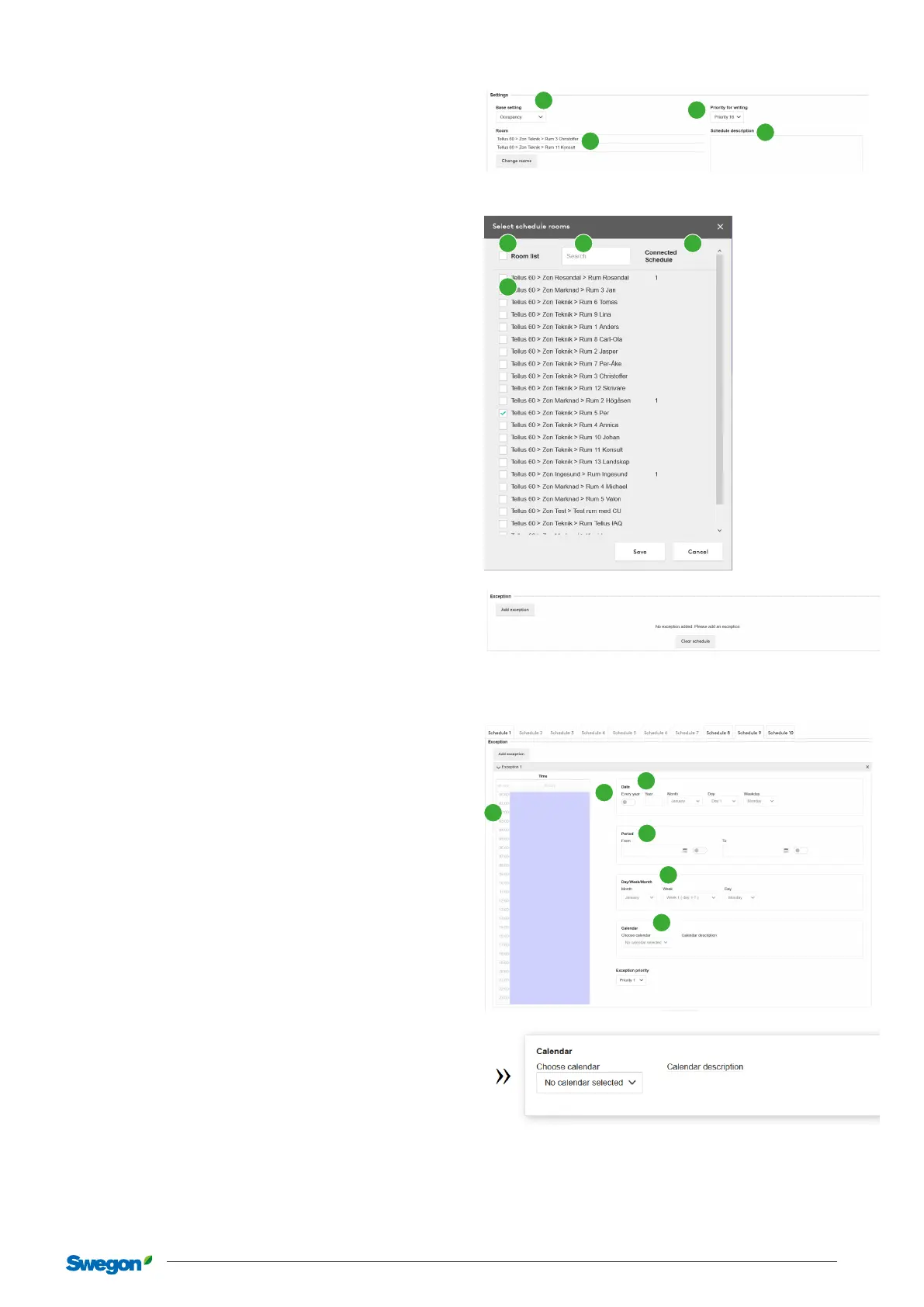
Settings
. Base setting – The base setting is the setting that applies at
all other times that do not have an event, but the schedule
is still enabled. This is symbolised in the event view by a lilac
background.
. Priority for writing – The priority of the schedule where is
the highest priority and is the lowest priority. The base
setting is .
. Schedule description – An optional description of the sched-
ule.
. Room – Lists the rooms that are linked to the schedule. The
“Change rooms” button produces a dialogue box where
you can add or remove the link between the room and the
schedule.
Change rooms
. Room list – Checking this checkbox highlights all the rooms
currently shown in list view.
. Search – This eld is a search eld that checks for a match-
ing name in the room list and only shows these.
. The list shows all rooms at the site. The list can be ltered
with the help of the search eld and with the Room list
checkbox only being checked for the rooms you searched
for.
. Connected schedule – Shows whether a room is linked to a
schedule of the same type. This can be overwritten. An error
message is then shown in the dialogue that warns for this.
Exception
It is possible to select 10 exceptions from the scroll list. These
exceptions permit one or more exception days to be chosen,
which overwrite the regular schedule. For example, the room
mode “Holiday” can be set between 16:00 and 23:00 all
Tuesdays. However, on Tuesday April 23 the room mode “Occu-
pancy” is required instead as there is to be an event on that
evening.
. Time – Works in the same way as “regular” events for a
schedule. In addition, you can check the “All day” checkbox.
This creates an event that extends over the whole day. Note
that the whole box is “dimmed” so that it is not possible
to set times in Time view before the user has selected the
exception type.
. Exception type – This is the type of day(s) you wish to use
for the exception. This is selected by clicking on one of the
checkboxes: Date, Period, Day/Week/Month or Calendar.
An exception is not valid until the type has been selected. If
you wish to delete an exception click on the cross in the top
righthand corner.
a. Date – A specic date where you set the Year, Month,
Day, Weekday. There is also a possibility to select odd,
even and all months or weeks.
b. Period – From and To date for either a specic day or a
period of days.
c. Day/Week/Month – Here you can set specic months/
weeks/days
d. Calendar – A calendar if there is a calendar.
1
2
3
4
1 2
3
4
1
2
c
d
b
a
If there is a calendar and it has a description this is shown when you
hold the cursor over the calendar.



 To Next Page