Swegon reserves the right to alter specications. 20220323
58
WISE User Manual
Clear schedule
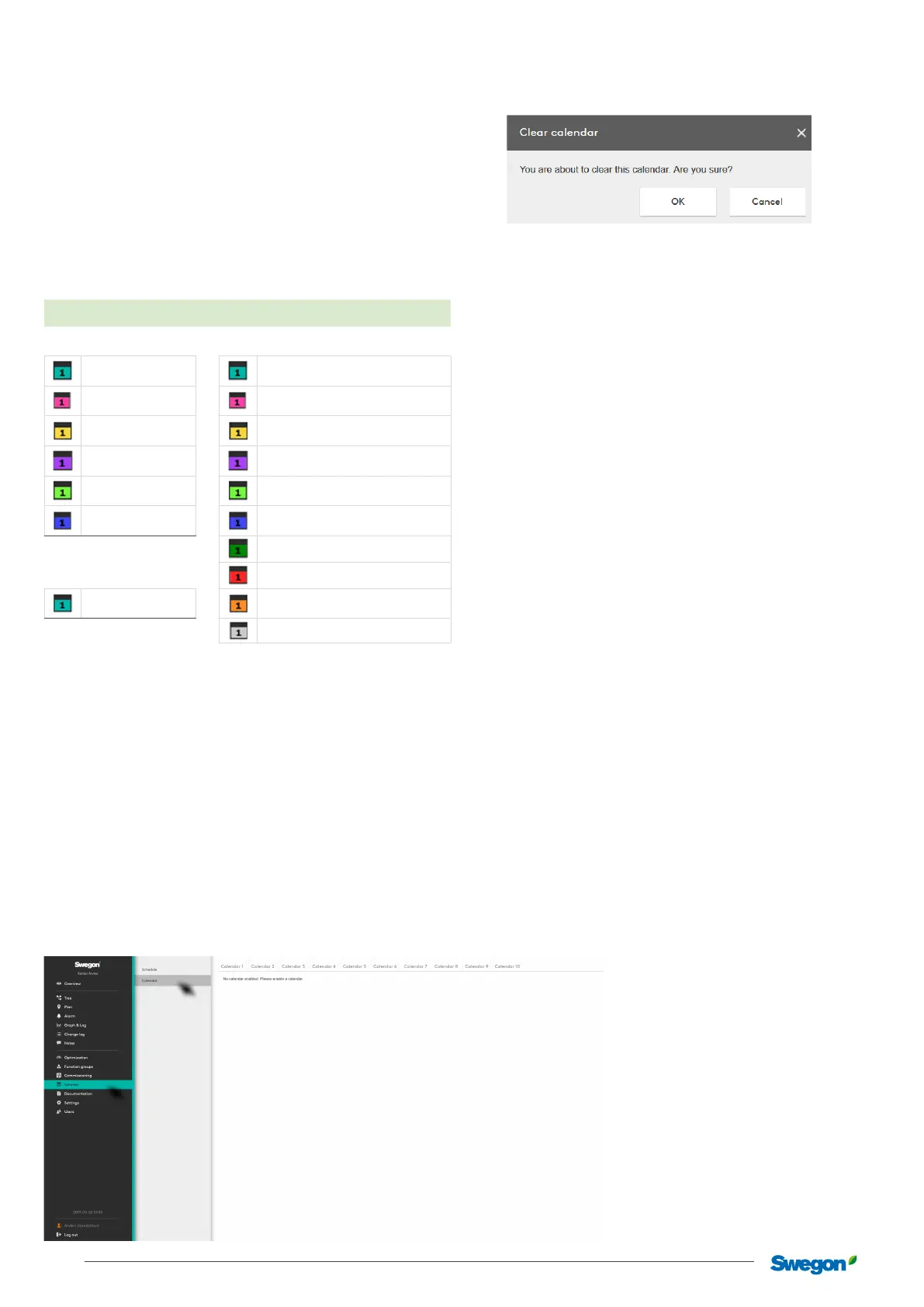
This dialogue box appears when you click on the “Clear schedule”
button at the bottom of the schedule tab to ensure that the user
is sure the current schedule should be deleted.
If the user clicks “OK” all values are cleared from the schedule
and the schedule is disabled.
Colour description schedule
Events in schedules are presented in dierent colours depend-
ing on the function of the event. What functions the dierent
colours correspond to are shown below.
Schedule
Room mode Temperature oset
Holiday
Holiday
0
Occupancy
Occupancy
2.0 - 2.9 Celsius
Unoccupied
Unoccupancy
3.0 - 3.9 Celsius
Morning heating
Morning heat
4.0 - 4.9 Celsius
Summer night cooling
Summer night cool
5.0 - 5.9 Celsius
Checked in mode
Checked in
6.0 - 6.9 Celsius
7.0 - 7.9 Celsius
Boosted air ow
8.0 - 8.9 Celsius
Air boost on 9.0 - 9.9 Celsius
10 Celsius
Calendar in SuperWISE
The purpose of the calendar is to make it easy if you wish to use
the same exception days for several schedules.
For example, you can create an exception for each holiday
during the year. Instead of adding all the days to each schedule
separately, you do it once in a calendar, which in turn is then
linked to each schedule.
Enabling the calendar
If the BACnet setting “BACnet” is set to “O”, the Calender will
show an empty page with the text:
“BACnet is not enabled. Please enable BACnet in Settings”.
If any other setting on “BACnet” is set, this page will be shown.



 To Next Page