EasyManua.ls Logo

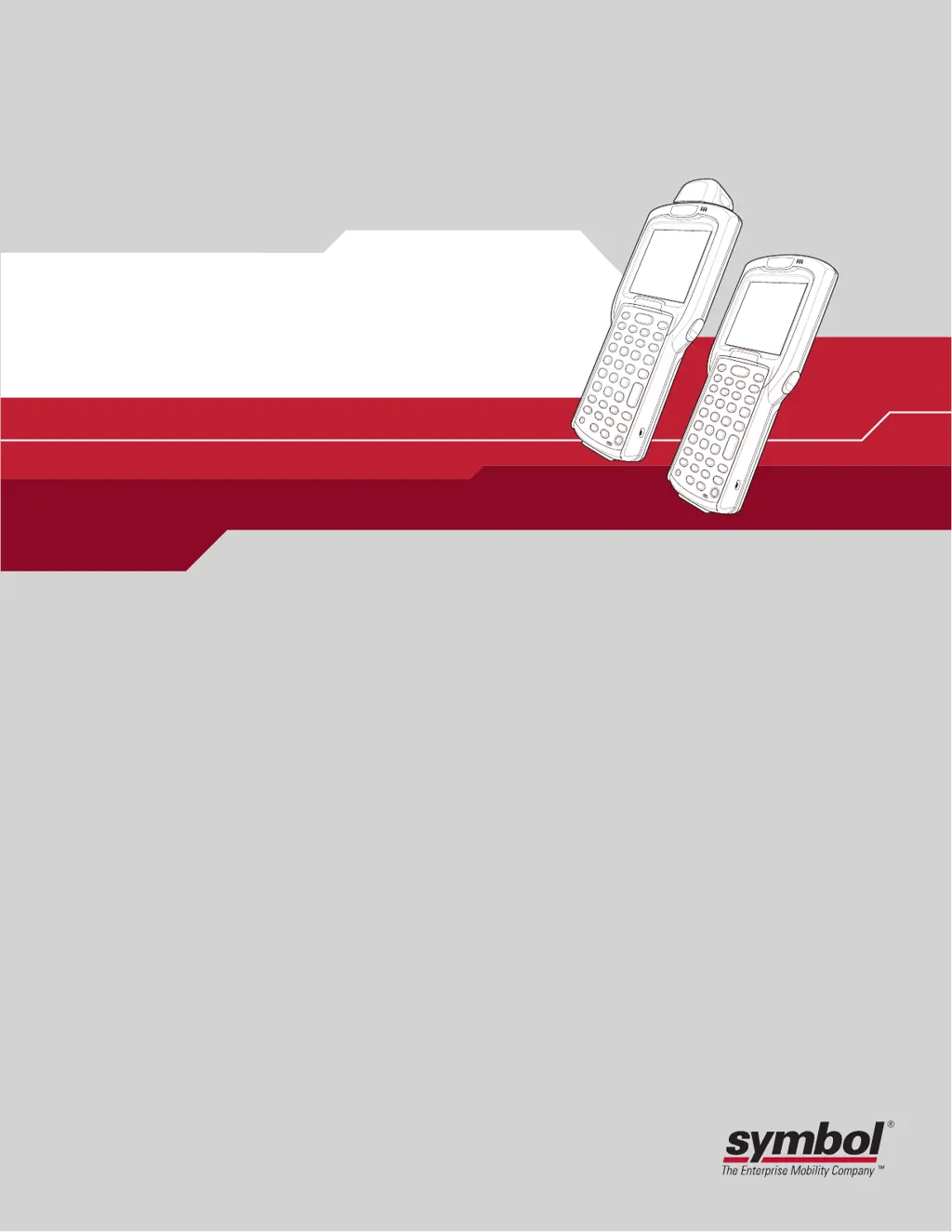
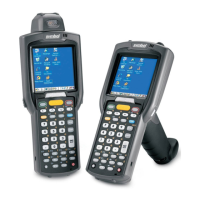
Symbol MC3000 - User Manual

Symbol MC3000
172 pages
Print Icon
To Next Page IconTo Next Page
Loading...
MC3000
Integrator Guide

Table of Contents

Other manuals for Symbol MC3000

Questions and Answers

  • S
    Shane RamseySep 8, 2025
    Why does my Symbol Handhelds mobile computer turn itself off?
    • J
      Justin JonesSep 8, 2025
      Your Symbol Handhelds mobile computer might be turning off automatically due to inactivity, which can be set from one to five minutes. Also, check if the battery is depleted and needs recharging or replacement. Make sure the battery is properly inserted.
  • C
    Christine LawrenceSep 9, 2025
    What to do if I cannot see characters on my Symbol Handhelds screen?
    • S
      Stacy SmithSep 9, 2025
      If you cannot see characters on your Symbol Handhelds screen, press the Power button to turn on the mobile computer.
  • R
    Rodney WalkerSep 12, 2025
    What to do if tapping window buttons or icons does not work on Symbol Handhelds?
    • M
      Melissa DavenportSep 12, 2025
      If tapping the window buttons or icons on your Symbol Handhelds device doesn't activate the corresponding feature, it could be due to an incorrectly calibrated touch screen. To fix this, re-calibrate the screen by double-tapping the Ctl Panel icon in the Demo window and then double-tapping on Touch Calibrate, and follow the on-screen prompts. Alternatively, the system may have crashed, so try warm booting the system.
  • M
    melissa54Sep 13, 2025
    What to do if my Symbol Handhelds mobile computer does not accept scan input?
    • M
      Mrs. Brittany CooperSep 13, 2025
      If your Symbol Handhelds mobile computer isn't accepting scan input, first check that a scanning application is loaded. Ensure that the bar code is not defaced and the mobile computer is within the proper scanning range. Also, verify that the mobile computer is programmed to accept the type of bar code being scanned. If a beep on a good decode is expected but not heard, check that the application is set to generate a beep on good decode. Finally, check the battery level, as the mobile computer automatically goes into suspend mode when the battery is low.
  • V
    Victoria CrawfordSep 15, 2025
    What to do if during data communication, no data was transmitted, or transmitted data was incomplete on Symbol Handhelds?
    • G
      Gabrielle HoffmanSep 15, 2025
      If, during data communication, no data was transmitted or the transmitted data was incomplete on your Symbol Handhelds, ensure the mobile computer remains in the cradle or the cable remains attached to the host computer. Replacing the mobile computer in the cradle or reattaching the cable and re-transmitting may resolve the issue.
  • J
    Joseph LoveSep 18, 2025
    Why does my Symbol Handhelds mobile computer not emit sound?
    • C
      Candace MartinezSep 18, 2025
      Your Symbol Handhelds mobile computer may not emit sound if the volume setting is low or turned off. Also, the mobile computer may be a beeper only configuration or an incorrect setting is programmed into the device.

Summary

About This Guide

Service Information

If an equipment problem occurs, contact the appropriate regional Symbol Support Center.

Symbol Support Center

For service information, warranty information or technical assistance contact or call the Symbol Support Center.

Chapter 1. Getting Started

Accessories

Table 1-1 lists the MC3000 accessories.

Install Main Battery

Procedure for installing the main battery into the mobile computer.

Battery Charging

Information on charging the main battery using cradles, cables, and chargers.

Chapter 2. Accessories

Single Slot Serial;USB Cradle

Describes how to set up and use the Single Slot Serial/USB cradle.

Chapter 3. ActiveSync

Installing ActiveSync

Instructions for downloading and installing ActiveSync on the host computer.

Setting Up an ActiveSync Connection on the Host Computer

Guide to establishing an ActiveSync connection on the host computer.

Setting up a Partnership

Procedure for setting up a synchronization partnership between devices.

Chapter 4. Software Installation on Development PC

Required System Configurations

Minimum host system requirements for SMDK and DCP.

Chapter 5. Software Installation on Mobile Computer

Copying Files

Steps for copying files to the mobile computer via ActiveSync.

Chapter 6. Creating;Loading Hex Images

Starting Terminal Configuration Manager

Steps to launch TCM and its interface components.

Defining Script Properties

Procedure for defining script properties like mobile computer type and memory configuration.

Creating the Script for the Hex Image

Details on creating scripts for building hex images.

Building the Image

Process of building the hex image defined by the script.

Sending the Hex Image

Instructions for downloading the hex file to the mobile computer.

Chapter 7. WLAN Configuration

Connect to a WLAN

Steps for connecting to an available wireless network.

Chapter 8. AirBEAM Smart

Configuring the AirBEAM Smart Client

Steps to configure AirBEAM Smart Client settings.

Chapter 9. Rapid Deployment Client

Scanning RD Bar Codes

Describes how the mobile computer scans bar codes for configuration and downloads.

Chapter 10. Maintenance & Troubleshooting

Maintaining the Mobile Computer

Tips for trouble-free service and proper care of the mobile computer.

Troubleshooting

Provides solutions for potential problems during mobile computer operation.

Mobile Computer

Troubleshooting guide for common mobile computer issues.

Appendix A. Technical Specifications

Mobile Computer Technical Specifications

Summarizes technical specifications and operating environment.

Symbol MC3000 Specifications

General IconGeneral
BrandSymbol
ModelMC3000
CategoryHandhelds
LanguageEnglish

Related product manuals