13
8303460000 Rev A IA672-04-01-Rev. I
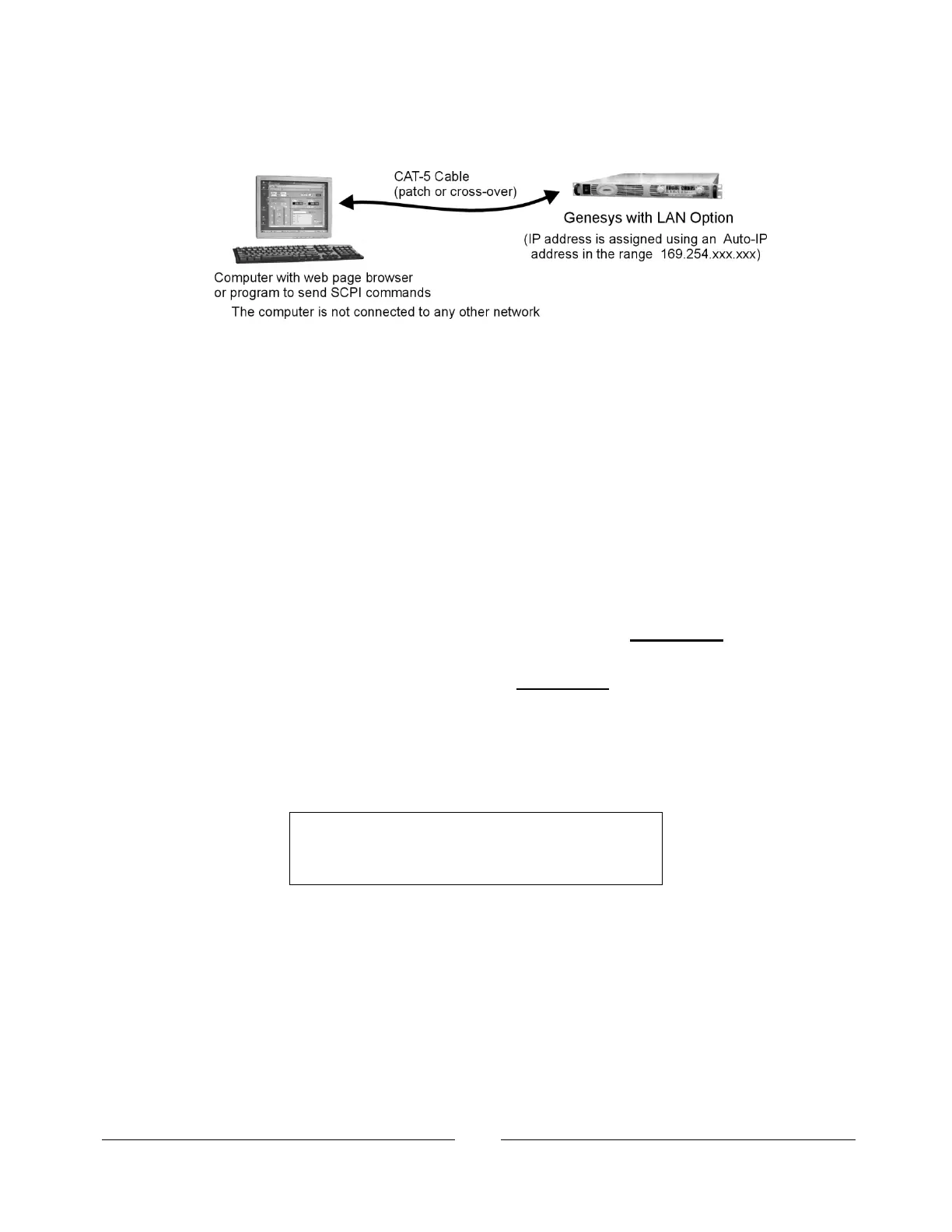
B. PEER-TO-PEER NETWORK: this is typically the situation when you connect the
Genesys™ supply directly to a computer that is not a network server. The power
supply will configure its own IP address and other settings.
Figure 5. Peer-to-Peer Connection Diagram
4.3. Power-up the LAN Power Supply
The Genesys™ power supply LAN option will automatically detect if it is connected or
disconnected from a network. It will also automatically look for a network server and it will
get or create an IP address. It will also broadcast its IP address and hostname to all other
devices on the network.
A. Before turning the power supply ON, verify it is set to enable LAN. See the switch
setting in section 3.3.1.
B. Turn ON the power supply AC power. See the front panel show “Lan” for about
3 seconds. After that, the supply will show “OFF” or the last output settings.
C. The LAN cable may be connected before or after the supply is switched on.
D. For a DHCP server or STATIC IP network, wait about 15 seconds.
See the rear panel LAN Status LED turns green.
E. For a peer-to-peer network, wait about 40 seconds.
See the rear panel LAN Status LED turns green.
The computer screen may show a LAN notification, “This connection has limited or no
connectivity.”
When the LAN Status LED turns green, the power supply IP address will change from all
zeroes to a valid address. It can be viewed on the front panel (see section 5.1).
Note
If the LAN Status LED does not turn green,
see section 15 for troubleshooting steps.



 To Next Page