77
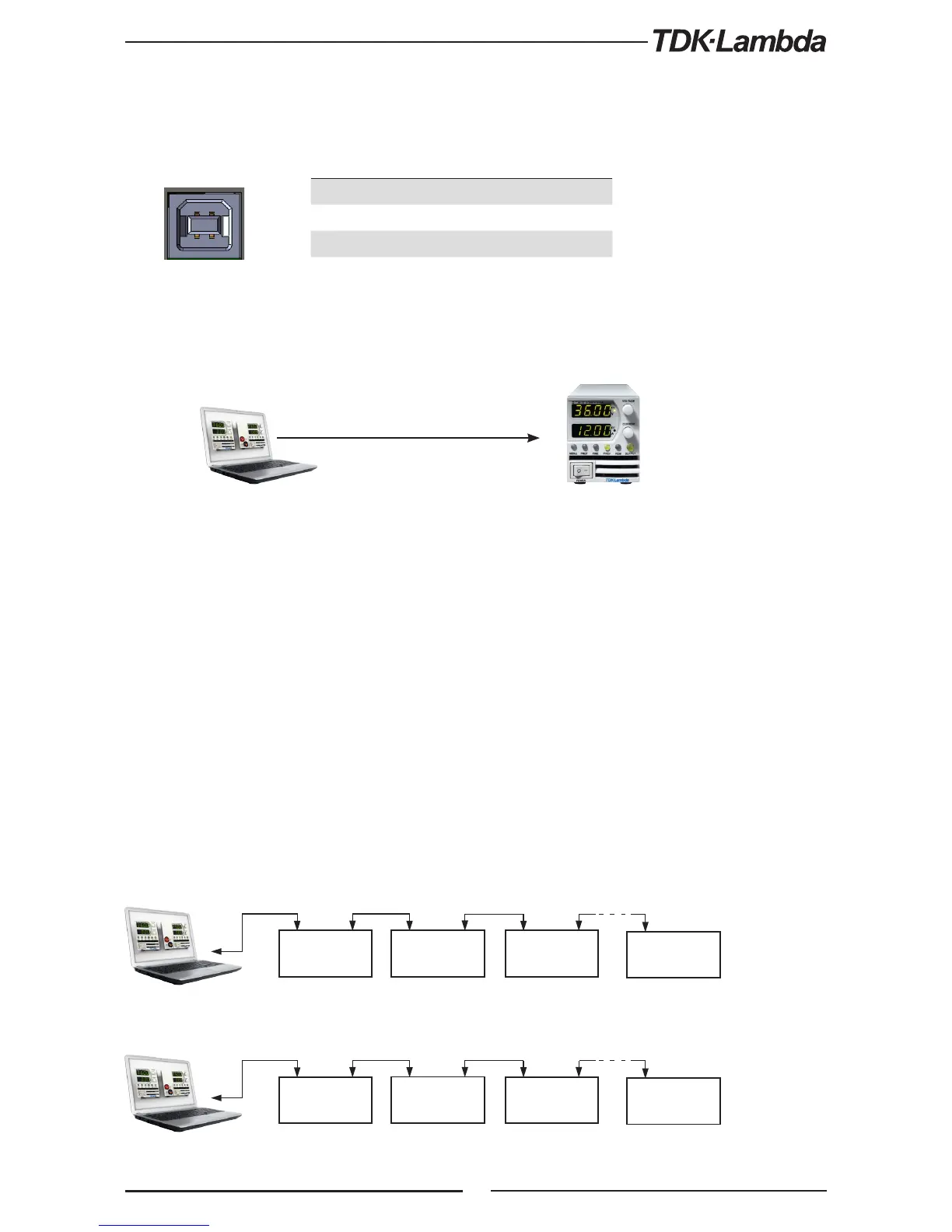
Fig.7-6: Multi power supplies RS232/485 connection
7.5 Rear Panel USB Connector
A standard USB Series B device connector is located on Rear panel for USB control. Refer to Fig.7-5
and Table 7-2.
Fig.7-5: USB Connector
7.5.1 USB Getting Started
POWER SUPPLY
#1
POWER SUPPLY
#2
POWER SUPPLY
#3
POWER SUPPLY
#31
RS485
RS485
RS485
USB
IN IN
IN
IN
OUT OUT
OUT
OUT
POWER SUPPLY
#1
POWER SUPPLY
#2
POWER SUPPLY
#3
POWER SUPPLY
#31
RS485
RS485
RS485
RS232/485
IN IN
IN
IN
OUT OUT
OUT
OUT
Fig.7-7: Multi power supplies USB connection
Pin Designator Description
1 VBUS +3.3 VDC
2 D- Data -
3 D+ Data +
4 GND Interface com
Table 7-2: USB connector pin out
The following steps will help you quickly get started connecting your USB-enabled instrument to
the Universal Serial Bus (USB):
1. Connect Z
+
to the USB port on the computer.
2. Insert the software CD-ROM that is shipped with the product to your CD-ROM Drive
The Z
+
drivers selection menu will automatically appears. click on the ICON “USB drivers”
Install the USB Driver.
7.6 Multi Power Supply Connection to RS232 Or RS485 or USB
A Daisy-chain configuration of up to 31 units can be connected to RS232, RS485 or USB . The first
unit connects to the controller via RS232, RS485 or USB and other units are connected with a
RS485 bus. The user must set all slave power supplies to a unique address. No two power supplies
may have the same address.
1. First unit connection: Select communication Interface. Refer to section 7.2.3.
2. Other unit connections: The other units on the bus are connected via their RS485 interface.
Refer to Figures 7-6 and 7-7 for typical connections.
3. Using the Linking cable supplied with each unit (Refer to Fig.7-8), connect each unit OUT
connector to the next unit IN connector.
USB Cable
connect to
USB port



 To Next Page