EasyManua.ls Logo

TDK-Lambda Z+ series - User Manual

TDK-Lambda Z+ series
138 pages
Print Icon
To Next Page IconTo Next Page
Loading...
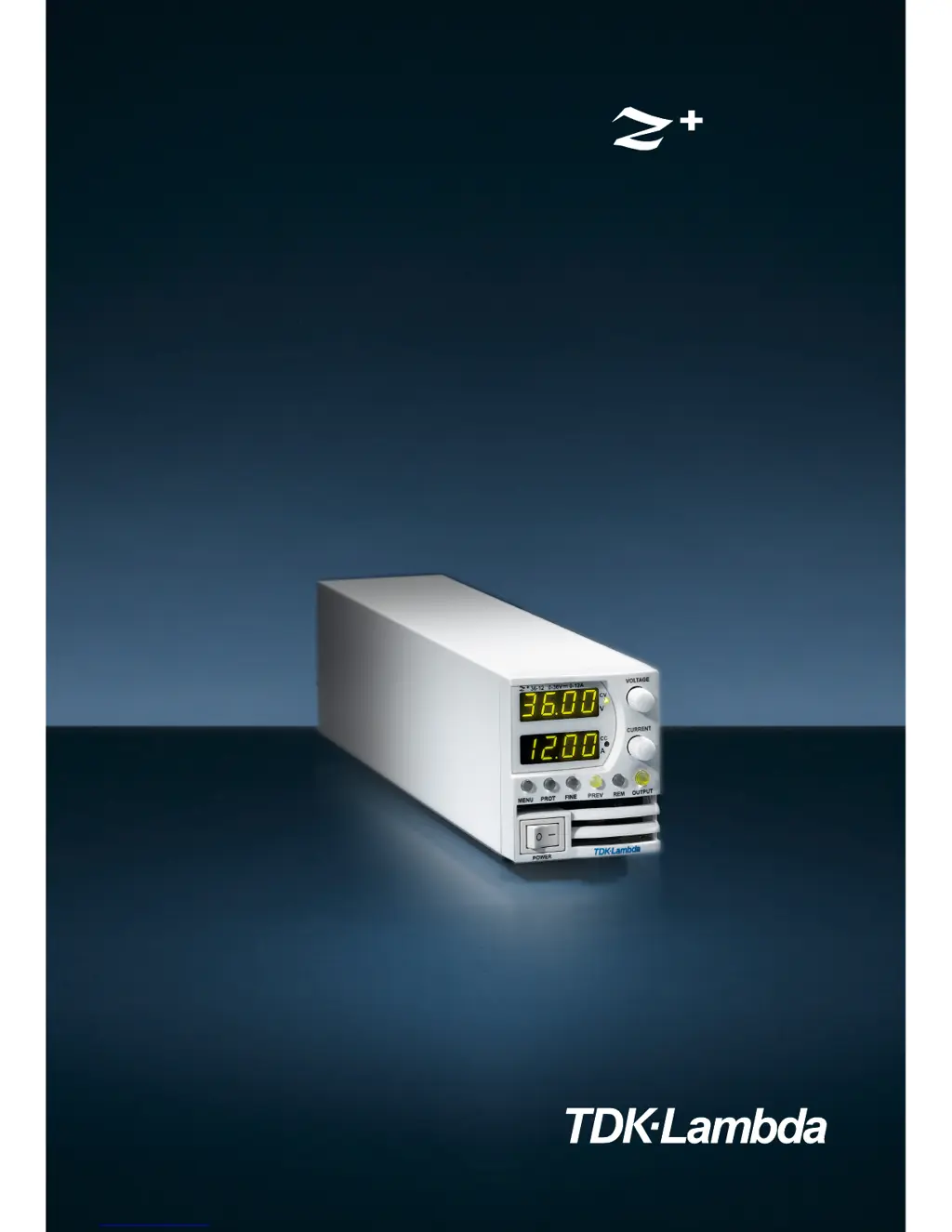
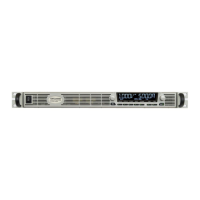
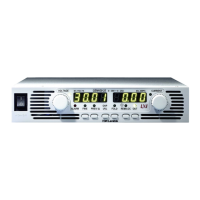
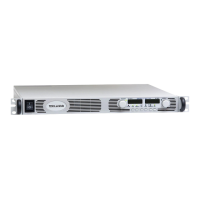
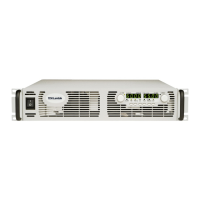
Programmable DC Power Supplies
200W/400W/600W/800W in 2U
Built-in USB, RS-232 & RS-485 Interface
Optional Interface:
LXI Compliant LAN
IEEE488.2 SCPI (GPIB) Multi-Drop
Isolated Analog Programming
Series
User Manual

Table of Contents

Questions and Answers

  • J
    Jason WrightAug 17, 2025
    What to do if TDK-Lambda Power Supply has no output and all displays are blank?
    • S
      Shannon GonzalesAug 17, 2025
      If your TDK-Lambda Power Supply shows no output and all displays are blank, check if the AC power cord is defective and replace it if necessary. Also, verify that the AC input voltage is within the correct range and connect to an appropriate voltage source.
  • S
    Scott BurkeAug 19, 2025
    What to do if TDK-Lambda Power Supply output is present momentarily but shuts off quickly and the display indicates "OUP"?
    • T
      Timothy CannonAug 19, 2025
      If the output of your TDK-Lambda Power Supply is present momentarily but shuts off quickly, and the display indicates "OUP", check if the power supply is configured to Remote sense. Check if the positive or negative load wire is loose.
  • A
    andrewleonAug 22, 2025
    What to do if TDK-Lambda Z+ series output is present momentarily but shuts off quickly and the display indicates "AC"?
    • N
      Nicole ShepherdAug 22, 2025
      If the output of your TDK-Lambda Power Supply appears briefly but then shuts off, and the display shows "AC", check the AC source voltage when the load is applied. Connect to an appropriate voltage source if the voltage sags.
  • B
    Brandon TorresAug 25, 2025
    What to do if TDK-Lambda Power Supply has no output and display indicates "OUP"?
    • R
      Ryan RoblesAug 26, 2025
      If your TDK-Lambda Power Supply has no output and the display indicates "OUP", the Over Voltage Protection circuit may be tripped. Turn off the AC power switch. Check load connections. If analog programming is used, check if the OVP is set lower than the output.
  • R
    Raymond BurkeAug 27, 2025
    Why won't the output voltage adjust on my TDK-Lambda Power Supply when the front panel CC LED is on?
    • C
      Christine RomeroAug 28, 2025
      If the output voltage on your TDK-Lambda Power Supply won't adjust and the front panel CC LED is illuminated, the unit might be in constant current mode. Check the current limit setting and the load current.
  • R
    rhurleyAug 30, 2025
    Why won't the output current adjust on my TDK-Lambda Power Supply when the front panel CV LED is on?
    • C
      Christopher MckenzieAug 30, 2025
      If the output current on your TDK-Lambda Power Supply won't adjust and the front panel CV LED is on, the unit is likely in constant voltage mode. You should check the current limit and voltage settings.
  • A
    Amanda MejiaSep 2, 2025
    Why won't the output voltage adjust on my TDK-Lambda Power Supply when the front panel CV LED is on?
    • J
      Jacob SpenceSep 2, 2025
      If the output voltage of your TDK-Lambda Power Supply will not adjust while the front panel CV LED is on, check if the output voltage is adjusted above the OVP setting or below the UVL setting. Set the OVP or UVL so it does not limit the output.
  • J
    jessicaperezSep 4, 2025
    What causes large ripple present in output of TDK-Lambda Z+ series?
    • P
      Patrick ChristianSep 5, 2025
      If you observe a large ripple in the output of your TDK-Lambda Power Supply, it may be related to the remote sense function or a high voltage drop on the load wire. Check the load and sense wire connections for noise and impedance effects. Minimize the voltage drop on the load wires.
  • M
    Michael RussoSep 7, 2025
    What to do if front panel controls are nonfunctional on TDK-Lambda Z+ series Power Supply?
    • R
      Rose GarciaSep 7, 2025
      If the front panel controls on your TDK-Lambda Power Supply are not working, the power supply may be in Local-Lockout mode. Turn off the AC power and wait until the display turns off. Then, turn the AC power back on and press the front panel REM/LOC button.
  • R
    ramirezsarahSep 10, 2025
    What does it mean if TDK-Lambda Z+ series Power Supply has no output and front panel ALARM LED is blinking?
    • B
      Benjamin HullSep 12, 2025
      If your TDK-Lambda Power Supply has no output and the front panel ALARM LED is blinking, here's what to check based on the display: * If the display indicates "ENA", check the rear panel J3 Interlock Function. * If the display indicates "SO", check the rear panel J3 Output Shut Off connection. * If the display indicates "07P", verify that the air intake or exhaust are not blocked and that the unit is not installed near heat-generating equipment. * If the display indicates "Fb", check the Foldback setting and load current.

Summary

Warranty and Disclaimer Information

Warranty Terms and Service

Details the product warranty period, limitations, and service procedures.

Regulatory and Safety Notices

General Safety Instructions

Essential safety precautions for operation, service, and repair.

Operating Conditions and Safety Precautions

Grounding and Live Circuits Safety

Emphasizes proper grounding and safety for live circuits.

Product Handling and Safety Information

AC Input and Energy Hazard Warnings

Warns about AC input requirements and hazardous energy levels.

Chapter 2: Specifications

Z+ 200 Series Specifications

Detailed specifications for the Z+ 200 Series power supplies.

Z+ 400 Series Specifications

Detailed specifications for the Z+ 400 Series power supplies.

Chapter 3: Installation

General Installation Procedures

Guides on initial inspection, preparation, and rack mounting.

Power Supply Setup and Connection

Details AC source requirements, connection, and checkout procedures.

Load Connection and Sensing

Guides on connecting the load and using local/remote sensing.

Chapter 4: Front;Rear Panel Controls and Connectors

Front Panel Interface Overview

Explains front panel controls, displays, messages, and menu navigation.

Chapter 5: Local Operation

Standard Operation Modes

Describes Constant Voltage/Current modes, auto-crossover, and output control.

Alarms and Protective Functions

Covers OVP, UVP, Foldback, Interlock, AC Fail, and OTP alarms.

Series, Parallel, and Daisy-Chain Operation

Explains connecting units in series, parallel, and daisy-chain configurations.

Rear Panel Connector Functions

Explains the functions of J1 and J3 rear panel connectors.

Parameter Setting Memory

Covers memory functions for saving and recalling settings.

Chapter 6: Remote Analog Programming

Chapter 7: Serial RS232;RS485 and USB Interface

Chapter 8: Advanced Functions

Chapter 9: Status, Fault and SRQ Registers

Chapter 10: Isolated Analog Programming Option

Chapter 11: Maintenance

TDK-Lambda Z+ series Specifications

General IconGeneral
Remote SenseYes
Input Voltage Range85-265VAC
CoolingForced air
Operating Temperature-10°C to +70°C (derating may apply above +50°C)
Safety StandardsUL/IEC/EN 60950-1
ProgrammingAnalog
Digital InterfaceRS-232, RS-485, USB
ProtectionsOVP, OCP, OTP

Related product manuals