17
Questions? Call 1-866-44-TDSTV or visit tdstv.com.
1. Use the RIGHT ARROW on your remote control to select the Change button next to the Rentals cat-
egory. Press OK. The settings screen appears.
2. Use the RIGHT ARROW on your remote to select Lock Rentals, then press the OK button. A lock icon
appears/disappears depending on whether you lock or unlock adult programs.
3. Use the ARROW buttons to select Save, then press the OK button.
Follow the same steps to lock adult content, and unrated programs except choose the Adult programs
or Unrated programs category from the Parental locking Settings screen.
Once locked, a PIN is required to rent programming, watch adult content or unrated programs.
Note: Locked channels and programming listings will still appear in the Program Guide.
Locking/Unlocking Channels
Once you’ve entered your PIN and are at the Parental Locking Settings screen, follow these instructions
to require viewers to enter a PIN in order to watch specific channels:
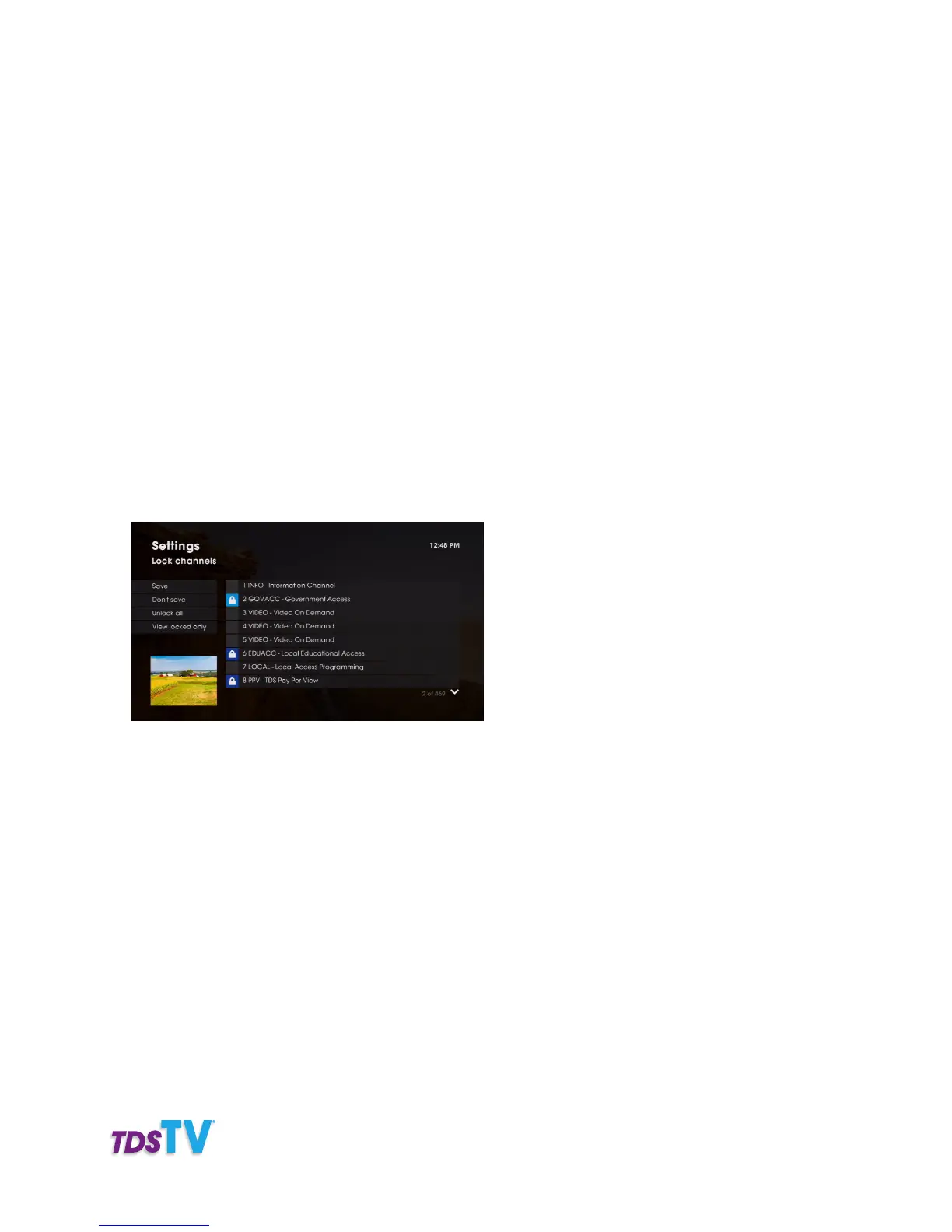
1. Use the RIGHT ARROW on your remote control to select the Change button next to the Channels
category. Press OK. The Settings screen appears with a list of all TDS TV channels you subscribe to.
NOTE: A lock icon next to the channel name indicates it’s already locked. If it’s locked, viewers can’t
view that channel without entering the correct PIN.
2. Use the UP and DOWN ARROW buttons to select the channel(s) you want to lock or unlock, then press
OK on your remote to change the lock setting:
• To lock a channel, press OK on your remote (the lock icon appears).
• To unlock a channel, press OK on your remote (the lock icon disappears).
• To unlock all channels, select Unlock all on the left-side of the screen and press OK.
3. Select Save on the left side of the screen, and press OK on your remote.
Or, select Don’t Save on the left side of the screen to exit without saving your changes.
4. You will be returned to the main Parental locking Settings screen. If you are finished setting up
parental locking, navigate to Lock, and then press OK on your remote.



 To Next Page