49
Questions? Call 1-866-44-TDSTV or visit tdstv.com.
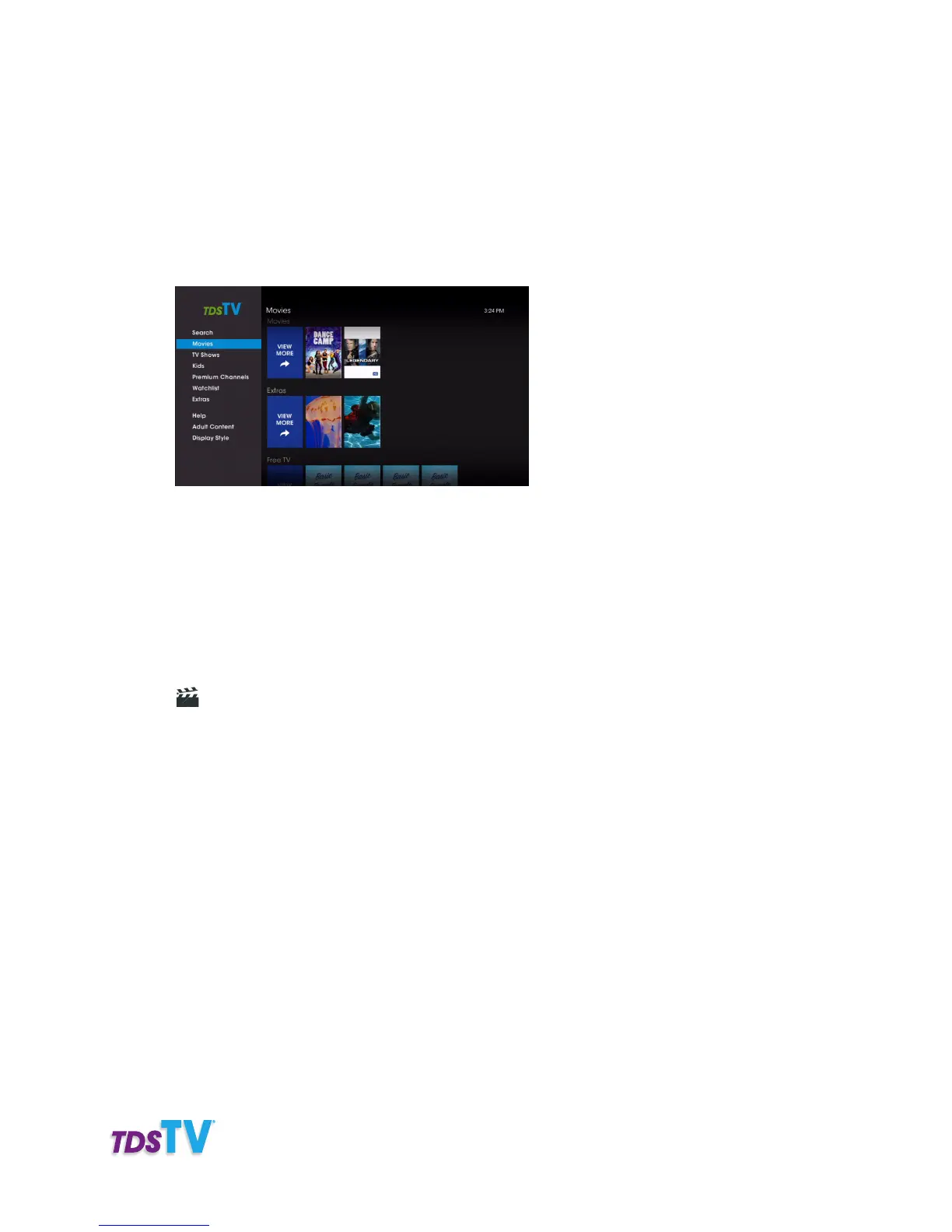
• Premium Channels—lists content provided by the premium channels you subscribe to.
• Watchlist—lists any videos you have saved, purchased, or recently watched.
• Extras—lists additional content not associated with standard programming.
• Help—lists instructional videos for using TDS TV and its features.
• Adult Content—lists adult programming.
• Display Style—change how on-demand listings are displayed.
2. Use the ARROW buttons to select a category, subcategory, and then program.
Press OK on your remote.
3. A Summary screen of the program appears with a description of the movie, cast
and crew info., and additional details.
4. Choose an icon at the bottom of the screen to proceed:
• 4 Watch—displays for free on-demand content—select to play the program.
• $ Rent—displays for rentals—select to purchase the video.
• Preview—select to see a trailer for the movie.
• Y Save—Adds program to saved videos.
When you choose Rent, a screen appears listing the rental price and the duration the rental is avail-
able to you. Press OK on your remote to rent. A confirmation screen appears. Choose Rent now and
press OK on your remote. Your rental begins playing immediately.
To watch a video or program later, press STOP on your remote. When you’re ready to watch it, go to
the My Videos section of the On-Demand menu, select Current Rentals, then your program. It’s avail-
able to watch at anytime until the rental expires.
STOP OR RESUME RENTED VIDEOS
When a rented video finishes playing the Video Summary screen will appear. You can watch the video
again at any time during the rental period, which is typically 24 hours but varies.
If you stop the video before it reaches its conclusion, choose Resume to continue playing the video
again from the point you left off.



 To Next Page