24
Questions? Call 1-866-44-TDSTV or visit tdstv.com.
To quickly and easily add a channel you’re watching to an existing Favorites List, do this:
1. While watching TV, press ENTER on your remote. The Viewing Options menu will appear.
2. Use the DOWN ARROW to highlight Add to favorites, then press OK.
Note: If more than one Favorites list is save, use the ARROW buttons to select the favorites
list you want the channel added to, and press OK.
Use a Favorites List
To use a Favorites list, here’s what you do:
1. Press MENU button or the LEFT arrow on your remote.
2. Scroll to the Browse Live TV section and press the OK button. Use the ARROW buttons to select
Favorites, then press OK on your remote.
3. If multiple Favorites lists are saved, use the UP and DOWN ARROW keys to select the list you want to
view. Then, press OK.
4. The Program Guide for the Favorites List will be activated. When you switch channels, only the
channels listed on that Favorites List will be shown.
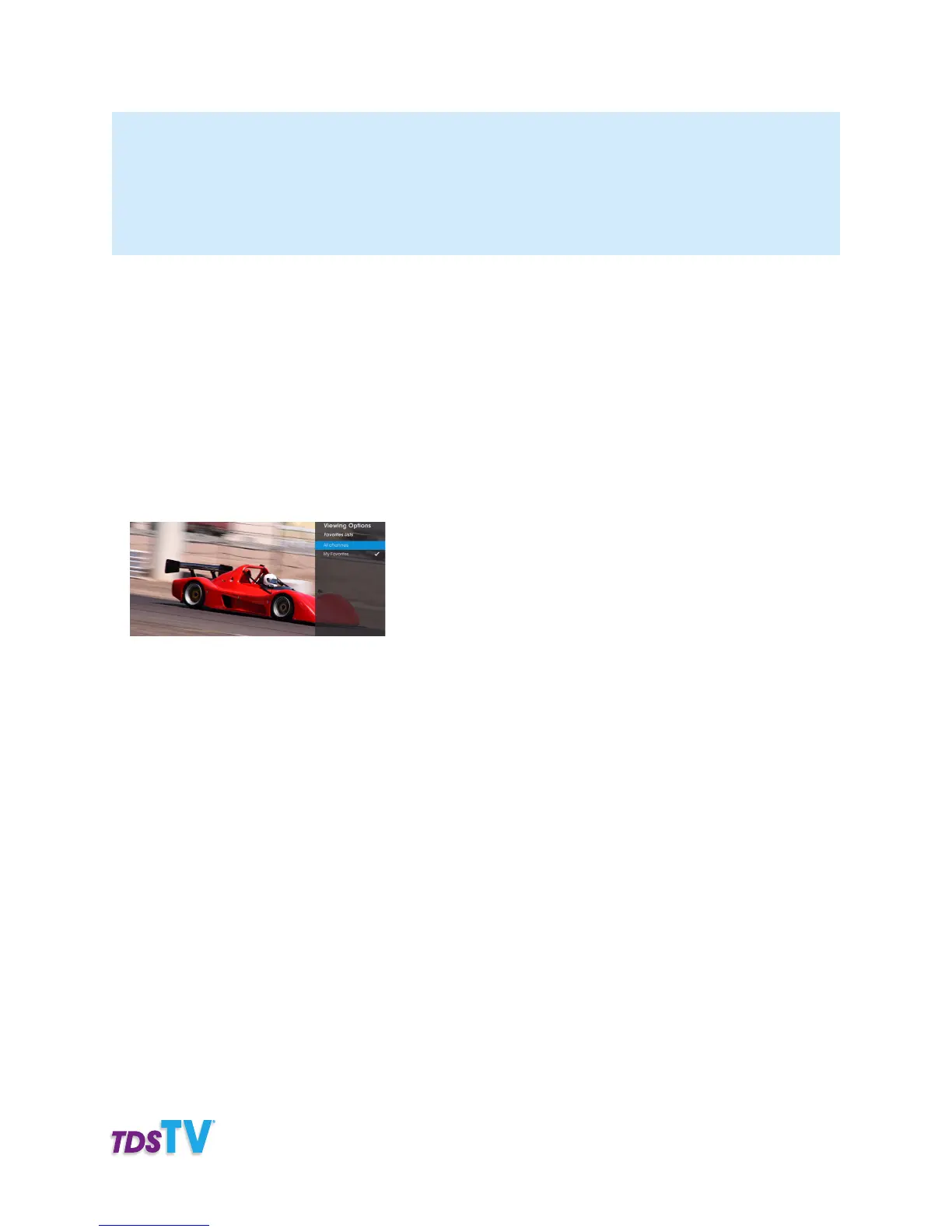
To return to All Channels in your programming, follow steps 2 and 3 above, selecting All Channels from
the list when presented.
Hide or Show Channels
Sometimes you may prefer not to have all of the channels available to you included in the Program
Guide (e.g. perhaps you find a channel name or content inappropriate). When this is the case, you can
choose to hide channels. The outcome of hiding channels is similar to when you create a favorites
list, as in both cases, you choose which channels you want to appear in the guide. However, hiding
channels is the more efficient option when you’re only dealing with a few channels. That is, it’s easier to
delete (or hide) a few channels from your Program Guide than it is to add hundreds of channels to a
favorites list.
To hide channels from your Program Guide:
1. Press MENU button or the LEFT ARROW on your remote and select Settings.
2. Select Television, then press OK.
3. Select Customize channel guide, then press OK.
The Customize channels settings screen shows all the channels you can display in the
Program Guide. A check mark next to the channel indicates the channel is currently displayed.



 To Next Page