25
Questions? Call 1-866-44-TDSTV or visit tdstv.com.
The picture-in-picture at the bottom of the screen shows the program currently playing
on each channel.
4. Use the ARROW buttons and the OK button to:
• Hide a channel currently displayed in the Program Guide by un-checking the marked box.
• Make a hidden channel re-appear Program Guide by checking the marked box.
• Make all channels appear in the Program Guide by selecting Check all.
• Show only the hidden channels in the list by selecting View Unchecked.
Note: after doing this, the View Unchecked option becomes Show All.
• Restore the entire list by selecting Show All.
• Save your settings so they are reflected in the Program Guide by selecting save.
Use Categories
Your Program Guide can be broken down into channel types or genres. This is often a more convenient
way to find programming when you’re in the mood to watch something specific (e.g. a sporting event or
a family show). To see a listing of channel by type, do this:
1. Press MENU button or the LEFT ARROW on your remote and then select Browse Live TV and press
the OK button.
2. Use the ARROW buttons to highlight Categories, then press OK.
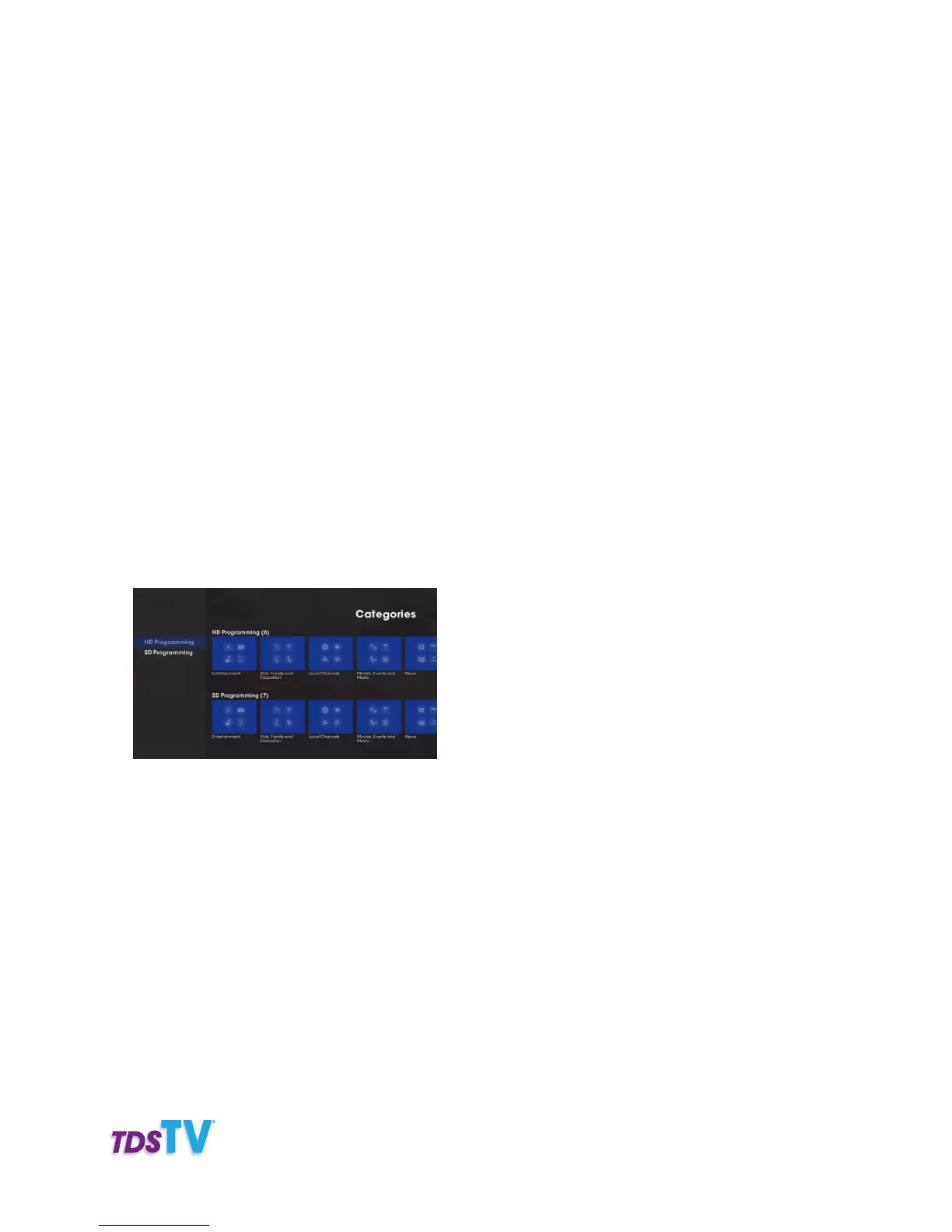
The Categories screen appears. At the top, you’ll see the main categories (HD Programming and SD
Programming). Genre categories are listed under each main category.
3. Use the ARROW buttons to highlight a category, then press OK. A filtered Program Guide appears,
showing all the channels in the selected category.
Note: To exit Categories and return to an unfiltered guide, press EXIT TO TV on your remote.



 To Next Page