37
Questions? Call 1-866-44-TDSTV or visit tdstv.com.
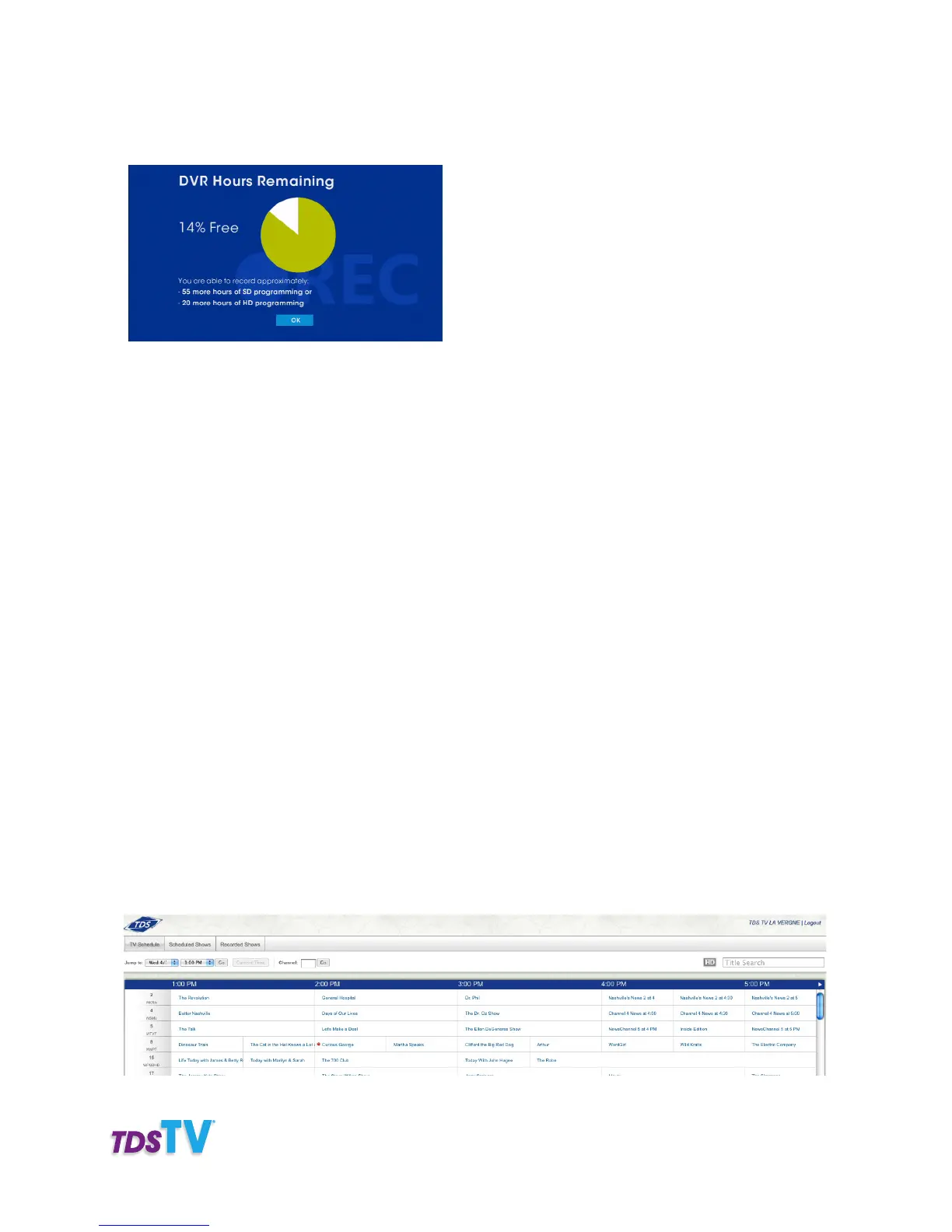
A screen will appear with a pie chart showing how much storage space is available
(and the approximate recording hour equivalents for SD and HD programs).
The pie chart is color coded as follows:
White: Free space available.
Green: Amount already used.
Red: Warns that you’ve reached 94% capacity and are nearly out of recording space.
If you reach red, it’s recommended you delete old/watched recordings to make room for new re-
cordings. If you don’t and your DVR reaches maximum capacity, TDS TV automatically begins making
space for new recordings by deleting things previously recorded. The oldest recordings are deleted
first, unless you’ve changed the “Keep Until” setting. See the “Record a Single Program Using the Pro-
gram Guide” section for more details about that.
3. To exit the application, press EXIT TO TV.
REMOTELY MANAGING YOUR DVR
With TDS TV’s Online DVR Manager, you can manage your DVR and set it to record from anywhere
in the world as long as you have an Internet connection.
To Set Up a Recording
1. Visit tds.net and click MY ACCOUNT in the top (gray) navigation.
2. Enter your TDS E-mail/User Name and Password and click LOG IN.
3. In the My Products and Services area, click MY SCHEDULED RECORDINGS.
4. A TDS TV programming guide will appear.



 To Next Page