38
Questions? Call 1-866-44-TDSTV or visit tdstv.com.
5. From this page you can search for the program you want to record by date, time, channel, or title.
To see only HD channels, click the HD ICON.
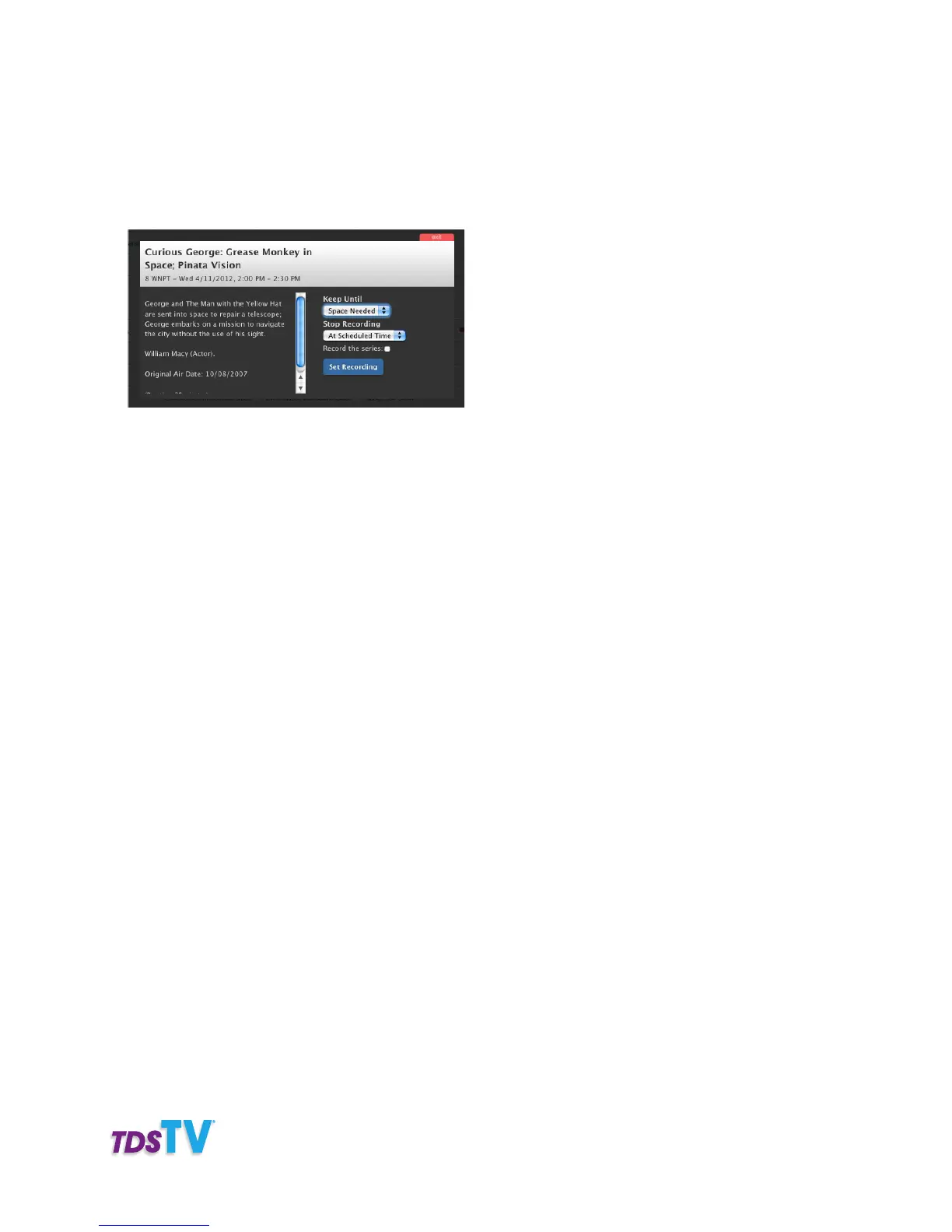
6. When you find the program, select its title. Then, choose your “Keep Until” preference, when to Stop
Recording, or if you want to Record the series. If you’re recording a series, you can set additional
preferences, like show type, etc.
7. Once your preferences are set, choose Set Recording.
8. A message confirming your recording will appear. Click EXIT.
9. A red dot will appear next to the name of the program you’ve chosen to record in the online guide.
To View/Modify Scheduled Recordings
1. Click on the Scheduled Shows tab at the top of the TDS TV Online DVR Manager.
2. The programs you have scheduled to record will be listed.
3. Update the recordings’ settings by clicking the Settings button that’s in line with the program.
To cancel a recording, click the red box in the Cancel column.



 To Next Page