31
Questions? Call 1-866-44-TDSTV or visit tdstv.com.
To change the type of shows that are recorded (applies to series only), select SHOW TYPE option
and press OK on your remote. Then, choose the type: First run & rerun, or First run only.
4. When you are finished customizing, select Record and press OK on your remote.
Changing Series Recording
To change a scheduled series recording, here’s what you do:
1. Press RECORDED TV on your remote to get to the Recorded TV screen.
2. With the ARROW buttons, navigate through the listings to select the series menu.
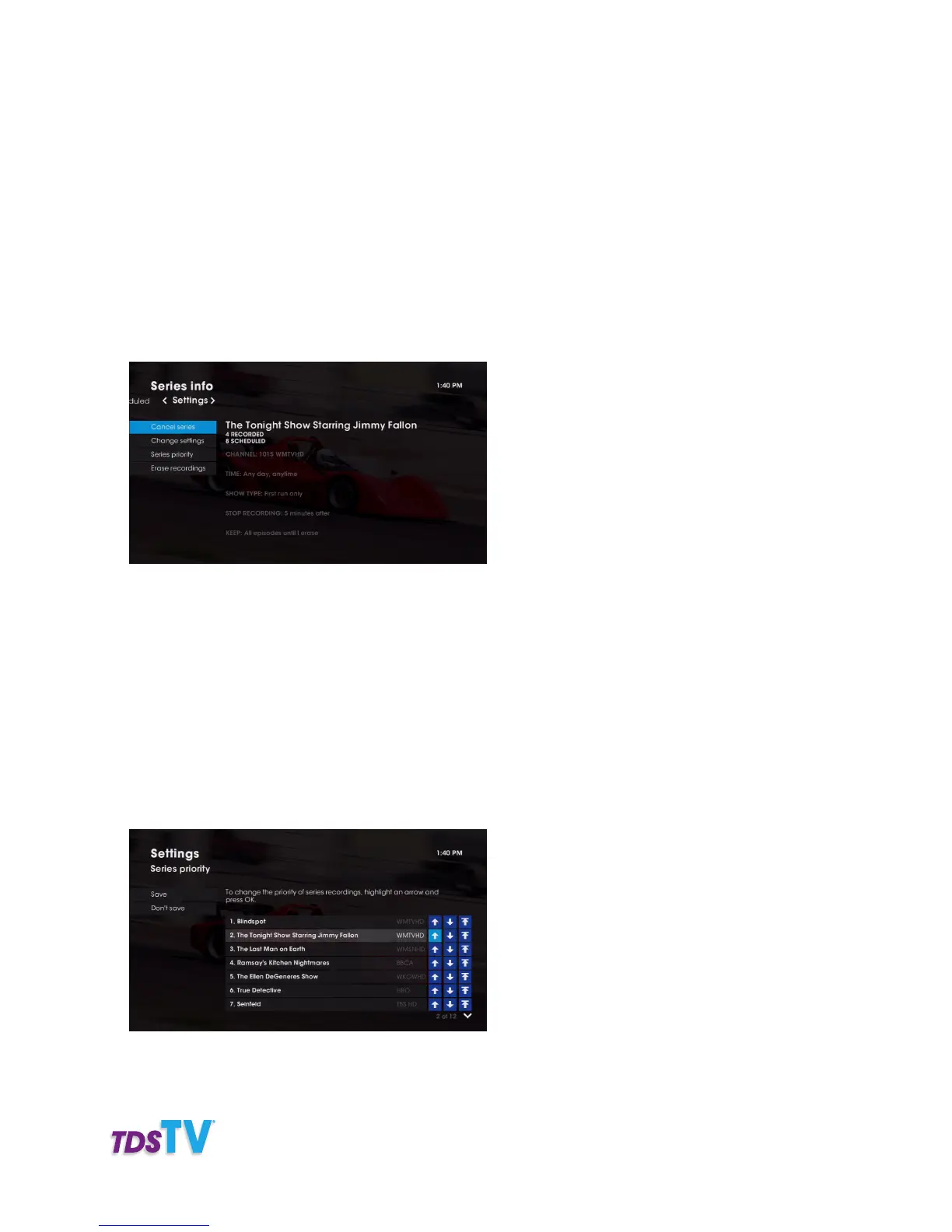
3. Select the scheduled series you want to change. Press OK on your remote. Select Series Info. and
press OK to get to the Series info. screen.
4. Select Change settings and press OK button to get to the Series settings screen.
5. Make changes as outlined in Recording a Series from the Program Info. Screen.
6. Select Save changes, then press OK on your remote. The series is recorded with your new settings.
Changing Series Priority
If you schedule multiple series to record, conflicts may sometimes occur. Therefore you must assign
priority to series recordings. To do this, follow the directions below.
Note: By default, TDS TV prioritizes series recordings based on when the series was originally scheduled
to record, with the most recently scheduled recordings receiving the highest priority.
1. On the Record TV screen, select Series option and then select Series priority and press OK.



 To Next Page