54
Questions? Call 1-866-44-TDSTV or visit tdstv.com.
System Settings
SCREEN-ASPECT RESOLUTION
Changing the screen-aspect ratio changes the screen dimensions for the video image and for TDS TV
screens. Here’s how to modify it:
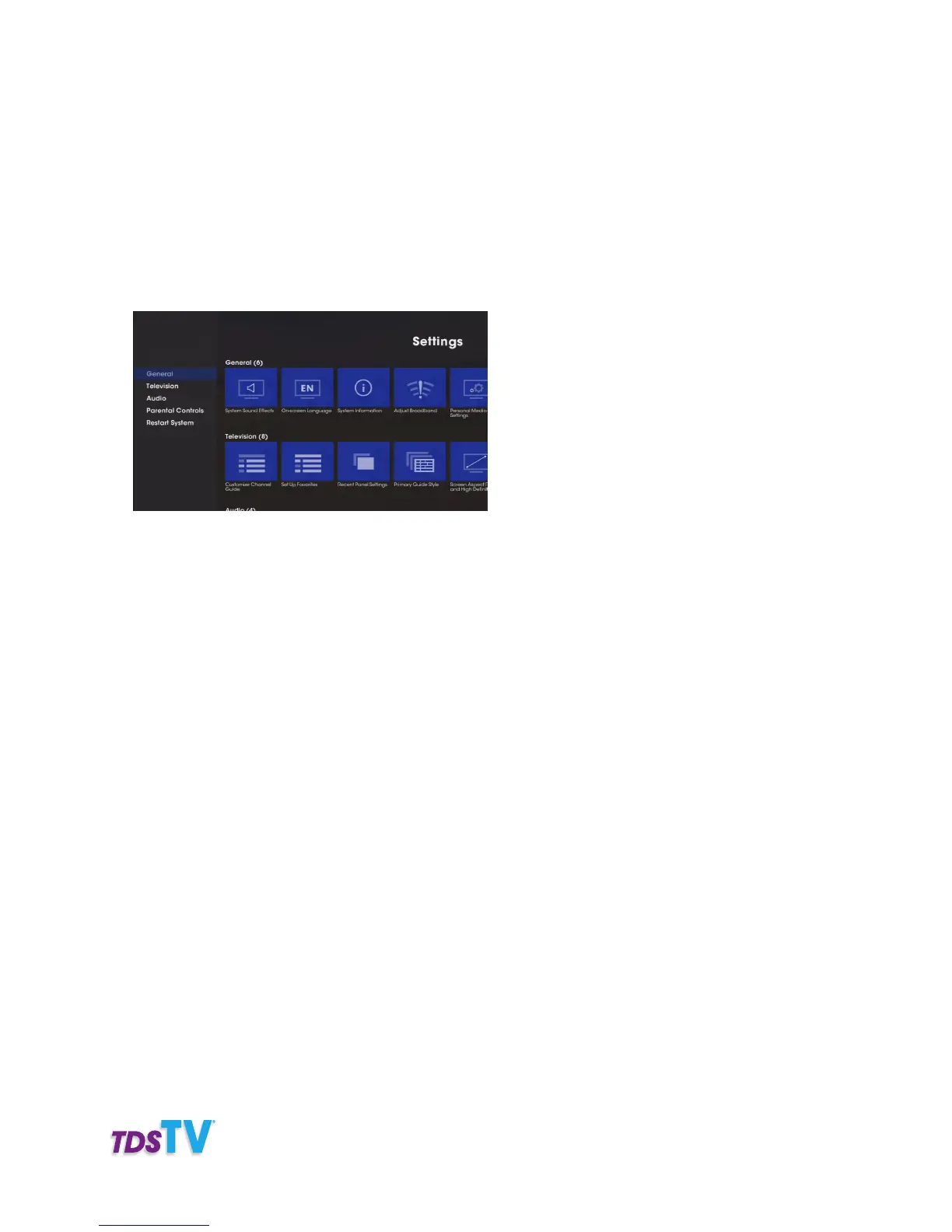
1. Press MENU button or the LEFT ARROW on your remote. Select Settings from the vertical menu bar.
You will be on the main Settings Screen.
2. Select Television, then press OK on your remote.
3. Select Screen aspect ratio and high definition. Press OK on your remote. The Screen aspect ratio
screen appears.
4. Select the desired aspect ratio and resolution:
• 4:3 standard definition: use for non-HD TVs.
• Widescreen standard definition: use if you have a non-HD, widescreen TV (16:9 aspect ratio).
• 720p high definition: use if you have an “enhanced definition” TV, which displays
images 720 pixels wide.
• 1080i high definition: use if you have a HD, wide-screen TV that displays images
1080 pixels wide.
5. Use the ARROW buttons to select Continue, then press OK.
CLOSED CAPTIONING
Closed captioning displays the audio portion of a TV program as on-screen text. Closed-captioning
is set off by default.
To enable closed captioning, do this:
1. While watching live TV, press ENTER on your remote.
2. The Viewing Options menu will appear. Select Closed captions.
3. Select On and press OK on your remote.



 To Next Page