20
Questions? Call 1-866-44-TDSTV or visit tdstv.com.
TDS TV Basics
THE MAIN MENU
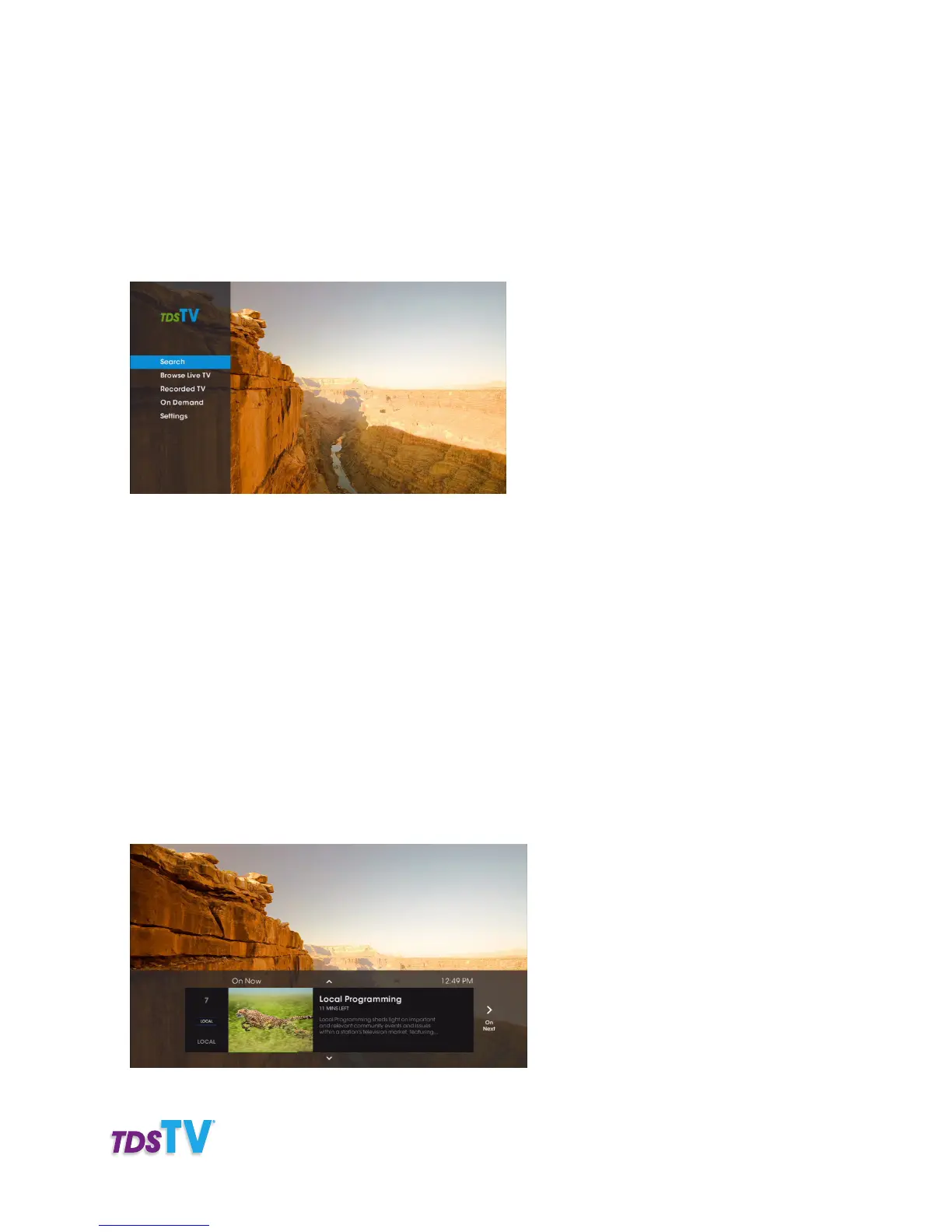
The Main Menu gives you access to all of TDS TV’s features. Here’s how to access it:
1. Press the MENU button or the LEFT ARROW buttons on your remote.
2. Use the UP or DOWN ARROW buttons on your remote to navigate through the vertical menu bar’s
main categories: Search, Browse Live TV, Recorded TV, On Demand, TDS Applications, and Settings.
Press OK to select an item.
To close the main menu press the EXIT or MENU buttons on your remote.
THE BROWSE PANEL
The Browse Panel lets you see what’s playing on other channels (currently and in the future) without
changing channels. Here’s how:
1. While watching a program on your TV, press the UP or DOWN ARROW on your remote. The browse
panel will appear along the bottom of your screen.
2. Press the UP or DOWN ARROW button to step through other channels. For each channel, the browse



 To Next Page