17 MPH200 series video encoders WebUI user manual
Video interfaces
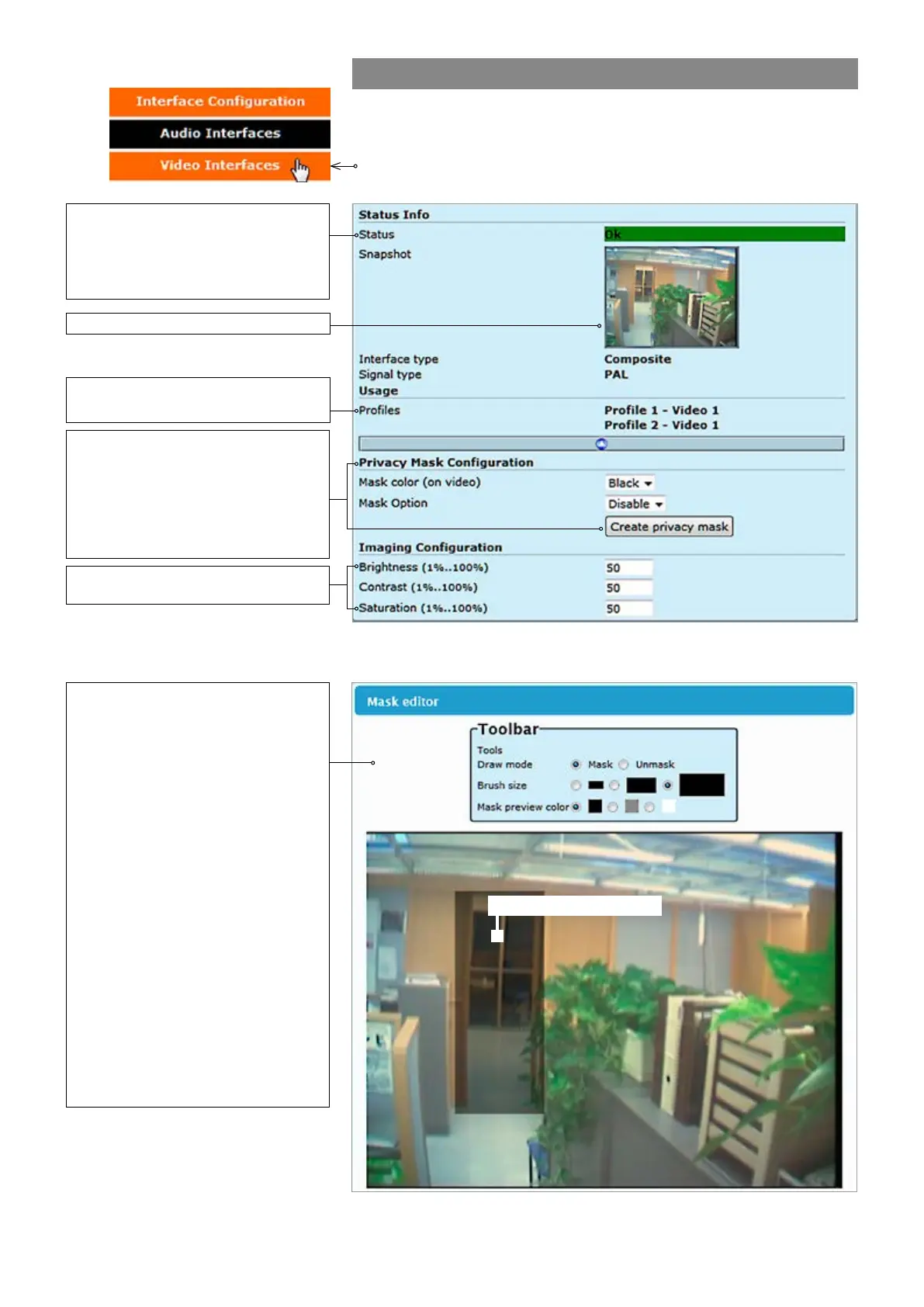
Click “Video Interfaces” under the Interface Conguration menu. Video
Interfaces page appears on the screen. In this page you can see the
number of physical video inputs available and adjust the brightness,
contrast and saturation values for them.
When monitoring an area for security,
there may be certain parts within the
camera’s eld of view that need to be
kept private. Masking is a feature that
enables these areas to be concealed
from view.
Video status. The colour bar reect
the status of the video. Green colour
bar means that there is video signal.
Yellow colour bar with text tells that
there is no video.
Screenshot from the current video.
Indicates what media prole is using
this video interface.
User can congure the encoder to
automatically hide certain areas with
a mask, which can be adjusted in
terms of its colour
.
Mask editor shows a screenshot from
camera view and overlays a
translucent mask on the image.
Draw mode: Masked (highlighted)
areas are private areas that are
removed (concealed) from
camera’s view.
Brush size: Select brush size
for masking.
Mask color: Depending on the
brightness of the image snapshot,
appropriate mask preview color can
be chosen. This color affects the
preview on mask editor only and
doesn’t reect on the streaming video.
Brightness, Contrast and Saturation
values for the video channel.
MASK EDITOR page contains settings for hiding certain areas from the
encoded picture.
VIDEO INTERFACES page.
Masked/Highlighted area



 To Next Page