iCNC PERFORMANCE
Manual 0-5399 NESTING 5-47
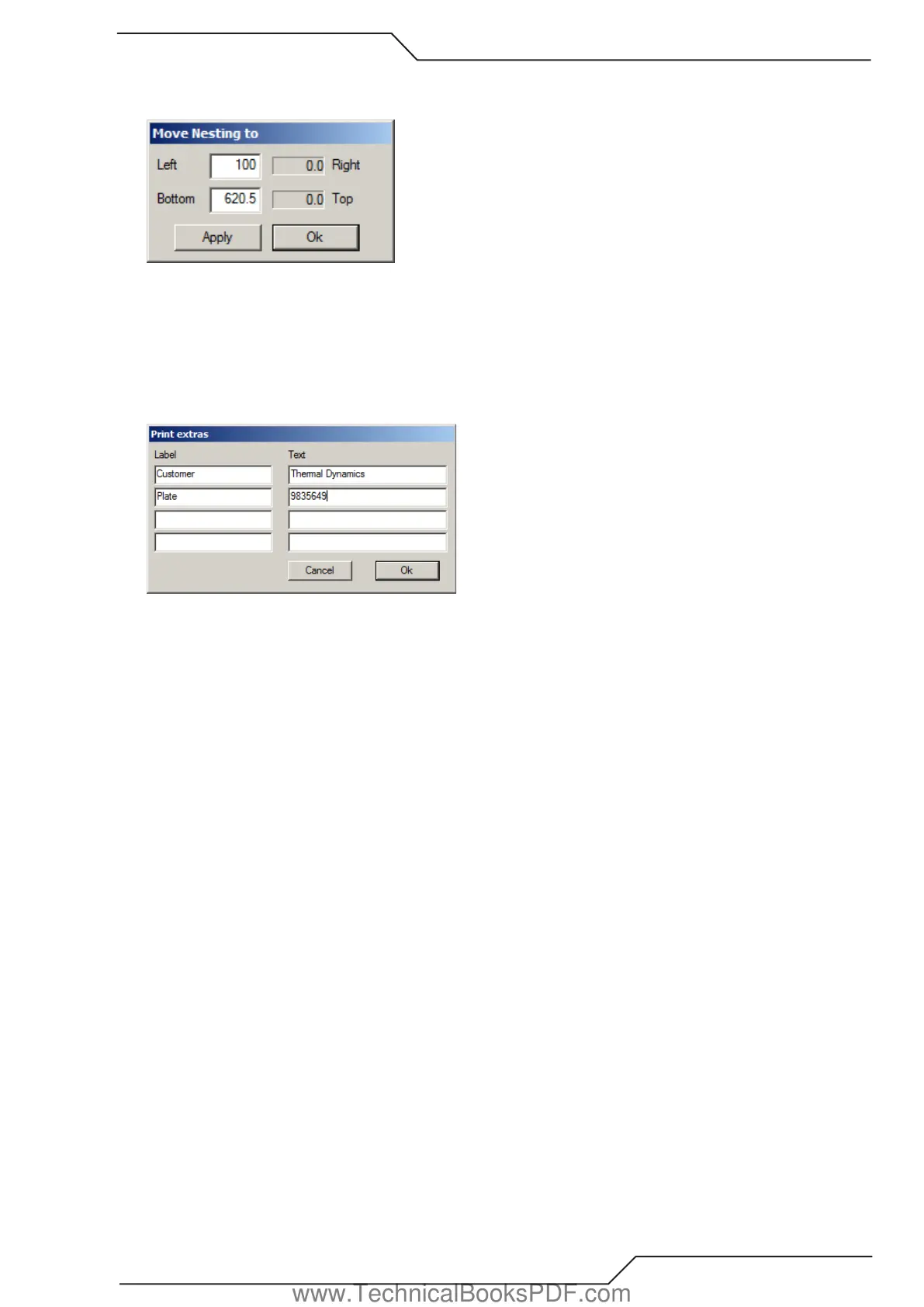
Move Nesting to
This tool changes the position of the whole nesting. When you select this tool, the window below appears.
Left is the nestings distance to the left side of the plate. If this number is negative, it means that the nesting is over the plate’s edge.
Right, bottom and top work in the same way.
You can change left and bottom values. When you choose “APPLY” the nesting moves and the values (right and top) in this window
are updated. “OK” is like “APPLY” but it also closes this window.
Print Extras
Use this tool to add your own notes at the end of print sheet. When you print a nesting, these four lines will be at the bottom of the sheet.
5.20.2. Part List
This window contains a list of all geometries, which are opened. The list is sorted alphabetically. The active geometry has a blue bar
on it (it is selected).
These tools are available in the geometry window:
Activate - Choose the name of the geometry to activate it.
Copy to the active plate – Double Click the name of the geometry.
Popup menu – Right Click the window to open a popup menu. The menu contains following commands:
• Open
• Trash
• Rename, which renames the active geometry.
• Copy to nesting, which copies the active geometry to the active plate.
• Move shapes to origin moves the nesting so that it’s minimum X and Y values are equal to zero.
• Add plate creates a plate, puts the nesting on that and moves the job to the plate list (plate window).
• Toggle Group On/Off toggles the status of the active geometry (geometries) to group or to normal. If there is an asterisk (*) before
the name of the geometry, then it is considered as a group.
• DSTV properties shows a little window, which displays data read from a DSTV file.
• Nominal size is by default the part’s width x part’s length. This opens a dialog box, which shows the part’s nominal size and you
can change it, if you wish. Nominal size is used in NestInfo.
• Marking Text
www.TechnicalBooksPDF.com



 To Next Page