iCNC PERFORMANCE
5-24 NESTING Manual 0-5399
5.6 Tools Menu
Tools menu contains tools to manipulate nestings. You can fix parts, add marking, nest manually or automatically, set cutting order,
add bridges and do many other things. The tools are organized in an order where they are usually used. For example you should do
automatic nesting before you add bridges.
NOTE!
Some tools are not part of the standard ProMotion® Nest, but they are options that may be
bought separately. Depending on the options in your license some tools may not be available.
NOTE!
Some tools of this menu were already explained in the Toolbar chapter.
Those tools are not repeated here
5.5.1 Remove
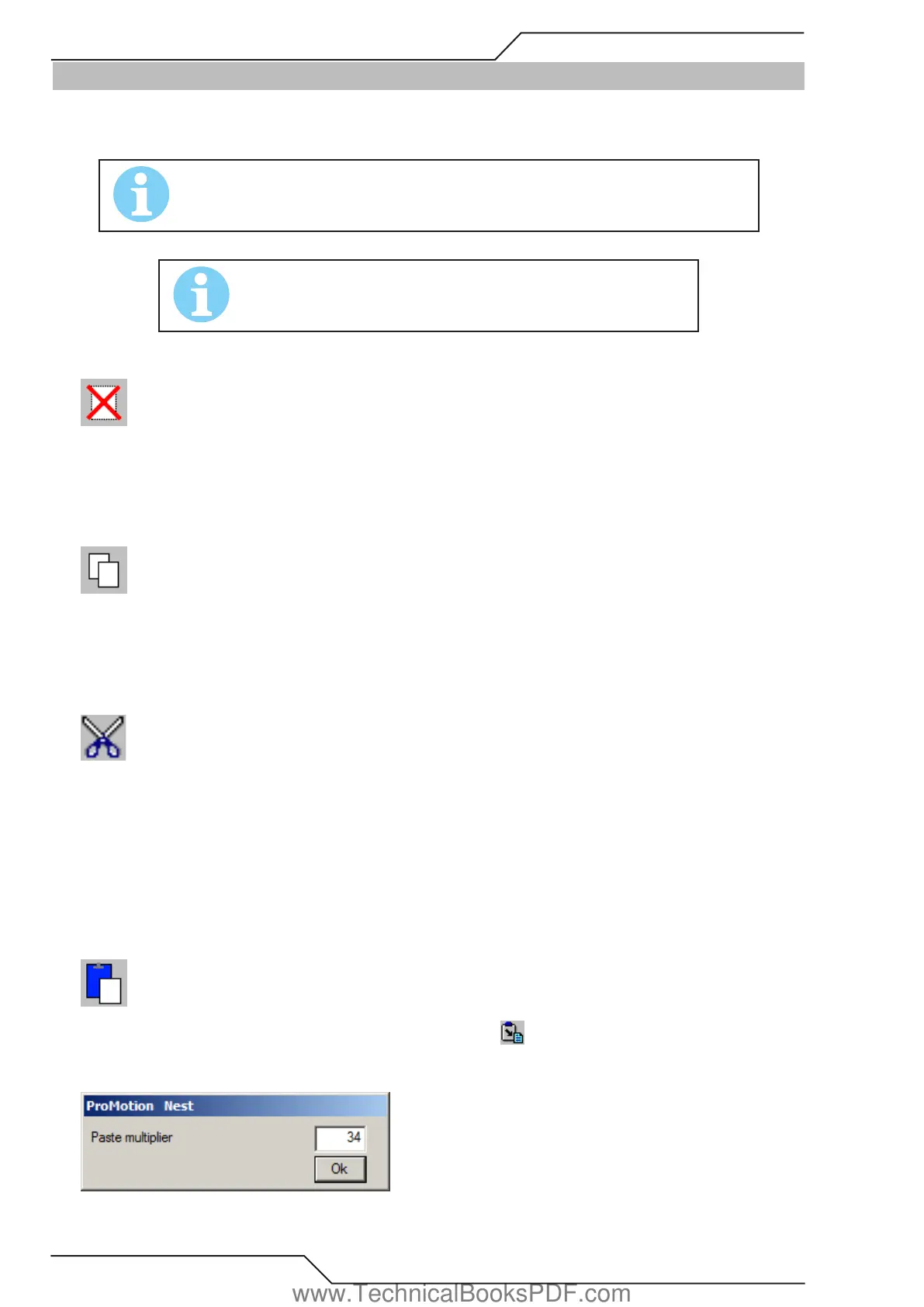
The left mouse button activates area deletion. Keep the left mouse button pressed down and move the mouse. A rectangle will follow
the movement of the mouse. When you release the left mouse button, all the profiles that are completely inside the rectangle will be
deleted. If you click the right mouse button, only a single element or a transferline point will be deleted.
5.5.2 Copy
This tool allows user to copy different objects to the clipboard from where she/he can paste them to any nesting. The object that is to
be copied can be chosen from the “Options” menu. There are two kinds of objects that can be copied: shapes and nestings. An object
can be copied by moving the mouse cursor over the part and clicking the left mouse button.
5.5.3 Cut
Use “Cut” to move shapes to the clipboard. You can paste shapes from the clipboard to nestings.
Follow these steps:
1. Activate the “Cut” tool by choosing “Cut” (see the picture above).
2. Press the left mouse button and keep it down. A focus rectangle appears.
3. Surround the shapes you want to cut with the focus rectangle and release the left mouse button.
5.5.4 Paste
Use this tool to paste the copied/cut objects to a nesting. When you choose a dialog window appears (see below). If you want
more than one copy, change the paste multiplier in the dialog window. The paste multiplier tells how many times the copied objects
are to be pasted. Click on the editing area and the objects are pasted.
www.TechnicalBooksPDF.com



 To Next Page